• Send Us A Tip
  • Calling all Tech Writers
  • Advertise
Tuesday, July 14, 2026
  • Login
TechStory
  • News
  • Crypto
  • Gadgets
  • Memes
  • Gaming
  • Cars
  • AI
  • Startups
  • Markets
  • How to
No Result
View All Result
  • News
  • Crypto
  • Gadgets
  • Memes
  • Gaming
  • Cars
  • AI
  • Startups
  • Markets
  • How to
No Result
View All Result
TechStory
No Result
View All Result
Home How to

How to broadcast on your XBOX One

by Srestha Roy
August 5, 2021
in How to
Reading Time: 2 mins read
0
How to broadcast on your XBOX One
TwitterWhatsappLinkedin

People like watching others play video games as much as they enjoy playing them themselves. Twitch, YouTube Gaming, and formerly Mixer’s success were proof of this. As a result, Microsoft added the option for Xbox One gamers to quickly and easily broadcast their games to Mixer.
You might also like

How To Get Hardwood In Palworld

How to speed up Windows without changing hardware?

How To Unlock World Tree In Palworld

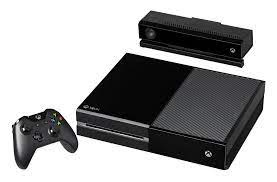
Source : Wikipedia

The Xbox One’s Broadcast feature was disabled after Microsoft announced that Mixer will be shutting down in June 2020. The reason for this was because Mixer was owned by Microsoft, therefore the Mixer account was simply linked to the Xbox Live account.

Due to Mixer’s demise — or, more accurately, its merger with Facebook — Microsoft has eliminated the ability to start broadcasting on Xbox One. It’s unclear whether this will resurface after Microsoft and Facebook’s cooperation has developed.

To enable game streaming on your Xbox One console, follow these steps, according to Microsoft Support:

  • To access the guide, hit the Xbox button, then go to Profile & system (your account symbol) > Settings on your Xbox One. Select Devices & Streaming > Device Connections from the drop-down menu. Allow additional devices to stream the game.
  • Then, under Xbox app, choose Allow connections from any device to stream games and TV to anybody on your home network. Select Only from accounts logged in on this Xbox to limit streaming to only a few individuals.

You may also use Twitch to stream or broadcast from your XBOX One.

Twitch is an online platform that allows people all over the globe to watch live video through the internet or through an app, similar to how baseball fans may watch their favourite team on TV. You’ll need to download the Twitch software on your Xbox One before you can start broadcasting to Twitch.

  • Use the controller to browse to the “Store” tab in the upper-right section of your Xbox One’s Home screen. When you’re there, go to the “Search” bar and hit the “A” button on your controller.
  • Type “Twitch” into the controller, and the Twitch app will display on the screen after a few moments. Press “A” on your controller after choosing the Twitch app.
  • Select “Get” and then press A once more. The Twitch app should start installing on its own.
  • You may start streaming once you’ve downloaded the Twitch app. To start the game, choose the game you wish to stream and hit the “A” button on your controller.
  • Press the Xbox button on your controller to launch the instructions whenever you’re ready to start broadcasting. Then, to start the Twitch app, select it and click “A” once again.
  • Navigate to the “BROADCAST” tab in the Twitch app and press “A” on your controller. Then, on the left side of the screen, pick the “Enter a title…” area and hit “A” once again. Type a name for your broadcast with the help of the  controller.
  • When you’re ready to start streaming, go to the “START STREAMING” button on your controller and press “A.” Then reopen the game you were previously playing, and you’ll be streaming in no time.

 

Tags: BroadcastStreamstreamingTwitchXboxXbox One
Tweet54SendShare15
Previous Post

Elon Musk is the highest paid CEO for third year in a row

Next Post

Facebook to host a paid documentary premiere this month

Srestha Roy

Recommended For You

How To Get Hardwood In Palworld

by Khilav Jadav
July 14, 2026
0
How to Level Up Quickly in Palworld

Hardwood is one of the most useful crafting materials in Palworld, the open-world survival and monster-collecting game developed by Pocketpair. While regular Wood is easy to gather from...

Read more

How to speed up Windows without changing hardware?

by Afeefa Ansari
July 14, 2026
0
Windows

Is Windows feeling stuck? We've got your back. Here are a few things you can try to speed up the performance of your Windows on PC without having...

Read more

How To Unlock World Tree In Palworld

by Khilav Jadav
July 14, 2026
0
How To Get Anti-Gravity Belt in Palworld

The World Tree is one of the biggest mysteries in Palworld, the open-world survival, crafting, and creature-collecting game developed by Pocketpair. From the moment players first notice the...

Read more
Next Post
Facebook

Facebook to host a paid documentary premiere this month

Please login to join discussion

Techstory

Tech and Business News from around the world. Follow along for latest in the world of Tech, AI, Crypto, EVs, Business Personalities and more.
reach us at info@techstory.in

Advertise With Us

Reach out at - info@techstory.in

Aviator Game India 2026

BROWSE BY TAG

#Crypto #howto 2024 acquisition AI amazon Apple Artificial Intelligence bitcoin Business China cryptocurrency e-commerce electric vehicles Elon Musk Ethereum facebook funding Gaming Google India Instagram Investment ios iPhone IPO Market Markets Meta Microsoft News OpenAI samsung Social Media SpaceX startup startups tech technology Tesla TikTok trend trending twitter US

© 2025 Techstory.in

No Result
View All Result
  • News
  • Crypto
  • Gadgets
  • Memes
  • Gaming
  • Cars
  • AI
  • Startups
  • Markets
  • How to

© 2025 Techstory.in

Welcome Back!

Login to your account below

Forgotten Password?

Retrieve your password

Please enter your username or email address to reset your password.

Log In
Are you sure want to unlock this post?
Unlock left : 0
Are you sure want to cancel subscription?