• Send Us A Tip
  • Calling all Tech Writers
  • Advertise
Wednesday, June 24, 2026
  • Login
TechStory
  • News
  • Crypto
  • Gadgets
  • Memes
  • Gaming
  • Cars
  • AI
  • Startups
  • Markets
  • How to
No Result
View All Result
  • News
  • Crypto
  • Gadgets
  • Memes
  • Gaming
  • Cars
  • AI
  • Startups
  • Markets
  • How to
No Result
View All Result
TechStory
No Result
View All Result
Home How to

How to create a group in Outlook

by Srestha Roy
September 22, 2021 - Updated On November 23, 2022
in How to
Reading Time: 2 mins read
0
How to create a group in Outlook
TwitterWhatsappLinkedin

If you often send email messages to the same set of individuals — for example, your boss and a few coworkers – you don’t have to manually enter their names to the To: line each time. Instead, establish a Contact Group and send your message to that group.
You might also like

How to use Deep Search on Perplexity?

How to use passkeys instead of passwords?

How to Protect Yourself from Deepfake Scams?

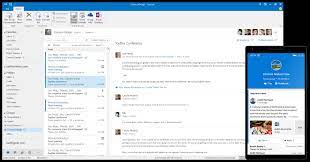
Source – Microsoft

A Contact Group in Microsoft Outlook may be used to handle contact lists with a few personal connections, email groups with dozens of teammates, or distribution lists with thousands of subscribers.

How to create a group email in Outlook

A Contact Group, often known as a “distribution list,” is a collection of names that you may add to an email message with a single click. You must first make one before you can include it to an email.

  • To go to the Contacts view, open Outlook and then click the Contacts icon in the lower left corner of the window.
  • Click “New Contact Group” on the ribbon bar.
  • In the Name area, give your Contact Group a name that’s easy to remember.
  • Click “Add Members” in the ribbon bar, then select “From Outlook Contacts” from the drop-down option. The dialogue window for selecting members should display.
  • To add a name to your new Contact Group, double-click it. The names should display at the bottom of the dialogue box.
  • Click “OK” after you’re through adding names to the group.
  • By clicking “Add Members” and selecting New E-mail Contact from the drop-down menu, you may manually add names to the Contact Group that aren’t currently in your Outlook contacts.
  • Click “Save & Close” in the ribbon bar.

How to send email to a group email in Outlook

You may establish as many Contact Groups as you desire by repeating those procedures. Just make sure you give them names you’ll remember so you can include them in email communications. To do so, just write the name of the group in the To:, CC:, or BCC: line of an email message, just as you would any other name from your Outlook contacts.

A tiny + symbol to the left of a Contact Group may be noticed. You may “expand” the list by clicking the plus symbol, which will show you the names of everyone in the group. Make sure you truly want to do that, because you won’t be able to compress all those names back down to a single item after you’ve expanded a group in an email message.

Related topic: The Free MS Outlook PST Viewer

Tags: BcCCEmailMicrosoftOutlook
Tweet54SendShare15
Previous Post

Used-car platform Kavak is Second-most valuable venture in Latin America

Next Post

Is Airbnb planning to accept crypto for payments ?

Srestha Roy

Recommended For You

How to use Deep Search on Perplexity?

by Afeefa Ansari
June 23, 2026
0
Perplexity

Need to dig out more information on Perplexity? Try using Deep Search. Here is how you can use Deep Search on the platform and make the best out...

Read more

How to use passkeys instead of passwords?

by Afeefa Ansari
June 23, 2026
0
Passkeys

Ever heard that your passwords aren't as safe? Try using passkeys instead. Here is how you can use passkeys instead of your passwords. Let us see how it...

Read more

How to Protect Yourself from Deepfake Scams?

by Afeefa Ansari
June 23, 2026
0
Deepfake scams

Want to keep yourself safe from Deepfake Scams? Then these are the steps that you need to follow. We shall discuss what the threats are and how one...

Read more
Next Post
Is Airbnb planning to accept crypto for payments ?

Is Airbnb planning to accept crypto for payments ?

Please login to join discussion

Techstory

Tech and Business News from around the world. Follow along for latest in the world of Tech, AI, Crypto, EVs, Business Personalities and more.
reach us at info@techstory.in

Advertise With Us

Reach out at - info@techstory.in

Aviator Game India 2026

BROWSE BY TAG

#Crypto #howto 2024 acquisition AI amazon Apple Artificial Intelligence bitcoin Business China cryptocurrency e-commerce electric vehicles Elon Musk Ethereum facebook funding Gaming Google India Instagram Investment ios iPhone IPO Market Markets Meta Microsoft News OpenAI samsung Social Media SpaceX startup startups tech technology Tesla TikTok trend trending twitter US

© 2025 Techstory.in

No Result
View All Result
  • News
  • Crypto
  • Gadgets
  • Memes
  • Gaming
  • Cars
  • AI
  • Startups
  • Markets
  • How to

© 2025 Techstory.in

Welcome Back!

Login to your account below

Forgotten Password?

Retrieve your password

Please enter your username or email address to reset your password.

Log In
Are you sure want to unlock this post?
Unlock left : 0
Are you sure want to cancel subscription?