• Send Us A Tip
  • Calling all Tech Writers
  • Advertise
Tuesday, July 28, 2026
  • Login
TechStory
  • News
  • Crypto
  • Gadgets
  • Memes
  • Gaming
  • Cars
  • AI
  • Startups
  • Markets
  • How to
No Result
View All Result
  • News
  • Crypto
  • Gadgets
  • Memes
  • Gaming
  • Cars
  • AI
  • Startups
  • Markets
  • How to
No Result
View All Result
TechStory
No Result
View All Result
Home How to

 How to pair FireStick remote to TV?

by Chhavideep Singh
July 25, 2022
in How to
Reading Time: 2 mins read
0
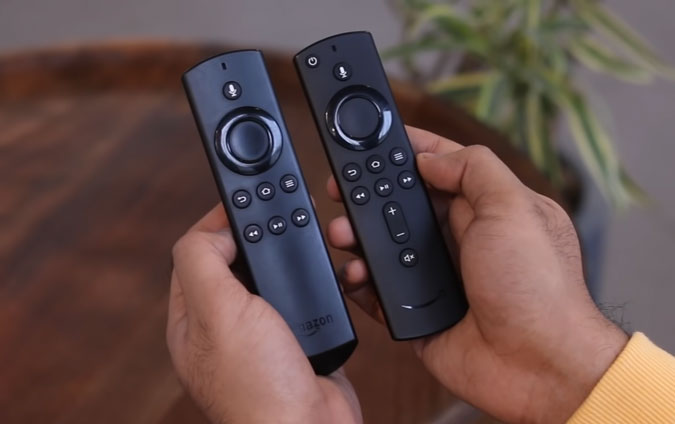
FireStick remote

Credits: TechWiser

TwitterWhatsappLinkedin
FireStick remote
Credits:
TechWiser

The most common setup these days is to have a Smart TV or a non-smart TV with Amazon Firestick like multimedia device that can turn your normal TV into a Netflix and Amazon Prime enabling Smart TV. However, you may experience the everyday hassle of balancing between the two devices’ remotes. One remote to turn your TV on and off and switch between the local channels on TV, while the other remote is for controlling your smart device settings, for example- browsing Netflix on your Amazon FireTV Stick. The point being that the experience is not as seamless as it should actually be and there is a way by which you can eliminate your normal TV remote and control everything with your Amazon FireStick remote.

You might also like

How To Get & Use Message In A Bottle In Path Of Exile

How To Create A Minecraft Server

How To Enable Performance Mode In Fortnite

Pairing your Amazon FireStick remote to your device is not that difficult, and once you do it, you can turn your TV on and off, control volumes and switch between channels with one single remote. Problem solved! No need for you to carry around two different TV remotes- one is enough!

How to pair Amazon FireStick remote to TV?

There are a couple of ways with which you can synchronize your FireStick remote to your TV, but I will tell you about the easiest steps on how you can achieve your goal. However, there is only one condition that you need to look out for and that is HDMI CEC option on your traditional TV.

Follow these below mentioned steps to pair your FireStick remote to your non-smart TV:

  1. Press the Home Button on your FireStick remote and hold it for about 10 seconds.
  2. The LED light on the Home Button will begin to blink, indicating that it is searching for a TV to pair with.
  3. Go to FireStick remote home screen > Settings >Display and Audio > HDMI CEC Device Control- Turn this option ‘On’.
  4. Click on the Menu button on your non-smart TV > Settings > System > HDMI CEC Control > enable this option like we have already done on FireStick remote.
  5. Once you have enabled the HDMI CEC option, both on your FireStick and TV, check if the FireStick remote’s LED lights have turned to three blue lights. If yes, this means that your remote that found a TV and has paired with it.

Voila! In just five easy steps, you will now be able to control your non-smart TV with your Amazon FireStick remote. No more hustling to find the right remote for your TV! For those of you who don’t know, FireStick also has an option to allow users to add more than one remote. This feature can come in handy when you have misplaced or lost your original remote or the batteries went out. Having an additional remote on your bedside drawer won’t harm. What do you think?

Tags: amazon firestickFireStick remotenon-smart TV
Tweet56SendShare16
Previous Post

Elden Ring Is Getting A Tabletop RPG

Next Post

How to force stop an app on iPhone?

Chhavideep Singh

Hi! I'm Chhavideep, If you like reading about technology, business and start-ups, you've come to the right place. Catch me: chhavideep@connasys.com

Recommended For You

How To Get & Use Message In A Bottle In Path Of Exile

by Khilav Jadav
July 28, 2026
0
How to Find a Corrupted Nexus in Path of Exile 2

Message in a Bottle is one of the newest and most exciting reward items added to Path of Exile. Introduced alongside the Curse of the Allflame league content,...

Read more

How To Create A Minecraft Server

by Khilav Jadav
July 28, 2026
0
How to Download Mods for Minecraft

Creating your own server in Minecraft: Java Edition is one of the best ways to enjoy the game with friends. Instead of joining someone else’s world, you get...

Read more

How To Enable Performance Mode In Fortnite

by Khilav Jadav
July 28, 2026
0

If you want smoother gameplay and higher frame rates, Performance Mode is one of the best settings available in Fortnite. Developed by Epic Games, Fortnite includes this special...

Read more
Next Post
iPhone

How to force stop an app on iPhone?

Please login to join discussion

Techstory

Tech and Business News from around the world. Follow along for latest in the world of Tech, AI, Crypto, EVs, Business Personalities and more.
reach us at info@techstory.in

Advertise With Us

Reach out at - info@techstory.in

Aviator Game India 2026

BROWSE BY TAG

#Crypto #howto 2024 acquisition AI amazon Apple Artificial Intelligence bitcoin Business China cryptocurrency e-commerce electric vehicles Elon Musk Ethereum facebook funding Gaming Google India Instagram Investment ios iPhone IPO Market Markets Meta Microsoft News OpenAI samsung Social Media SpaceX startup startups tech technology Tesla TikTok trend trending twitter US

© 2025 Techstory.in

No Result
View All Result
  • News
  • Crypto
  • Gadgets
  • Memes
  • Gaming
  • Cars
  • AI
  • Startups
  • Markets
  • How to

© 2025 Techstory.in

Welcome Back!

Login to your account below

Forgotten Password?

Retrieve your password

Please enter your username or email address to reset your password.

Log In
Are you sure want to unlock this post?
Unlock left : 0
Are you sure want to cancel subscription?