• Send Us A Tip
  • Calling all Tech Writers
  • Advertise
Sunday, June 21, 2026
  • Login
TechStory
  • News
  • Crypto
  • Gadgets
  • Memes
  • Gaming
  • Cars
  • AI
  • Startups
  • Markets
  • How to
No Result
View All Result
  • News
  • Crypto
  • Gadgets
  • Memes
  • Gaming
  • Cars
  • AI
  • Startups
  • Markets
  • How to
No Result
View All Result
TechStory
No Result
View All Result
Home How to

How to free up space on the iPhone?

by Chhavideep Singh
August 8, 2022
in How to
Reading Time: 2 mins read
0
Apple Support

Credits: Apple Support

TwitterWhatsappLinkedin
 Apple Support
Credits:
Apple Support

iPhones can be a pain in the bum when its storage gets full. Everything you do, there is a pop-up saying iPhone storage is low, please free up space on your iPhone. It is too frustrating to deal with iPhone’s low storage when you are in the middle of doing something important and this message pops up. It is annoying and with the size of the applications and games that we have on the App Store these days, it is so much easier to fill 64GB of storage and even 128GB Storage seems less because the photos and videos clicked from an iPhone are heave in size. So, if you are out there wanting to buy an iPhone, I would highly recommend that you go with minimum storage of 128GB because anything below that is too less. You will be prompted with “Storage Almost Full” error sooner or later.

You might also like

How To Optimize Windows For Gaming

How To Increase Steam Download Speed

How To Get The Xenophage Catalyst In Destiny 2

However, it is not always the apps or photos that is filling up your storage. I can bet that there will be data filling up your storage that you don’t actually need. It might be the media on your WhatsApp that you do not need. Someone might have sent you videos from family groups with heavy file size. It could be taking up a lot of storage on your iPhone. Delete that and see what remains. Do this check for all the apps that you have. Do a manual clean up first!

How to free up space on the iPhone?

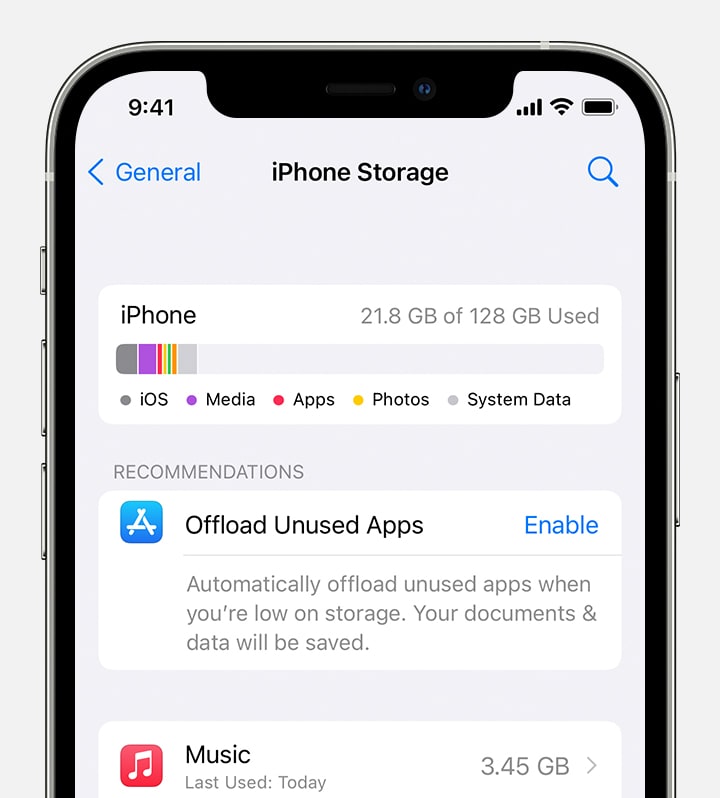
It is very important to find out where your iPhone is filling out the valuable storage. So, follow the below mentioned steps to free up space on the iPhone.

  1. Unlock iPhone.
  2. Go to Settings > General > iPhone Storage.
  3. At the top of the screen, you will see a colour coded bifurcation of what is taking the maximum storage on your iPhone. These will be categories like Photos and Videos, Documents and Apps.
  4. Below that bar, there is a whole list of apps installed on your iPhone with the figures on how much space they are taking up. It will automatically be sorted in the highest to lowest storage consumed.

The top five ways to free up space on your iPhone are:

  1. Clean your photo library. Keep what you want, delete what you do not want!
  2. Clear browser cache from Safari Settings.
  3. Clear app cache and unwanted app data from all installed apps.
  4. Delete unwanted images and attachments in WhatsApp and iMessages.
  5. Delete content like movies and other offline content, if you have it loaded on the iPhone.

If you follow this, I am sure you will be able to free up enough space to avoid that error message.


Tags: iPhoneStorage
Tweet55SendShare15
Previous Post

How to make a ringtone on an iPhone?

Next Post

How to lock apps on Android?

Chhavideep Singh

Hi! I'm Chhavideep, If you like reading about technology, business and start-ups, you've come to the right place. Catch me: chhavideep@connasys.com

Recommended For You

How To Optimize Windows For Gaming

by Khilav Jadav
June 20, 2026
0
Microsoft’s 10-Year Call of Duty Deal Raises Questions About Performance Parity

Modern Windows computers are powerful enough to run demanding games, but poor settings and unnecessary background tasks can still affect performance. A few simple adjustments can help improve...

Read more

How To Increase Steam Download Speed

by Khilav Jadav
June 20, 2026
0
How to Link EA Account to Steam

Steam is one of the most popular platforms for PC gaming, but slow download speeds can quickly become frustrating. Whether you are downloading a new title, updating an...

Read more

How To Get The Xenophage Catalyst In Destiny 2

by Khilav Jadav
June 20, 2026
0
How To Summon Pauurc in Destiny 2

Destiny 2 players finally have a reason to revisit one of the game's most iconic Exotic heavy weapons. The Xenophage Catalyst has been added, giving the powerful machine...

Read more
Next Post
AppLock

How to lock apps on Android?

Please login to join discussion

Techstory

Tech and Business News from around the world. Follow along for latest in the world of Tech, AI, Crypto, EVs, Business Personalities and more.
reach us at info@techstory.in

Advertise With Us

Reach out at - info@techstory.in

Aviator Game India 2026

BROWSE BY TAG

#Crypto #howto 2024 acquisition AI amazon Apple Artificial Intelligence bitcoin Business China cryptocurrency e-commerce electric vehicles Elon Musk Ethereum facebook funding Gaming Google India Instagram Investment ios iPhone IPO Market Markets Meta Microsoft News OpenAI samsung Social Media SpaceX startup startups tech technology Tesla TikTok trend trending twitter US

© 2025 Techstory.in

No Result
View All Result
  • News
  • Crypto
  • Gadgets
  • Memes
  • Gaming
  • Cars
  • AI
  • Startups
  • Markets
  • How to

© 2025 Techstory.in

Welcome Back!

Login to your account below

Forgotten Password?

Retrieve your password

Please enter your username or email address to reset your password.

Log In
Are you sure want to unlock this post?
Unlock left : 0
Are you sure want to cancel subscription?