• Send Us A Tip
  • Calling all Tech Writers
  • Advertise
Monday, July 6, 2026
  • Login
TechStory
  • News
  • Crypto
  • Gadgets
  • Memes
  • Gaming
  • Cars
  • AI
  • Startups
  • Markets
  • How to
No Result
View All Result
  • News
  • Crypto
  • Gadgets
  • Memes
  • Gaming
  • Cars
  • AI
  • Startups
  • Markets
  • How to
No Result
View All Result
TechStory
No Result
View All Result
Home Gaming

How To Take Screenshots in Steam Deck

by Indrajeet Giram
December 23, 2022
in Gaming, Tech
Reading Time: 2 mins read
0
How To Take Screenshots in Steam Deck

How To Take Screenshots in Steam Deck

TwitterWhatsappLinkedin

The feature of screenshots is considered one of the most important parameters in recording the gameplay of Gamers. With the help of these features, the user will be able to record their in-game photos along with more features were enjoying the game.

You might also like

How to get coin bags in Pokémon Go?

Why Home Charging Is Cheaper Than Public Charging

OpenID Connect Explained: A Simple Guide to How Modern Login Systems Work

This feature was not available by now Steam but thankfully this feature has been introduced into Steam Deck in its new version. With this new feature taking much will be able to take a few clicks with the help of just a few buttons on the system while enjoying the gameplay.

The process of taking screenshots at the stream deck

The player will be able to screenshot while enjoying the game at any moment the while game is running on the device and as the device is turned on. if the user is not able to work on taking a shot of a particularly vital moment in the game or capture some of the important options in the game then it is considerably tough for the user to get back to those moments where is in the game.

The player will be able to work upon the option of the screenshot as the player can locate the Steam button which is available at the front section of the steam deck. Once the player can locate the steam button then the next time the player will be required to locate the R1 button which is available on the right-hand shoulder of the same device.
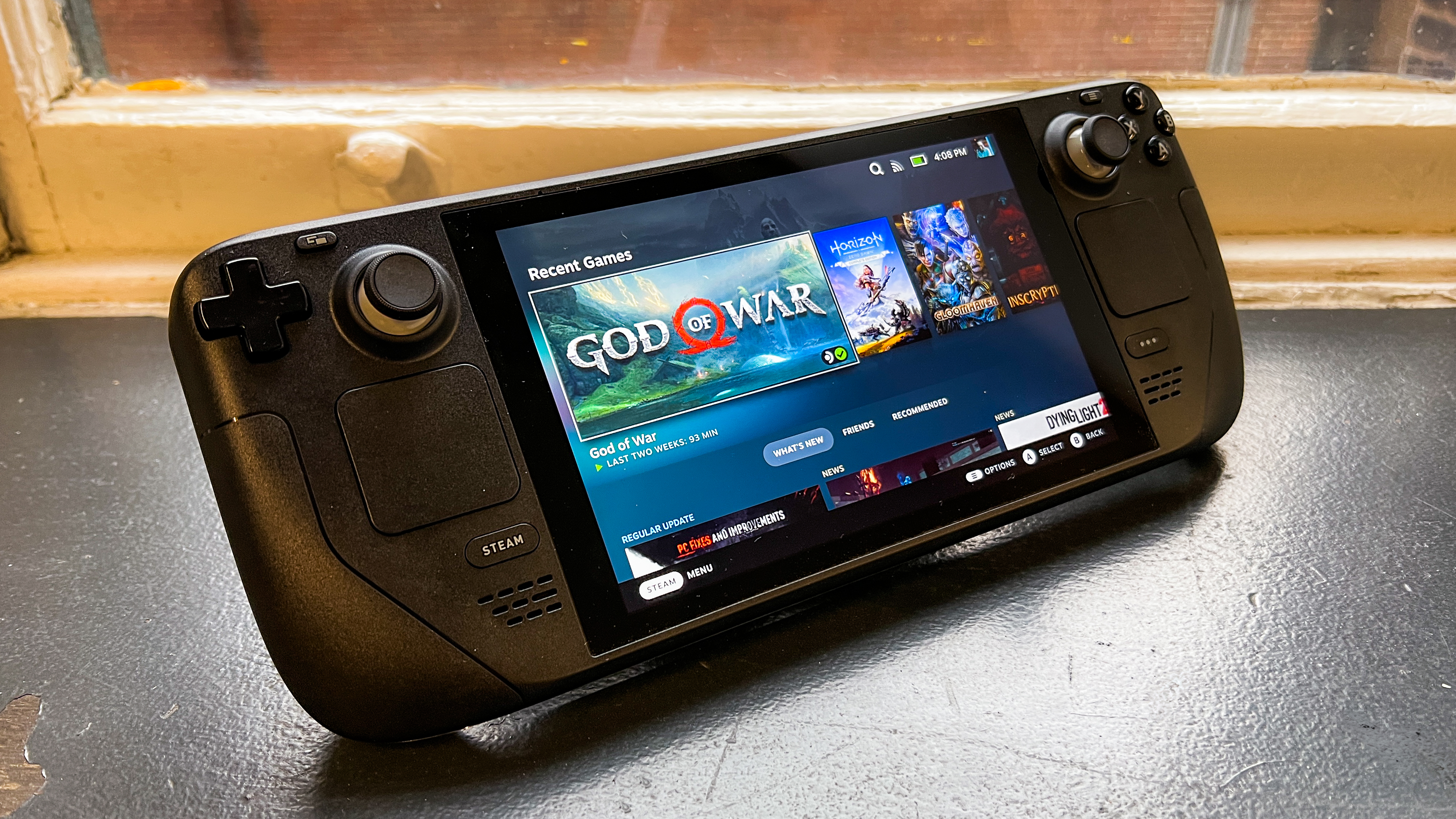
How To Take Screenshots in Steam Deck
source : cnet.com

In the next step the player will be required to press the steam button and R1 button both together. Once the prayer has been done with that then the steam deck will notify the player that a player has been able to take a screenshot and this field be visible at the bottom right side of the screen along with the preview of the screenshot that has bill taken by the player while enjoying the game.

As the player is done with capturing the screenshot then the player will be able to access this screenshot in the image gallery of steam by pressing the steam button and selecting the media option on the device. In the next instance, the screen will be visible to the player along with all the screenshots that have been captured by the player.

At this moment the player will be required to press the L1 and R1 buttons so that the player will be able to access all the public and private images that have been captured by the user from the game.


Tags: 99GamesApple inc. V/s Epic GamesCyberpunk 2077 PS5Elden Ring Steam DeckEpic GamesPS4 2025Steam Deck
Tweet54SendShare15
Previous Post

Fired Twitter employee says the company sent the termination notice to his wife’s email instead of his own

Next Post

How To Dye Armor in The Witcher 3

Indrajeet Giram

? Avid reader ?constant learner curious analyzer @ everything ?Business & Economic Journalist ✍️

Recommended For You

How to get coin bags in Pokémon Go?

by Afeefa Ansari
July 6, 2026
0
Coin Bags

Do you want to get a coin bag in Pokémon Go? Follow the guide to know how you can get this item in the game and then use...

Read more

Why Home Charging Is Cheaper Than Public Charging

by Samir Gautam
July 6, 2026
0
Why Home Charging Is Cheaper Than Public Charging

The rapid growth of electric vehicles has transformed the way people think about mobility. Instead of stopping at fuel stations every week, many EV owners now begin each...

Read more

OpenID Connect Explained: A Simple Guide to How Modern Login Systems Work

by Sneha Singh
July 6, 2026
0
OpenID Connect Explained: A Simple Guide to How Modern Login Systems Work

Nowadays, most websites and applications allow you to authenticate yourself through your Google, Microsoft, Apple, or Facebook account. Thus, there is no need to come up with a...

Read more
Next Post
How To Dye Armor in The Witcher 3

How To Dye Armor in The Witcher 3

Please login to join discussion

Techstory

Tech and Business News from around the world. Follow along for latest in the world of Tech, AI, Crypto, EVs, Business Personalities and more.
reach us at info@techstory.in

Advertise With Us

Reach out at - info@techstory.in

Aviator Game India 2026

BROWSE BY TAG

#Crypto #howto 2024 acquisition AI amazon Apple Artificial Intelligence bitcoin Business China cryptocurrency e-commerce electric vehicles Elon Musk Ethereum facebook funding Gaming Google India Instagram Investment ios iPhone IPO Market Markets Meta Microsoft News OpenAI samsung Social Media SpaceX startup startups tech technology Tesla TikTok trend trending twitter US

© 2025 Techstory.in

No Result
View All Result
  • News
  • Crypto
  • Gadgets
  • Memes
  • Gaming
  • Cars
  • AI
  • Startups
  • Markets
  • How to

© 2025 Techstory.in

Welcome Back!

Login to your account below

Forgotten Password?

Retrieve your password

Please enter your username or email address to reset your password.

Log In
Are you sure want to unlock this post?
Unlock left : 0
Are you sure want to cancel subscription?