

Minecraft, the beloved sandbox game, offers endless possibilities for creativity and adventure. One of the best ways to enhance your Minecraft experience is by incorporating mods—modifications that introduce new features, mechanics, and content to the game. Whether you’re looking to add new creatures, improve graphics, or expand your crafting capabilities, mods can transform your gameplay. Here’s a comprehensive guide on how to download and install Minecraft mods safely and efficiently.
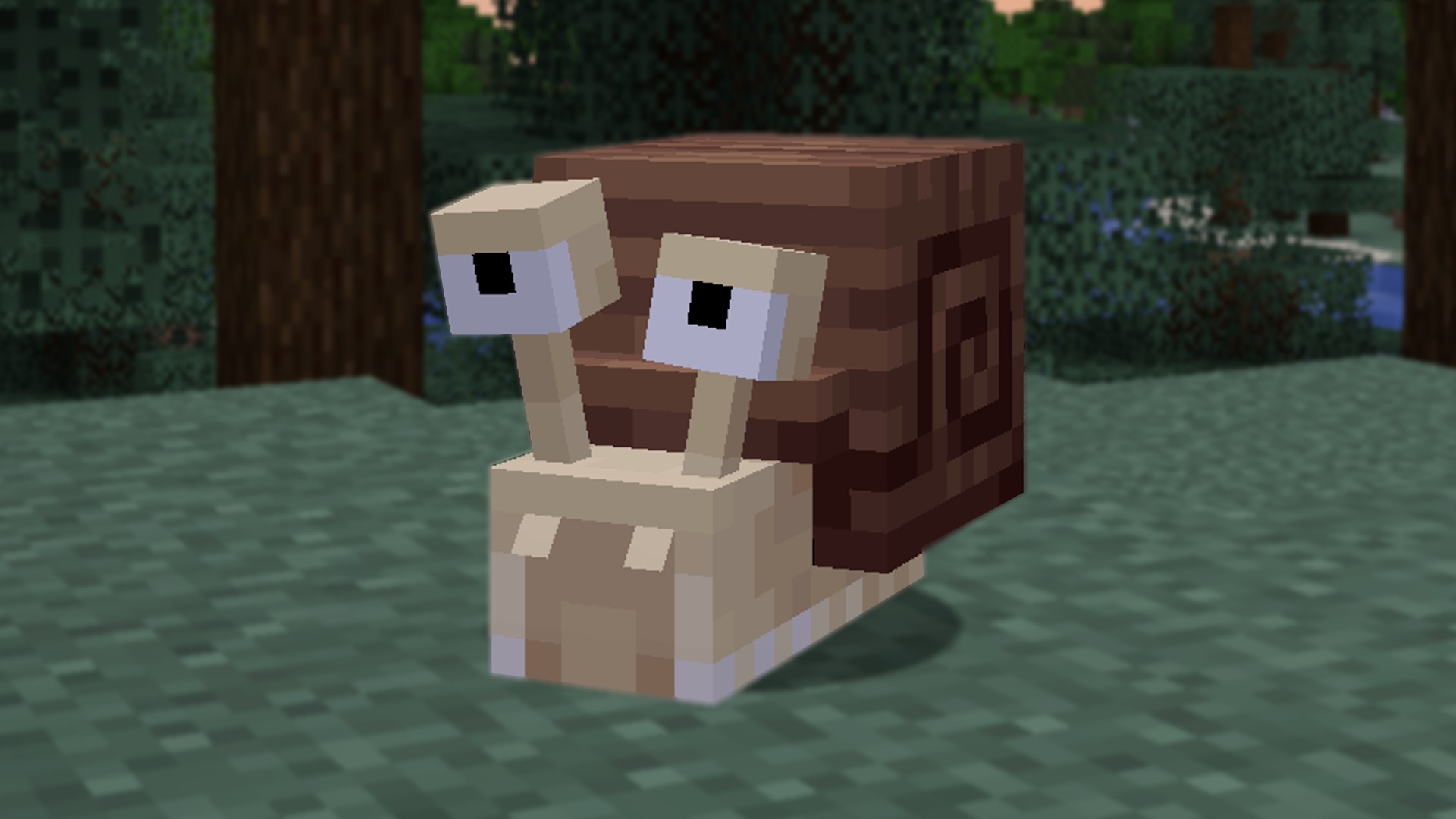
Mods are user-created content that alter or add to the game’s original features. They can range from simple changes, like new items or textures, to complex additions, such as new game mechanics or entire worlds. Before diving into the world of mods, it’s essential to understand that they are primarily designed for the Java Edition of Minecraft. Players using other editions may have limited or no access to mods.
Preparing for Mod Installation
Before you start downloading mods, there are a few preparatory steps to ensure a smooth installation process:
- Backup Your Game Data: Modding can sometimes lead to unexpected issues. It’s wise to back up your worlds and game data to prevent any potential loss.
- Update Java: Since Minecraft runs on Java, ensure that you have the latest version installed on your computer. This helps in running the game and mods more efficiently.
- Choose a Mod Loader: Mods require a mod loader to function. The two most popular mod loaders are:
- Forge: A widely-used mod loader known for its extensive mod support.
- Fabric: A lightweight and fast mod loader that’s gaining popularity.
- Your choice between Forge and Fabric will depend on the mods you plan to use, as some mods are compatible only with one of these loaders.
Installing a Mod Loader
Here’s how to install a mod loader:
Installing Forge
- Download Forge: Visit the official Forge website and download the installer corresponding to your Minecraft version.
- Run the Installer: Open the downloaded file. A window will appear; select “Install Client” and click “OK.”
- Launch Minecraft with Forge: Open the Minecraft Launcher. In the bottom-left corner, click the dropdown menu and select the profile labeled “Forge.” Click “Play” to start the game with Forge enabled.
Installing Fabric
- Download Fabric Installer: Go to the official Fabric website and download the installer.
- Run the Installer: Open the downloaded file. Select your Minecraft version and click “Install.”
- Install Fabric API: Many Fabric mods require the Fabric API. Download it from the Fabric website and place the .jar file into your “mods” folder (explained below).
- Launch Minecraft with Fabric: Open the Minecraft Launcher, select the profile labeled “Fabric,” and click “Play.”
Finding and Downloading Mods
With your mod loader installed, you’re ready to find and download mods:
- Choose Reputable Mod Sources: Download mods from trusted websites to avoid malware. Popular sources include CurseForge and Planet Minecraft.
- Check Mod Compatibility: Ensure that the mods you download are compatible with your Minecraft version and chosen mod loader (Forge or Fabric).
- Download the Mod Files: Once you’ve selected a mod, download the .jar file to a location you can easily access, like your desktop or a dedicated “Mods” folder.
Installing Mods
After downloading your desired mods, follow these steps to install them:
- Locate the Minecraft Directory:
- Windows: Press Win + R, type %appdata%.minecraft, and press Enter.
- macOS: Open Finder, press Command + Shift + G, type ~/Library/Application Support/minecraft, and press Enter.
- Find or Create the ‘mods’ Folder: In the Minecraft directory, look for a folder named “mods.” If it doesn’t exist, create a new folder and name it “mods” (all lowercase).
- Place Mod Files into the ‘mods’ Folder: Move the downloaded .jar files of your mods into the “mods” folder.
- Launch Minecraft: Start the Minecraft Launcher, select the profile with your mod loader (Forge or Fabric), and click “Play.”
- Verify Mod Installation: Once the game loads, you can check if the mods are active:
- Forge: Click on the “Mods” option in the main menu to see a list of installed mods.
- Fabric: Fabric doesn’t have a built-in mod list, but you can install additional mods like “Mod Menu” to view your installed mods.



