• Send Us A Tip
  • Calling all Tech Writers
  • Advertise
Tuesday, June 16, 2026
  • Login
TechStory
  • News
  • Crypto
  • Gadgets
  • Memes
  • Gaming
  • Cars
  • AI
  • Startups
  • Markets
  • How to
No Result
View All Result
  • News
  • Crypto
  • Gadgets
  • Memes
  • Gaming
  • Cars
  • AI
  • Startups
  • Markets
  • How to
No Result
View All Result
TechStory
No Result
View All Result
Home Gaming

How to play steam games on Oculus Quest 2?

by Chhavideep Singh
July 22, 2022
in Gaming, How to
Reading Time: 2 mins read
0
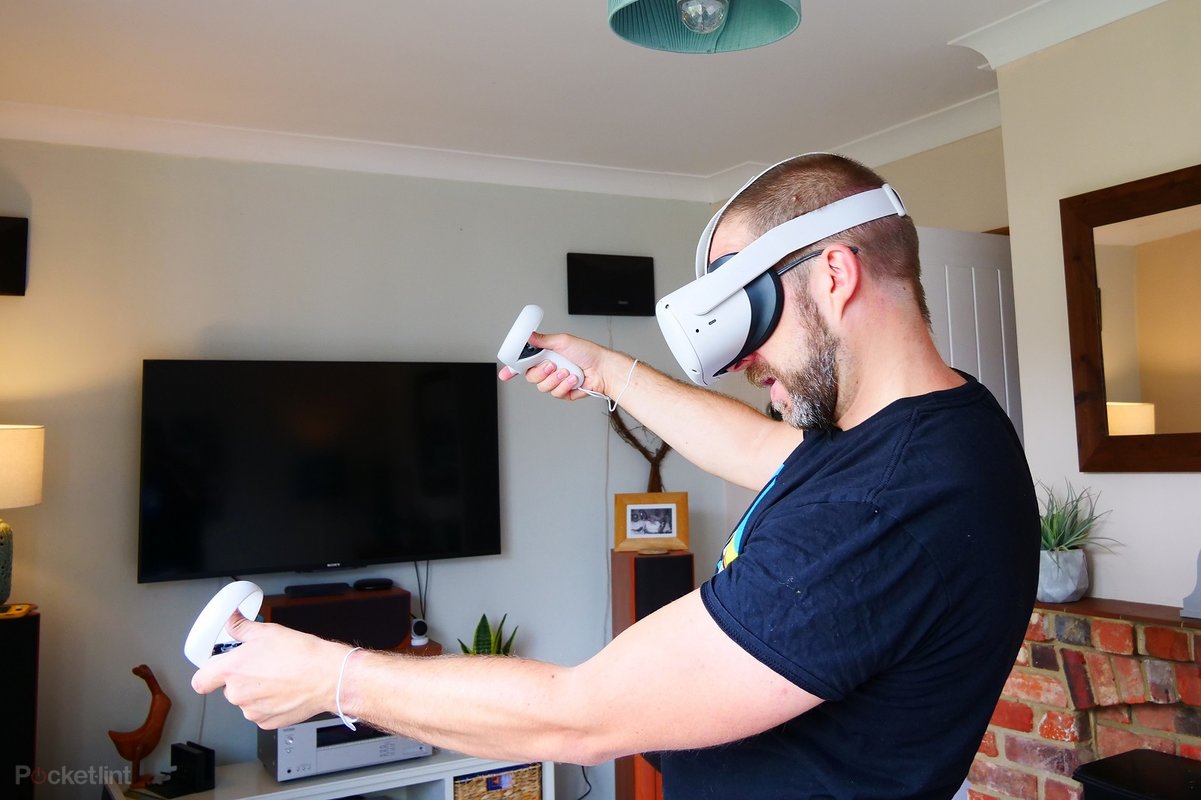
Oculus Quest 2

Credits: Pocket-lint

TwitterWhatsappLinkedin
Oculus Quest 2
Credits:
Pocket-lint

Virtual Reality or VR has taken an altogether new leap in the gaming industry, and we cannot tell you the experience of how it feels to play games wearing an Oculus Quest headset. The experience is one of a kind, especially when you have grown up playing GTA San Andreas on your PC.

You might also like

How to find some ChatGPT alternatives for students?

How to humanize AI text for free?

How to cancel a subscription on an iPhone?

The Oculus Quest and Oculus Quest 2 are owned by Meta, formerly known as Facebook. So, it is easy to say that this is the technology of the future and gaming is going to take a huge leap in the industry.

The Quest 2 has its own games, but you can also steam games on your Quest 2 by connecting it with a PC wirelessly.

Nevertheless, the process of connecting your Quest 2 with your PC is anything but simple.

But don’t worry! I will help you connect your Oculus Quest 2 with your PC in just a few simple steps.

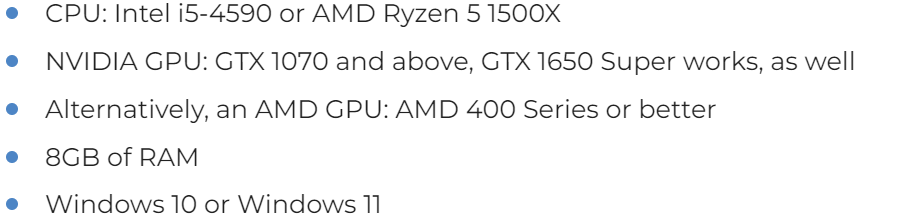
  1. Check for PC requirements:
PC requirement
Credits: Alphr
  1. Wireless Connection is the most appropriate on Quest 2 as opposed to a recommended wired connection on Oculus Quest.

The name of the setting is “Oculus Air Link”, and this allows you to connect your Meta gaming console to your PC wirelessly for a seamless gaming experience.

  1. Open Quest 2 app > Settings > ‘Beta’
  2. There you will see the option to toggle on ‘Air Link’– Do it!
  3. Put on your Quest 2 headset and press on the Oculus button.
  4. Click on “Oculus Air Link” > Search for your PC and press “Launch”.
  5. Go to the Home Menu> Select Desktop button> Click on “Steam”.
  6. Now, access your Steam VR games and you are good to go!

Follow these above-mentioned steps to connect your Oculus Quest 2 to your PC wirelessly via Air Link. However, wireless connectivity comes with one and only one condition, and that is a steady high speed Wifi internet connection.

Any type of lag in your internet connectivity can ruin your overall gaming experience on the Quest 2. In that case, you might have to connect your Oculus 2 with your PC using a wired connection, but it is not that convenient once you are used to a wireless gameplay.

Just imagine using your wired earphones after experiencing Airpods.

Games to play on your Oculus Quest 2:

My personal favourite games on the Oculus Quest 2 are:

  • Population:One
  • Half-Life: Alyx
  • Another World


What are your some of your favourite games to play on Quest 2? Please do let us know in the comments down below.




Tags: OculusOculus Quest 2PCSteam GamesWireless
Tweet55SendShare15
Previous Post

Should You Add Your Teenager to Your Auto Insurance Policy?

Next Post

How to get grid on iPhone camera?

Chhavideep Singh

Hi! I'm Chhavideep, If you like reading about technology, business and start-ups, you've come to the right place. Catch me: chhavideep@connasys.com

Recommended For You

How to find some ChatGPT alternatives for students?

by Afeefa Ansari
June 15, 2026
0
AI and students

Bored of using ChatGPT? Here are some other options you can try, especially if you are a student. Let's get you started and see some good alternatives that...

Read more

How to humanize AI text for free?

by Afeefa Ansari
June 15, 2026
0
Humanize text

Do you want to humanize your AI content for free? Here is how you can do it without spending any money. So, let's dive into it and see...

Read more

How to cancel a subscription on an iPhone?

by Afeefa Ansari
June 15, 2026
0
Iphone susbcriptions

Here is how you can cancel literally any subscription on your iPhone. Follow the guide to get the right method of doing so, which will only take a...

Read more
Next Post
Grids on iPhone

How to get grid on iPhone camera?

Please login to join discussion

Techstory

Tech and Business News from around the world. Follow along for latest in the world of Tech, AI, Crypto, EVs, Business Personalities and more.
reach us at info@techstory.in

Advertise With Us

Reach out at - info@techstory.in

Aviator Game India 2026

BROWSE BY TAG

#Crypto #howto 2024 acquisition AI amazon Apple Artificial Intelligence bitcoin Business China cryptocurrency e-commerce electric vehicles Elon Musk Ethereum facebook funding Gaming Google India Instagram Investment ios iPhone IPO Market Markets Meta Microsoft News OpenAI samsung Social Media SpaceX startup startups tech technology Tesla TikTok trend trending twitter US

© 2025 Techstory.in

No Result
View All Result
  • News
  • Crypto
  • Gadgets
  • Memes
  • Gaming
  • Cars
  • AI
  • Startups
  • Markets
  • How to

© 2025 Techstory.in

Welcome Back!

Login to your account below

Forgotten Password?

Retrieve your password

Please enter your username or email address to reset your password.

Log In
Are you sure want to unlock this post?
Unlock left : 0
Are you sure want to cancel subscription?