Today, after I inserted my SanDisk 64GB SD card to my MacBook Pro, I noticed something unusual – the SD card doesn’t show up in Mac’s Finder. Then I checked the Disk Utility and found the SD card was not mounted successfully. You may come across the same issue, so I want to share my experience about how I fixed SD card not working problem on Mac. I hope this post can help make your SD card work correctly again and save your data on it as well.
Restart the Mac
Rebooting a computer works amazingly in solving issues related to Internet connectivity, slow performance, or malfunctioning programs. To help the macOS pick up my SD card, I detached the SD card and restarted the Mac. It worked before but, unfortunately, it didn’t help this time.
Check the connection
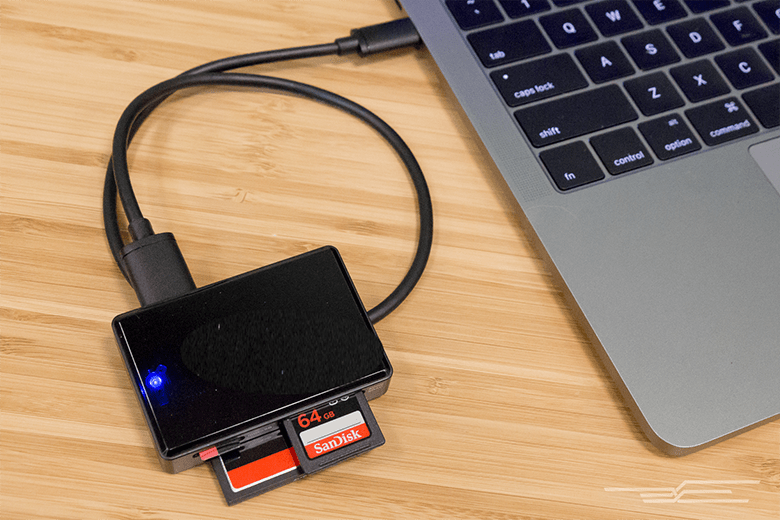
The next thing I did was to check the connection between my SD card and my MacBook Pro, because I knew a poor connection would result in the macOS not recognizing the SD card. I took the SD card out of the Mac’s card slot and reattached it to the computer through a good card reader. I found the SD card was still not mounted as well as not show up in the Finder.
Well, things became sticky after those basic actions failed, as I knew that my SD card probably had logical damages that stopped the macOS from mounting it.
Run First Aid
As a user who has been using Macs for years, First Aid is nothing new to me. It is a tool included in Disk Utility for checking and repairing disk errors. It can be used both for internal and external disks. Even though it can be run in Recovery Mode for Mac’s hard drive, it works very little in that situation. However, it is also suggested that running First Aid for external disks that doesn’t work properly. I selected the SD card in the left panel of Disk Utility and hit the “First Aid” at the top. Not surprisingly, it failed to fix my SD card. Don’t worry. I finally got my SD card back to the way it should be by erasing it.
Erase the SD card
I was not very clear about what caused the corruption of my SD card. It could be a consequence from an unsafe ejection from the computer last time, or from unaware installations of malware. I had a habit of backing up the photos from SD card regularly on my Mac, but before I could move the latest photos to the Mac the SD card was corrupted. I was concerned about the erasing would delete the latest photos I took, so I used a data recovery software called iBoysoft Data Recovery for Mac to recover the photos first. I used the tool to recover files from my Seagate hard drive before and it worked very well.
For those who didn’t hear of iBoysoft Data Recovery for Mac, here is a brief introduction. iBoysoft Data Recovery for Mac is a comprehensive data recovery application on Mac platform. It is efficient and effective in recovering any types of files like photos, documents, and videos from Macintosh HD and removeable disk like SD cards, external HDDs and USB flash drives. It can deal with any data loss situations including accidental deletion, mistaken formatting, disk corruption, or malware attacks. It has excellent success rate of data recovery and perfectly compatible with the newest macOS 10.15.
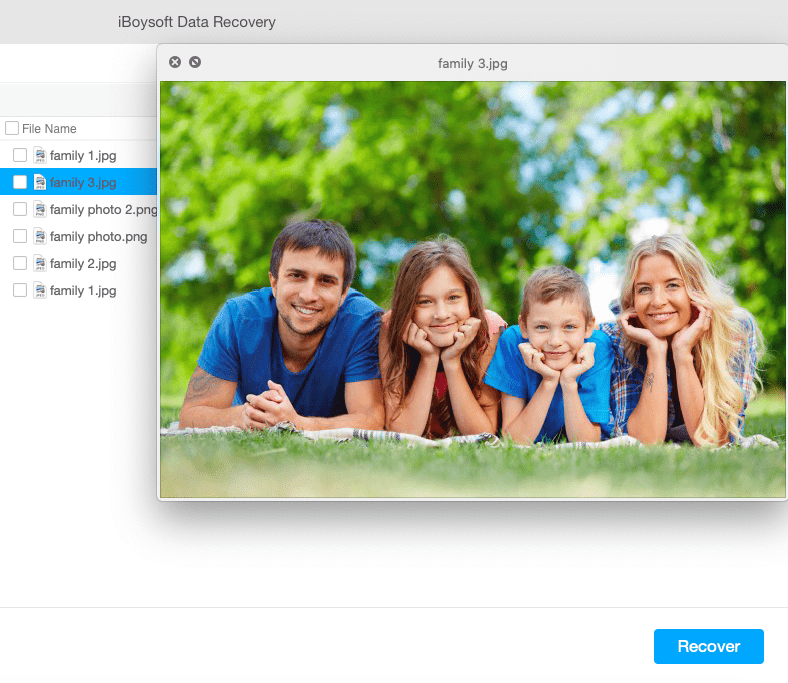
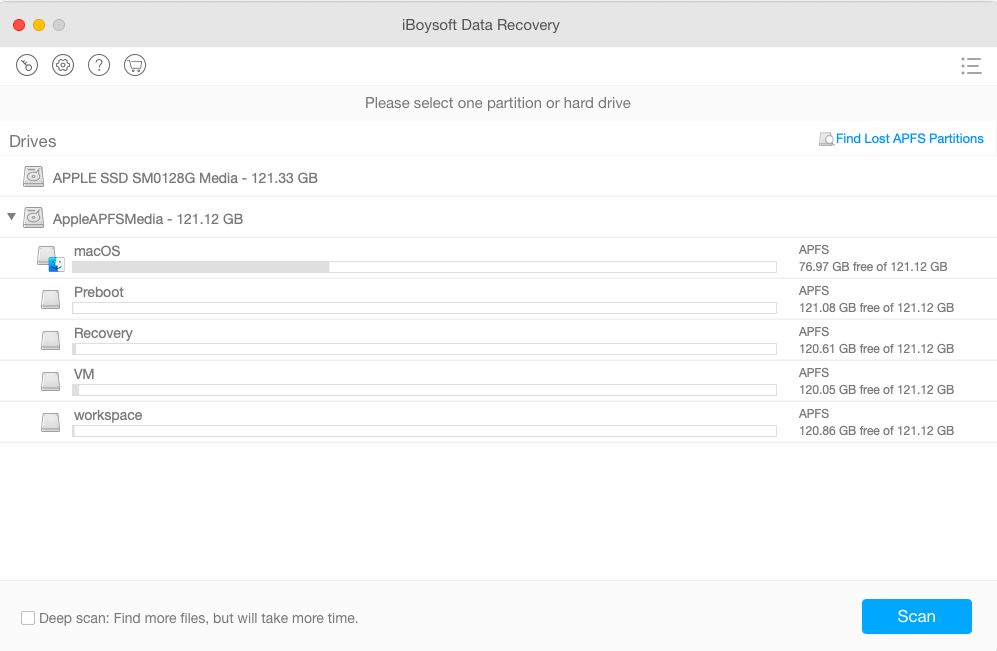
This tool has a simple interface, making it very easy to use. I launched the software and kept my SD card attached to the Mac. Then I selected the SD card from the drive list, ticked Deep scan and clicked on the “Scan” button. It took around 1 hour to finishing scanning the whole card. If you have a disk with a large capacity, deep scanning will take hours to have a complete scan. After that, I filtered the found photos through Time category at the left panel and previewed them one by one. I was greatly relieved that I found they all could be previewed and recoverable. I selected them and clicked on the “Recover”. I saved the photos to my MacBook Pro.
After having restored the photos from the SD card, I went to Disk Utility again and utilized the Erase option to format the device. One thing I want to remind you is that you had better choose FAT or ExFAT as the format if you are going to use the SD card on your digital camera or other digital devices. That’s because FAT or ExFAT is universal and won’t cause any incompatibility issue.
Verdict
My SD card is working normally now and I don’t lose any of my photos. Even the RAW pictures are recovered. I hope my experience can give you some idea about how to fix the not working SD card without data loss. SD card is prone to be corrupted within a few years, so it is recommended to back up data often. Moreover, if you are aware of data loss, stop saving files to the SD card immediately and turn to data recovery programs as soon as possible.