• Send Us A Tip
  • Calling all Tech Writers
  • Advertise
Monday, July 6, 2026
  • Login
TechStory
  • News
  • Crypto
  • Gadgets
  • Memes
  • Gaming
  • Cars
  • AI
  • Startups
  • Markets
  • How to
No Result
View All Result
  • News
  • Crypto
  • Gadgets
  • Memes
  • Gaming
  • Cars
  • AI
  • Startups
  • Markets
  • How to
No Result
View All Result
TechStory
No Result
View All Result
Home How to

How to split screen on iPad

by Srestha Roy
October 15, 2021
in How to
Reading Time: 2 mins read
0
How to split screen on iPad
TwitterWhatsappLinkedin

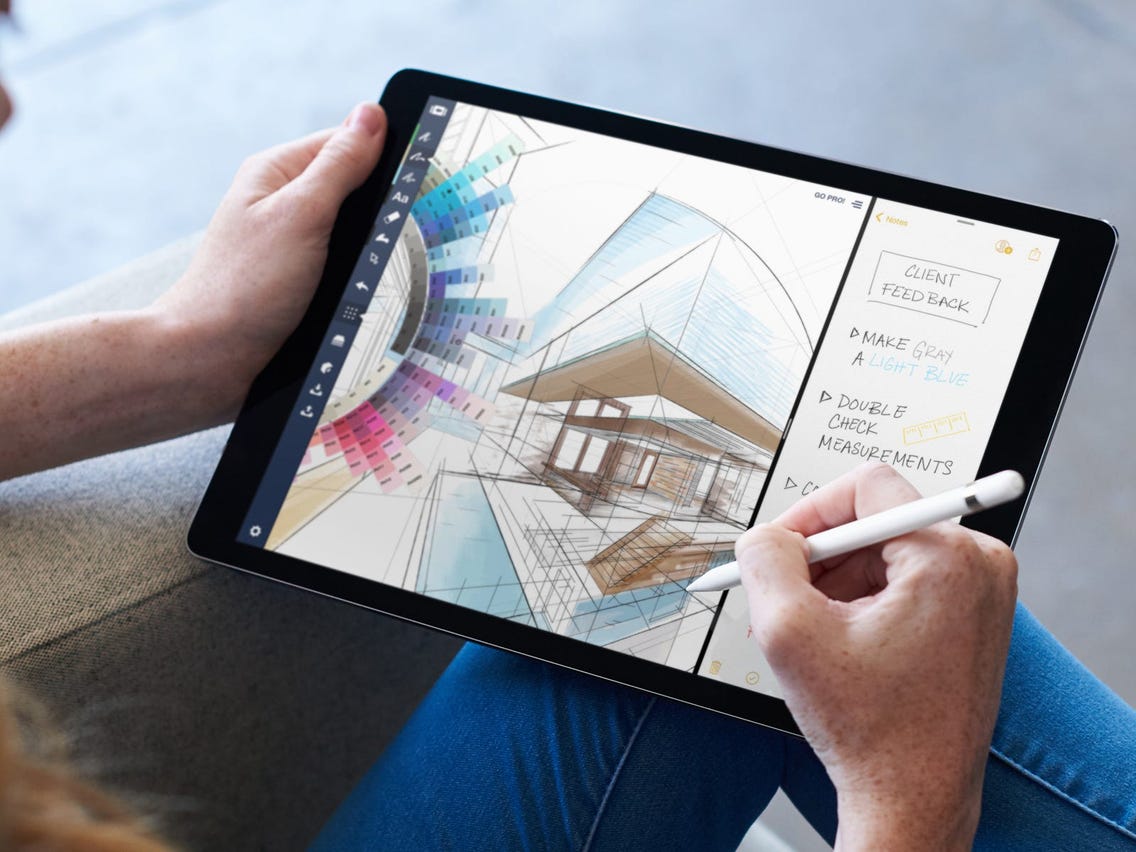
Because the iPad is so flexible, it may appear to be a complete substitute for your laptop or desktop computer at times. On an iPad, for example, you may split the screen to view numerous apps at once. Split View is one of the numerous Multitasking capabilities available on the iPad.

You might also like

How to view instants on Instagram?

How to get coin bags in Pokémon Go?

How to request money on X?

Here’s how to use Split View and Slide Over to multitask on your iPad, or turn these capabilities off entirely.

You’ll need an iPad Pro, an iPad 5th generation or newer, an iPad Air 2 or newer, or an iPad Mini 4 or newer to split the screen on an iPad.

How to make a split screen on your iPad

1. First you need to make sure that one of the applications you want to open is in your Dock, the little bar of application icons at the bottom of the screen. To do this, open the application of your choice and then close it so that it appears in one of the “recently used” slots on its dock.

2. After making sure the application is in the Dock, start the other application you want to use and keep it open.

3. Gently swipe up from the bottom of the screen to reveal the base. Don’t swipe up too hard or you’ll just go back to the home screen. Simply slide your finger up until the base sits over your app.

4. Press and hold the app in the Dock, then drag it to the far right of the screen and release it. Dragging it all the way to the right shows the two apps side by side, and you can drag the divider bar between them to give them more or less space.

If you drag and drop an application from the dock without going to the edge of the screen, it will simply hover over the first application in a small window. This is another multitasking feature called Slide Over.

How to remove split screen on your iPad

If you already have two apps on your screen and you want to close one of them, you can easily return to the default OneApp view. If your two apps are next to each other with a dividing bar between them, drag the bar all the way to the right or left.

If you drag it to the right, it will close the application to the right. Dragging it all the way to the left will close the app on the left. In both cases, the still open application switches to full screen mode.

With the second application floating in a small window above the main application, press and hold the gray bar at the top of the floating application and drag it down. This will put the two apps in split screen mode so you can close one with the separator. If you hover over an application in a window, you can also temporarily close it by sliding the gray bar to the right. This causes the window to fly off the screen.


 

Tags: iosiPadIPADOSSplit Screen
Tweet54SendShare15
Previous Post

How to save GIFs on iPhone

Next Post

How to use your phone as a projector

Srestha Roy

Recommended For You

How to view instants on Instagram?

by Afeefa Ansari
July 6, 2026
0
Instants

Receiving instant messages from friends on Instagram? Here is how you can receive and open them when sent. Let us see how it can be done and how...

Read more

How to get coin bags in Pokémon Go?

by Afeefa Ansari
July 6, 2026
0
Coin Bags

Do you want to get a coin bag in Pokémon Go? Follow the guide to know how you can get this item in the game and then use...

Read more

How to request money on X?

by Afeefa Ansari
July 6, 2026
0
X

Want to ask for money from someone on X? Let us assist you. Follow the guide to know how you can judge someone to get money if you're...

Read more
Next Post
How to use your phone as a projector

How to use your phone as a projector

Please login to join discussion

Techstory

Tech and Business News from around the world. Follow along for latest in the world of Tech, AI, Crypto, EVs, Business Personalities and more.
reach us at info@techstory.in

Advertise With Us

Reach out at - info@techstory.in

Aviator Game India 2026

BROWSE BY TAG

#Crypto #howto 2024 acquisition AI amazon Apple Artificial Intelligence bitcoin Business China cryptocurrency e-commerce electric vehicles Elon Musk Ethereum facebook funding Gaming Google India Instagram Investment ios iPhone IPO Market Markets Meta Microsoft News OpenAI samsung Social Media SpaceX startup startups tech technology Tesla TikTok trend trending twitter US

© 2025 Techstory.in

No Result
View All Result
  • News
  • Crypto
  • Gadgets
  • Memes
  • Gaming
  • Cars
  • AI
  • Startups
  • Markets
  • How to

© 2025 Techstory.in

Welcome Back!

Login to your account below

Forgotten Password?

Retrieve your password

Please enter your username or email address to reset your password.

Log In
Are you sure want to unlock this post?
Unlock left : 0
Are you sure want to cancel subscription?