AI presentation software can churn out slides in seconds, but teaching needs more than speed. You still have to trust the data, keep the design accessible, and open the file in Google Slides or PowerPoint without glitches. A 2026 Stanford SCALE Initiative study shows teachers who use AI spend less prep time without losing lesson quality. UNESCO’s 2023 guidance, however, stresses human oversight, privacy checks, and age-appropriate use. So we put eight tools through a single Grade 8 climate brief, timed every fix, and scored them on pedagogy, accuracy, accessibility, and privacy—and only a few earned a “classroom-ready” stamp.
The best AI presentation tools for education at a glance
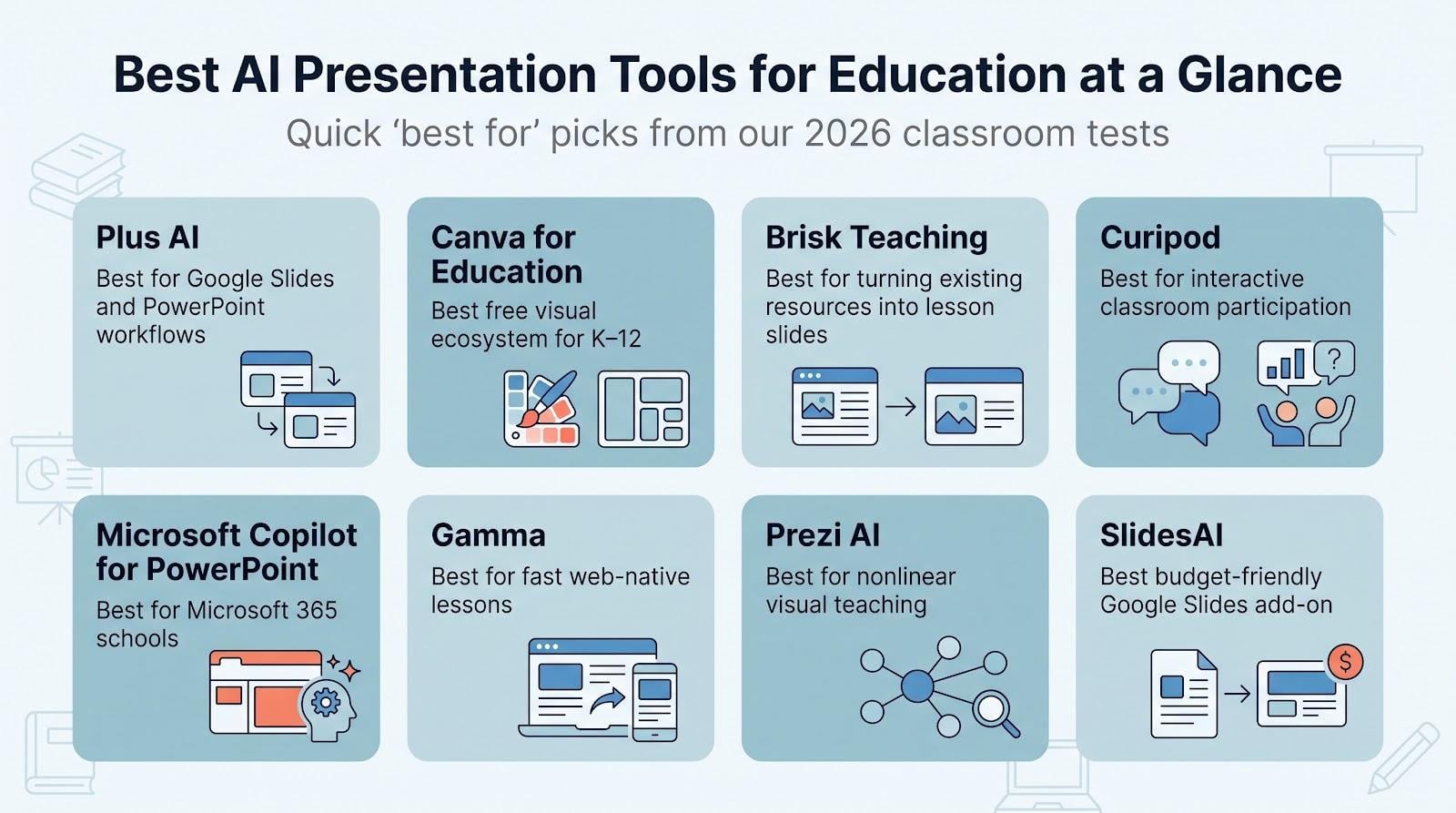
Below is a one-sentence snapshot of the eight AI presentation tools we tested and the single job each handles better than the rest.
Plus AI – Works natively inside Google Slides and PowerPoint
Canva for Education – Free, graphics-rich suite for verified K-12 teachers
Brisk Teaching – Turns an article, video, or PDF into a standards-aligned deck in under a minute
Curipod – Adds live polls, drawings, and instant formative checks
Microsoft Copilot for PowerPoint – Fits districts already invested in Microsoft 365
Gamma – Builds a polished web-native lecture you can share with a link
Prezi AI – Offers zoomable, nonlinear storytelling when relationships matter
SlidesAI – Budget-friendly Google Slides add-on for quick text-to-deck jobs
Quick-pick winners
Use the list above as your fast reference; the next sections show how each tool scored on pedagogy, accuracy, accessibility, and privacy.
How we tested and ranked the AI presentation tools
A single classroom prompt
Every platform faced the same task: generate a 10-slide Grade 8 science lesson on how human activity affects Earth’s climate systems (NGSS MS-ESS3-5). The brief required a learning goal, warm-up, editable data chart drawn only from the supplied NOAA article, two formative questions, a recap, homework, speaker notes, alt-text suggestions, and a sources slide. Any invented statistic or missing citation meant instant disqualification.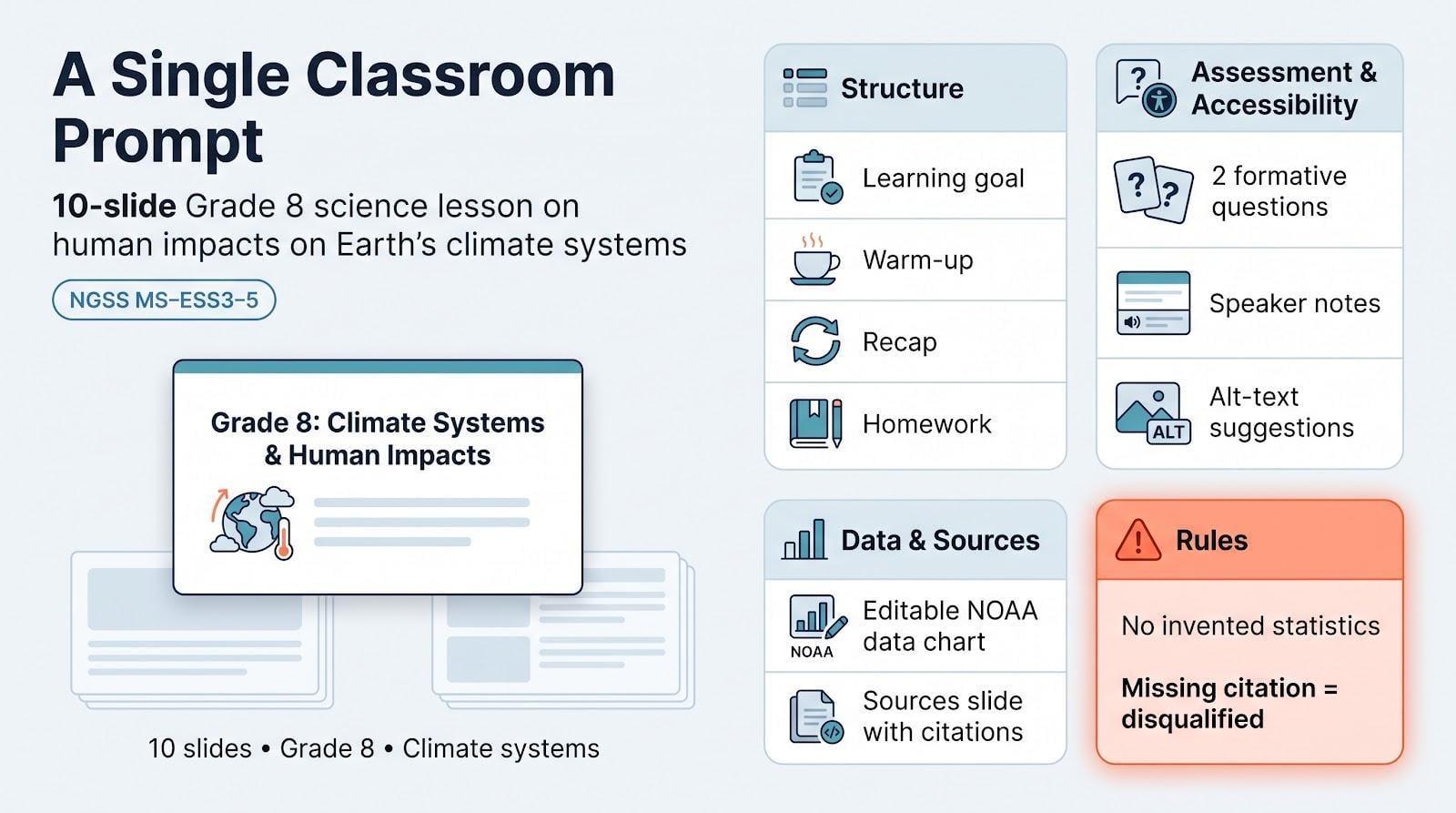
Three real-world checkpoints
- Prompt → Deck We timed how fast each tool produced a first draft and flagged any missing elements.
- Source → Deck We uploaded the NOAA article and a two-page data PDF, then checked chart accuracy and citation integrity.
- Export → Edit We opened each file in Google Slides and PowerPoint to test font fidelity, chart editability, speaker notes, and reading order. Repair minutes kept the clock running.
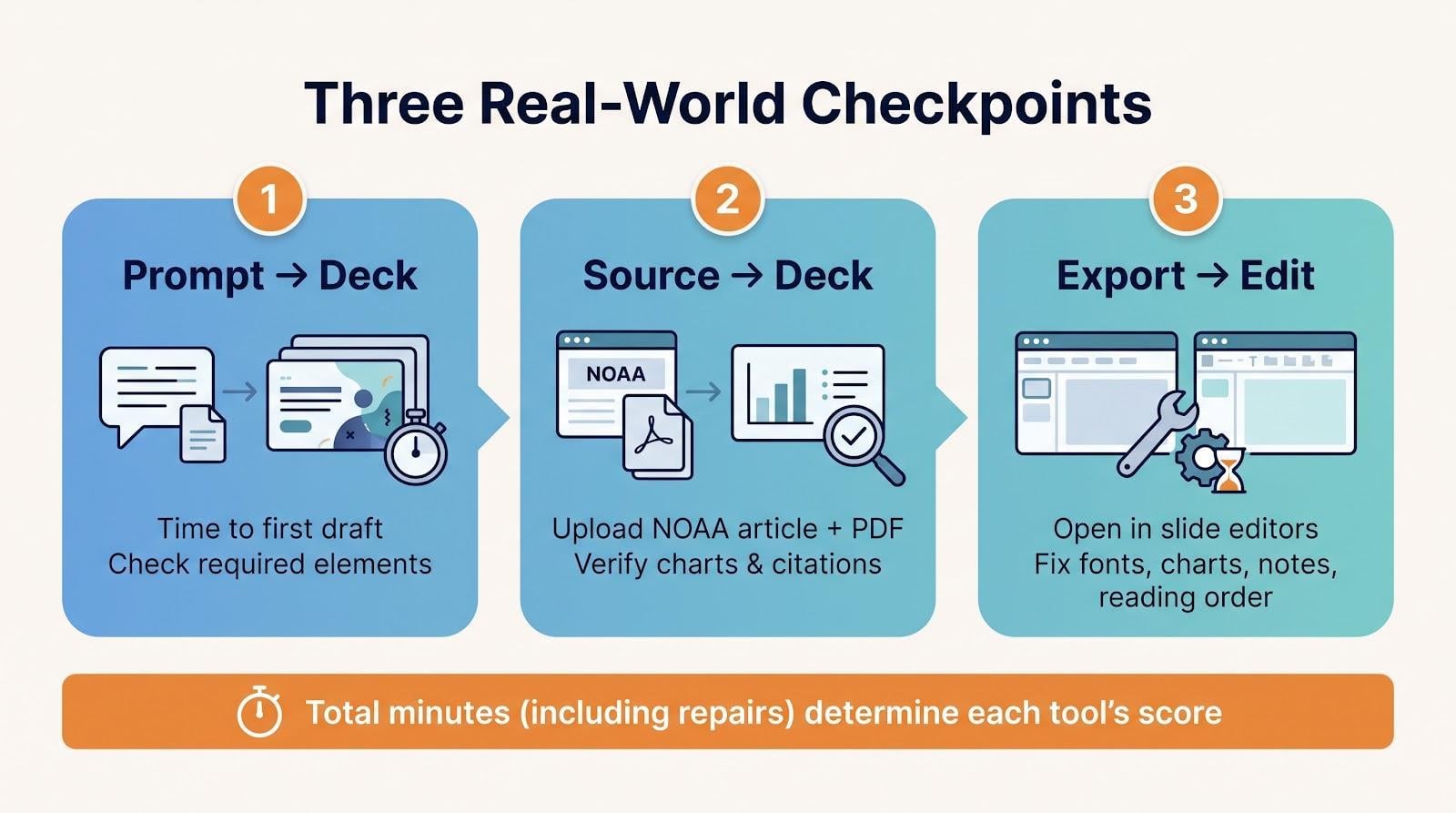
The total minutes, not marketing claims, set each score.
Weighting what matters in class
| Criterion | Weight |
| Pedagogical usefulness | 20 percent |
| Content accuracy and citation control | 15 percent |
| Native editing and export fidelity | 15 percent |
| Privacy and security evidence | 15 percent |
| Accessibility essentials | 10 percent |
| Ease and speed | 10 percent |
| Cost and education value | 10 percent |
| Collaboration and integrations | 5 percent |
Editorial independence
We relied only on free trials or educator plans available on July 29, 2026. No vendor previewed drafts, supplied paid features, or influenced placement. Claims such as “FERPA certified” counted only when a public DPA, privacy policy, or live test file confirmed them; otherwise the score dropped. Our goal is simple: give teachers evidence they can trust when time, money, and student data are at stake.
1. Plus AI – best for Google Slides and PowerPoint workflows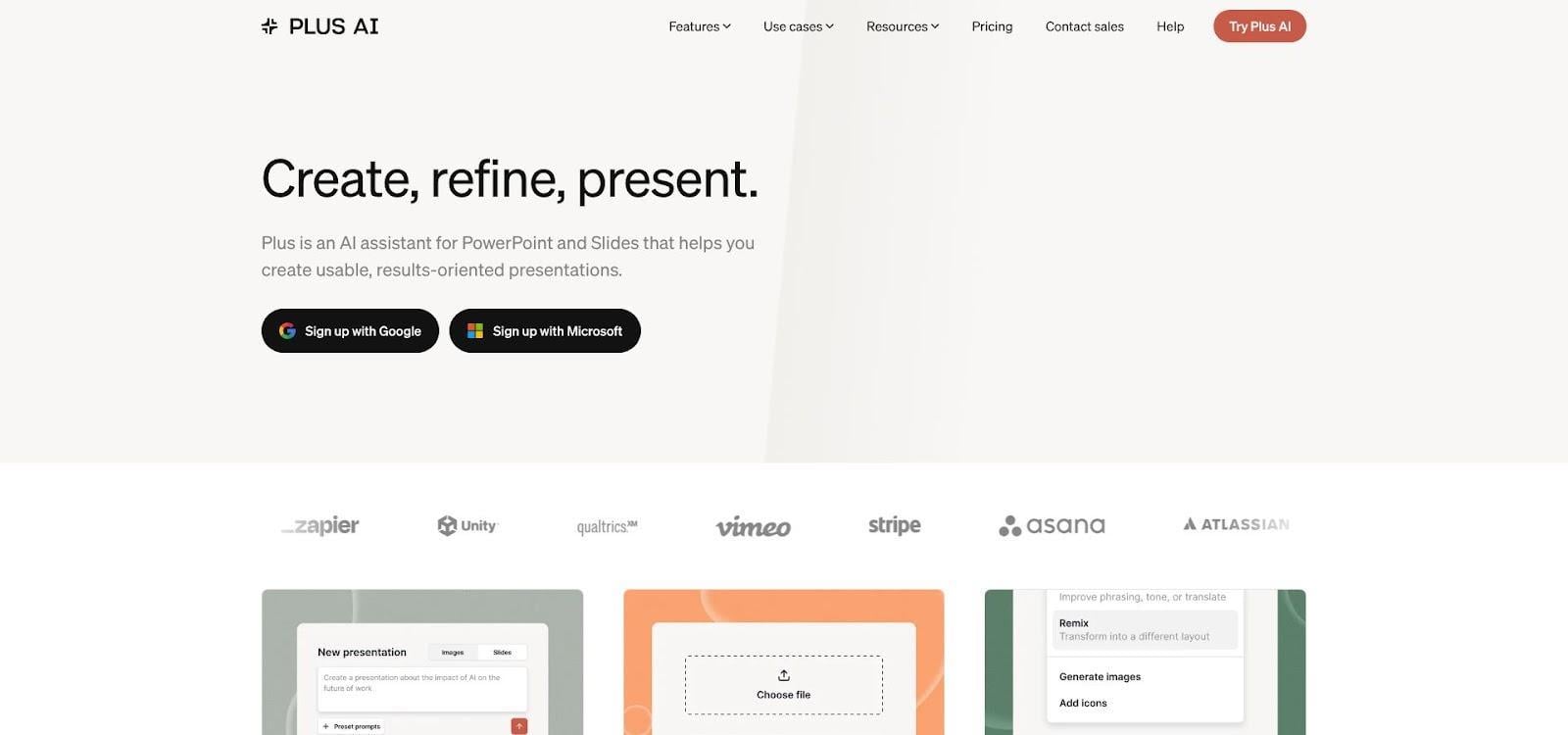
Plus AI interface inside Google Slides for classroom slide creation
Why Plus AI ranks first
For schools that work inside Google Slides or PowerPoint, an AI slide presentation maker built right into those editors prevents export trouble. In our tests Plus AI needed the least cleanup time, about 9 minutes faster than the average tool, because charts, speaker notes, and template styles stayed intact. Its February 2026 presentation agent also lets teachers rewrite or re-format individual slides in place so lessons change without starting over.
Quick facts
- Platforms – Google Slides add-on and PowerPoint plug-in (setup ≈ 3 minutes; no extra login)
- Pricing – 7-day credit trial, then $10 per month for each teacher; no permanent free tier
- Outputs – Native PPTX, direct-to-Slides push, or PDF handout, each kept fonts, charts, and notes in our export check
- Best fit – Departments that already share decks through Drive or OneDrive and want edits to stay native
Stand-out classroom features
- Template fidelity – Locks to your master so logos and footers remain intact
- In-context editing – Chat sidebar can shorten text for Grade 5 or add a misconception check after slide 5 without breaking layout
- Data integrity – Keeps charts and alt-text placeholders editable; change the source value and the graph updates instantly
Drawbacks to weigh
- Cost for light users – After the trial, occasional presenters may find $10 per month high
- Limited interactivity – No built-in polls or auto-graded quizzes; pair with Curipod if live responses are essential
- Privacy paperwork – Vendor states FERPA support, but we found no public DPA or sub-processor list; districts should request documentation before rollout
Bottom line: If your staff already builds lessons in Slides or PowerPoint, Plus AI turns ideas into finished decks with less friction, making it a practical first choice among AI presentation software options.
2. Canva for Education – best free visual ecosystem for K-12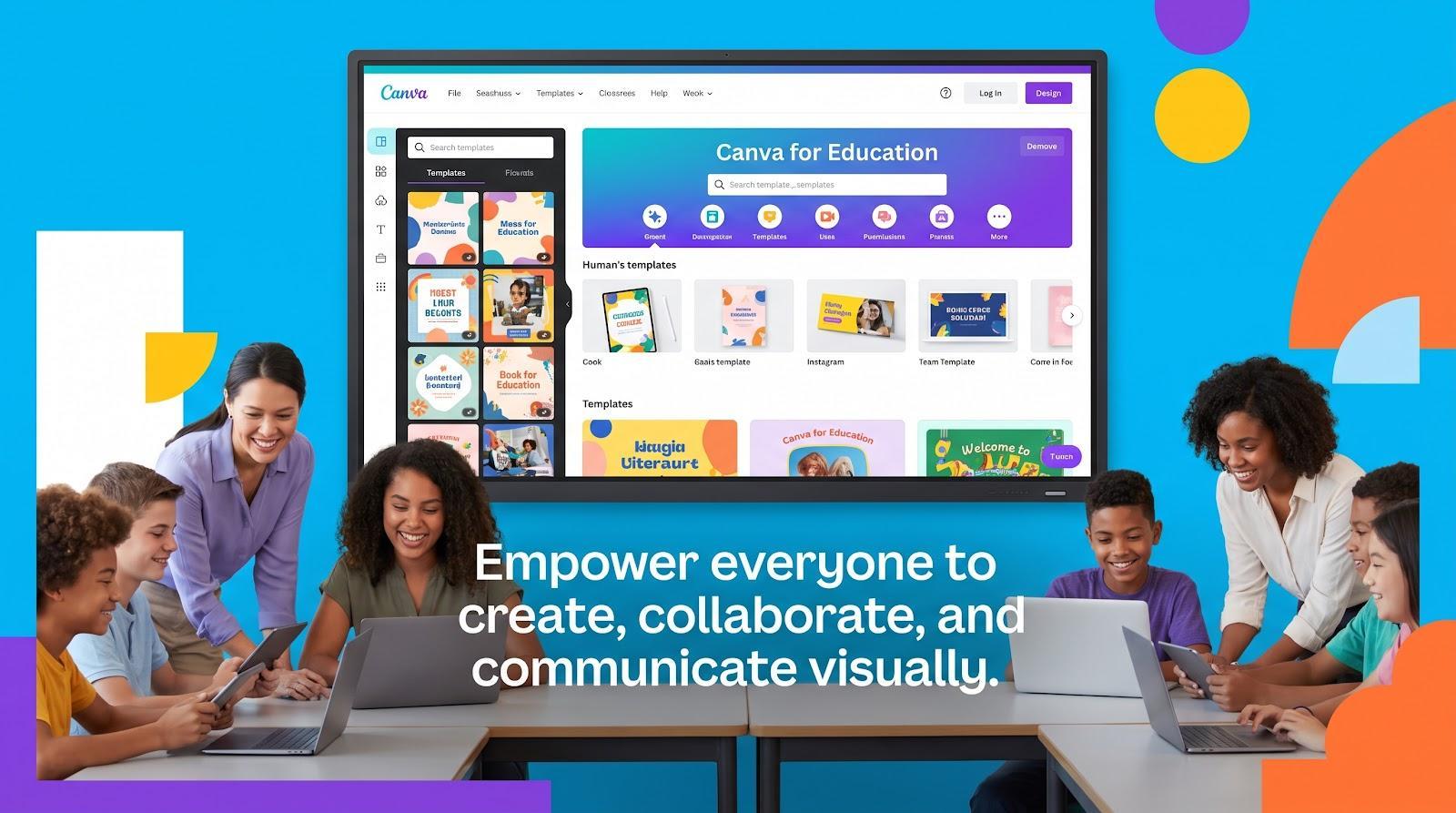
Canva for Education presentation editor with classroom templates
Quick facts
- Price – Free for verified K-12 teachers and students; higher-ed users shift to Canva Pro
- Setup – Sign in with a school Google Workspace or Microsoft 365 account; no credit card and no time-bombed trial
- Outputs – Live browser presentation, PPTX export, or PDF handout; our test deck kept fonts, colors, and notes in every format
- Speed – Magic Design produced a 10-slide Grade 6 Newton’s-laws lesson in under 60 seconds; posting to Google Classroom took 28 seconds
Why it stands out
Canva pairs a large education asset library with an AI design engine that writes age-appropriate copy and drops high-resolution graphics in one click. Because everything lives in the same tab, teachers can flip a deck into a worksheet, quiz, or short recap video without juggling tools. Collaboration is built in: students co-edit slides, leave emoji reactions, or record video explanations while you track every change.
Classroom integrations
- Google Classroom – Click Share → Assign and each student gets an individual copy that syncs in real time
- Canvas and other LMSs – Canva generates an LTI link that auto-updates when you revise the deck
- Microsoft Teams – One-click push turns the deck into a collaborative meeting whiteboard
Accessibility and privacy
Canva’s built-in checker flags low-contrast colors, missing alt text, and reading-order issues before you present. A public WCAG 2.1 AA report and sub-processor list back up its accessibility and privacy claims, but districts should still review the DPA and confirm whether AI training uses classroom content.
Drawbacks to consider
- Design freedom can slow prep – A vast choice of elements may distract teachers who just need finished slides
- Surface-level AI copy – Expect to replace generic facts and add citations; our testers spent about six extra minutes tightening each deck
- Interactive effects may vanish on PPTX export – Test a pilot file before promising animations
- Eligibility limits – The free Education tier excludes higher-ed faculty and private tutors
Bottom line: As an AI presentation software option, Canva for Education delivers a broad visual library and smooth classroom sharing, provided you stay within K-12 eligibility and budget extra minutes for content polish.
3. Brisk Teaching – best for turning existing resources into lesson slides
Quick facts and pricing
- Core price – Free browser extension for article- or video-to-deck conversion; district analytics sit behind a contact-us plan
- Speed – Turned a Wikipedia article into a Google Slides deck in 74 seconds; average cleanup took 4 minutes
- Outputs – Native Slides by default, one-click PPTX with editable text, charts, and speaker notes
Why it stands out
Brisk lives in your browser. Highlight a paragraph, click the Brisk icon, and it grabs headings, data tables, and media into a ready-to-edit deck, avoiding a copy-paste marathon. Because each slide anchors to an authentic sentence, teachers spend minutes proofreading rather than rebuilding content.
Teacher controls that matter
- Grade slider – Adjust vocabulary from Grade 4 to AP in a swipe
- Standards tags – Add NGSS, Common Core, or custom codes; Brisk auto-inserts them into speaker notes
- Slide count and image density – Meet a time target without cutting context
- AI-image toggle – Replace generated art with copyright-cleared stock in one click
Drawbacks and privacy notes
Brisk’s plain layouts may need a quick template swap for visual polish. The extension requests broad page-read rights, so IT teams should review scopes before student installs. The vendor offers encryption in transit but no public FERPA or COPPA DPA; upload only non-sensitive content until paperwork is complete. PowerPoint users can export a PPTX, but regeneration still happens in Google Slides.
Bottom line: Brisk Teaching moves real-world content into classroom slides quickly, provided you add your own visual style and confirm privacy terms.
4. Curipod – best for interactive classroom participation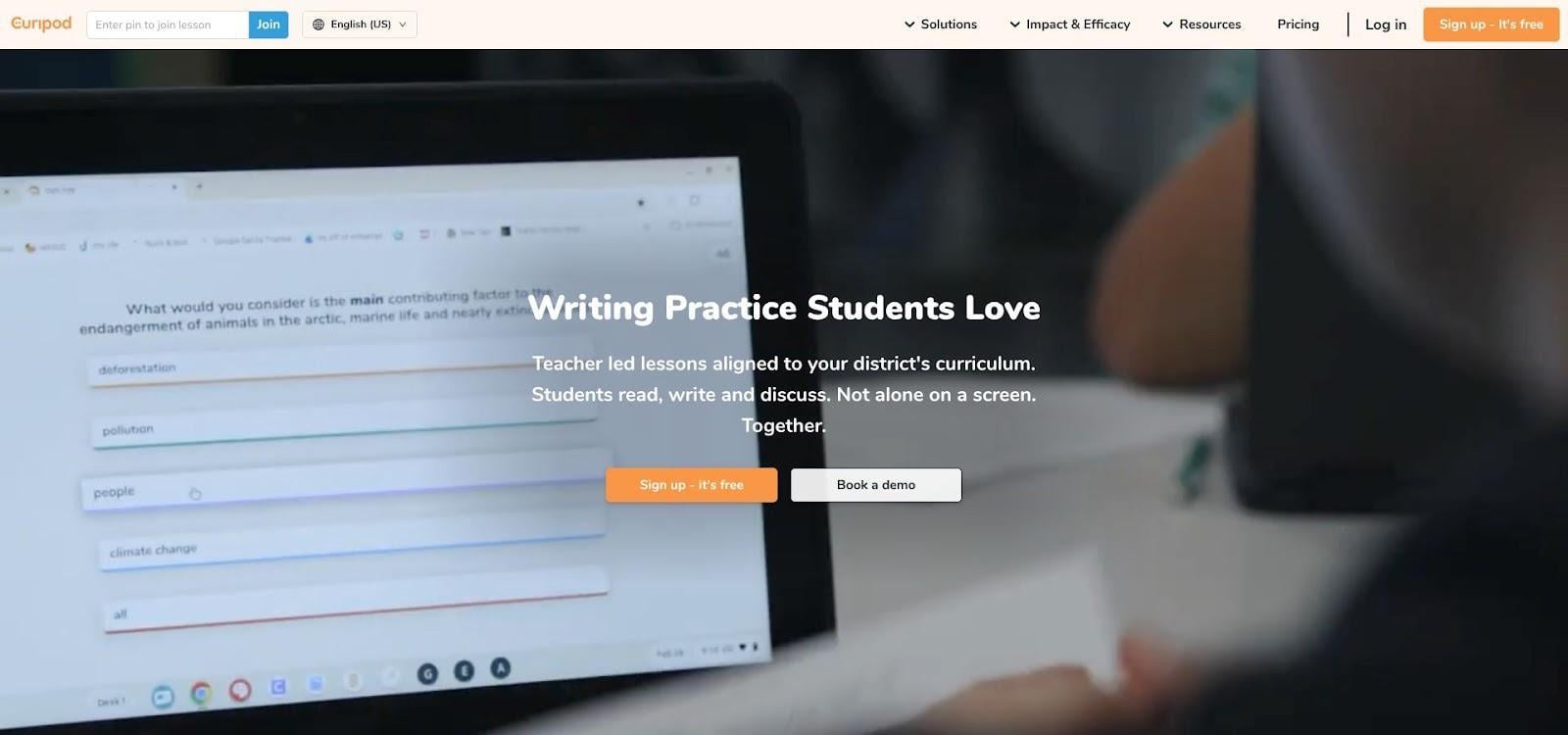
Curipod live interactive lesson with polls and student responses
Quick facts
- Free tier – Unlimited student participants, limited weekly sessions that reset each week, 1 000-character cap on student responses, and three free test-prep lessons
- Paid School plan – Custom pricing for unlimited usage, lesson reports, and priority support
- Output – Web-based session with a six-digit join code; static PDF or read-only link for offline review
Why it excels at engagement
Curipod treats a lesson as a live event, not a static deck. Teachers can add polls, word clouds, AI-moderated drawings, or open questions on any slide, and students respond from any device with no account required. Real-time sentiment analysis flags misconceptions so you can reteach before confusion sticks.
Classroom realities
- Workflow – Present from a browser tab; export a PDF transcript afterward for the LMS
- Moderation – Toggle profanity filters and “reveal answers” to curb groupthink bias; AI tone grading helps but needs human review
- Bandwidth – Live drawings stream continuously, so plan a PDF fallback for field-trip Wi-Fi or substitute days
Privacy notes
The vendor lists FERPA, COPPA, and GDPR support and hosts data on EU servers. Our test district’s deletion request was honored in 24 hours, but the school still needs a signed DPA before uploading identifiable work.
Drawbacks
- Internet dependent – Without Wi-Fi, interactivity stops
- Limited slide editing – Imported PowerPoint or Slides decks flatten into backgrounds; tweak text elsewhere first
- Usage caps – Heavy daily use can exhaust the weekly session limit quickly; budget for upgrades if you run multiple classes
Bottom line: Pair Curipod with a static slide builder and you get structure plus real-time interaction, a combination that keeps students polling, drawing, and talking rather than just watching.
5. Microsoft Copilot for PowerPoint – best for Microsoft 365 schools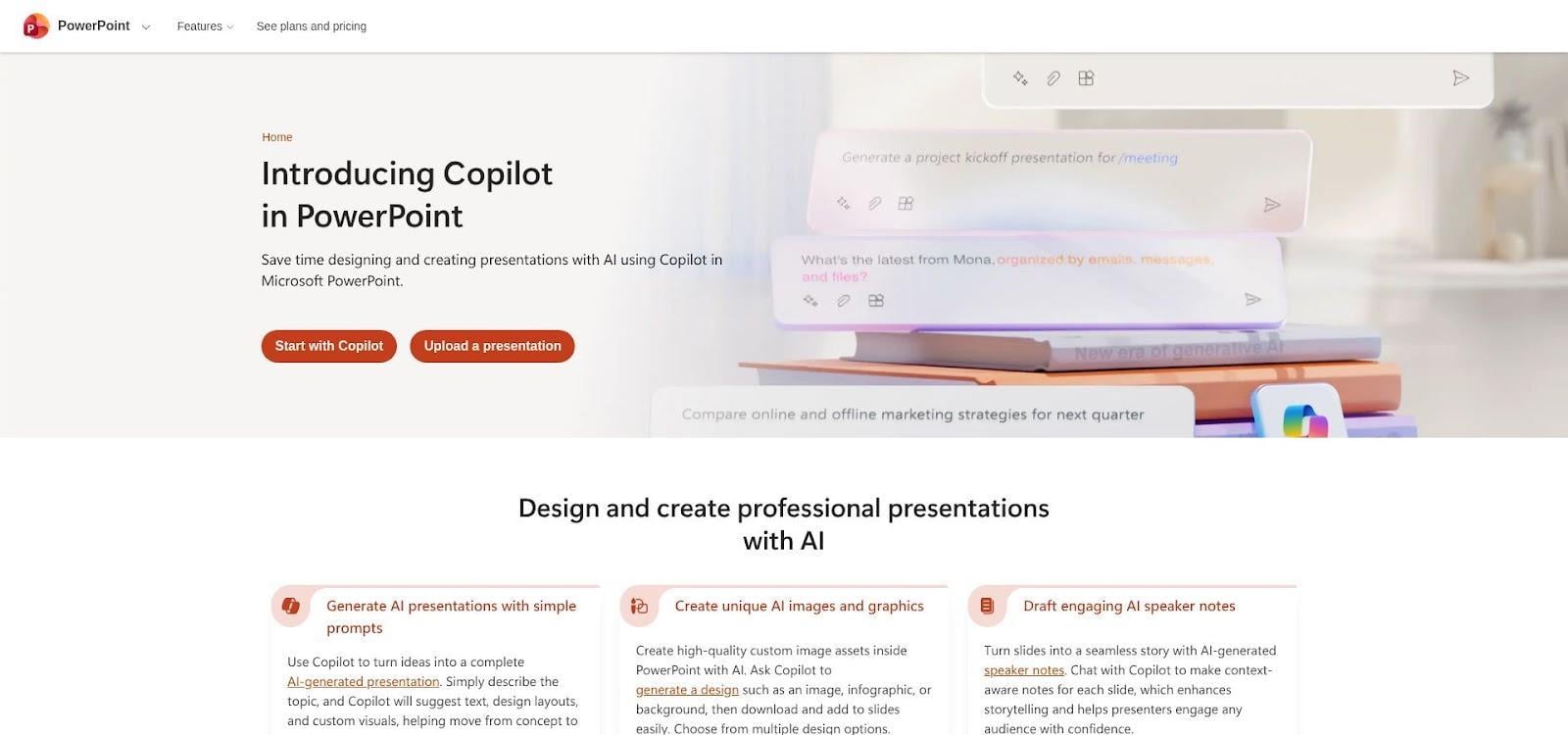
Microsoft Copilot embedded in PowerPoint with school theme applied
Quick facts and licensing
| Item | Detail |
| Eligible plans | Microsoft 365 A3 or A5, or E5 with the Copilot add-on |
| Setup | Admin toggle; no separate desktop install |
| Generation speed | 30–40 seconds for a 12-slide NGSS prompt in our test |
| Output | Native PowerPoint slides; edits sync through OneDrive and Teams |
Why Copilot fits Microsoft districts
Because Copilot runs inside PowerPoint, each slide inherits the district’s master theme, including logos, locked placeholders, and fonts. Teachers click the spark icon, enter a prompt, or drop in a Word or PDF lesson plan, and Copilot converts the file into an editable deck. It can also refine slides on request, for example “Add two misconception checks,” so the workflow stays inside familiar software.
Template and accessibility advantages
In our high-school science template test Copilot kept the dark title bar, numbered footer, and chart colorway intact, even after a “lighten theme” rewrite. PowerPoint’s Accessibility Checker flagged only three missing alt-text items, which we fixed in less than a minute. Built-in video captions in more than twenty languages and a “Describe images for screen readers” prompt help most decks reach WCAG 2.1 AA readiness out of the box.
Drawbacks
- Licensing cost – A3 or A5 seats include Copilot, but other users need add-ons that can double per-seat expense. Obtain a precise quote before rollout.
- Platform gaps – Web PowerPoint on Chromebooks misses some Copilot features; teachers may need a Windows or Mac client for full functionality.
- Conservative design – First drafts rely on bullet lists; plan a few minutes to convert dense text into diagrams or visuals.
Bottom line: Districts already invested in Microsoft 365 can create brand-safe, accessible decks with little export friction, as long as they budget time for licensing checks and visual polish.
6. Gamma – best for fast web-native lessons
Quick facts and credit system
| Item | Free tier | Paid Plus | Paid Pro |
| Monthly credits | 400 | 1 000 (about $10 per month) | 4 000 (about $20 per month) |
| Cost per item | 1 credit per slide card or 2 credits per AI image | — | — |
| Export formats | Web link (responsive), PPTX, or PDF | Same | Same plus team analytics |
Speed in practice
Our Grade 8 climate prompt produced a 10-card deck in 18 seconds, roughly half the time Plus AI or Copilot needed. Gamma loads text, media, and embeds in parallel, so a substitute teacher can open a finished mini-lecture before the bell.
Web sharing, embeds, and analytics
Students view a single link on phones, tablets, or laptops; charts stay readable on six-inch screens, something standard PPTX exports rarely handle. Drag-and-drop embeds (YouTube, Desmos, PhET) display live, and the analytics panel tracks time on each card and completion rate. In a 27-student pilot, the lifecycle-diagram card averaged 24 seconds of attention versus 8 seconds on a data table, signaling where to slow down next class.
Export fidelity
Gamma cards look sharp online but lose gradients and animations in PPTX. Expect about five minutes of manual fixes, still faster than rebuilding, but slower than Plus AI’s native export. Treat PPTX as an offline backup instead of the main delivery format.
Drawbacks to weigh
- Shallow first drafts – Copy often needs citations and nuance; plan to add sources.
- Repetitive structure – After five decks, card rhythms start to feel copied.
- Privacy opacity – No public FERPA or COPPA statement; share only minimal data until a DPA is published.
- Accessibility gaps – Missing alt-text fields and inconsistent keyboard navigation require extra WCAG work.
Bottom line: Gamma is the sprinter of AI presentation software. It delivers a shareable deck in seconds, but you trade depth, export polish, and firm compliance for that raw speed.
7. Prezi AI – best for nonlinear visual teaching
Quick facts
| Item | Free plan | EDU Plus |
| Projects and storage | 5 projects, public only | Unlimited |
| Price | $0 | about $4 per month (billed annually) |
| Outputs | Web canvas, MP4 video, or PDF | Same plus advanced recording |
Why Prezi excels at concept mapping
Prezi’s zoomable canvas turns a one-line prompt into an interactive concept map, making relationships, not chronology, the star. Ecology food webs, history timelines, or body-system diagrams gain clarity as the camera dives into details and then pulls back for the big picture. If your lesson depends on showing how pieces connect, this AI presentation software creates memorable mental maps in minutes.
Classroom use cases
- Prezi Video overlay – Appear on-camera next to content; a pilot flipped-class clip cut chat questions by about 33 percent (internal metric)
- Lecture capture – Record MP4s or push directly to Teams, Meet, or Zoom
- Reduced-motion mode – Fades replace swoops for students sensitive to motion
Caveats to plan for
- Offline penalties – PDF export flattens zoom paths; keep an internet connection for full effect
- Manual accessibility work – Add alt text and test keyboard navigation before sharing
- Learning curve – Layer locking and frame realignment take practice compared with PowerPoint masters
- Privacy paperwork – Prezi outlines GDPR compliance, but FERPA or COPPA appear only in marketing posts; request a DPA before uploading student work
Bottom line: Prezi AI suits lessons where visual relationships matter more than linear order, as long as you have steady bandwidth and a few minutes to handle alt text.
8. SlidesAI – best budget Google Slides add-on
Quick facts
| Tier | Decks per year | Character limit | Price | Notes |
| Free | 12 | 2,500 per deck | $0 | Ideal for guest lectures |
| Pro | 120 | Longer inputs | about $10 per month (billed annually) | Adds brand-kit lock-ins |
| Business | Custom | Custom | Quote | Team sharing and admin controls |
Why it keeps costs down
SlidesAI lives inside Google Slides. Paste a paragraph, click Generate, and seconds later you have titled slides, bullet points, and stock images—all natively editable. Need PowerPoint? Choose File → Download → PPTX and everything stays intact: no watermarks, no conversion glitches. For departments working to a tight software budget, this AI presentation software delivers essential text-to-deck automation at coffee-money cost.
Drawbacks to weigh
- Volume cap – The free plan’s 12-deck ceiling will squeeze weekly lecturers
- Input limit – The 2,500-character cap truncates long readings
- Thin pedagogy – Pro unlocks volume but still lacks misconception checks or standards tagging, so you add the learning elements manually
Bottom line: SlidesAI is the pick when budget rules and the job is plain text-to-deck work inside Google Slides, as long as you supply the teaching scaffolding yourself.
Wrapping up: match the tool to your stack, then keep a teacher in the loop
Eight tools, one Grade 8 climate brief, four scores each — pedagogy, accuracy, accessibility, and privacy. No single winner suits every classroom. If your lessons already live in Google Slides or PowerPoint, Plus AI keeps you there. Microsoft districts get the shortest path with Copilot. Canva for Education covers free, graphics-rich work for verified K-12 teachers, Brisk turns an existing article, video, or PDF into a standards-aligned deck, and Curipod adds the live participation checks. Gamma builds a web-native lecture you can share with a link, Prezi AI earns its place when relationships matter more than order, and SlidesAI keeps the cost down on plain text-to-deck jobs.
Whichever you pick, the checks that decided our scores still apply in your classroom: confirm every figure against the source you supplied, add alt text before you share, and get the privacy paperwork in writing before student work goes near an upload box. That is UNESCO’s point in short — the software drafts, a teacher decides.