• Send Us A Tip
  • Calling all Tech Writers
  • Advertise
Tuesday, June 23, 2026
  • Login
TechStory
  • News
  • Crypto
  • Gadgets
  • Memes
  • Gaming
  • Cars
  • AI
  • Startups
  • Markets
  • How to
No Result
View All Result
  • News
  • Crypto
  • Gadgets
  • Memes
  • Gaming
  • Cars
  • AI
  • Startups
  • Markets
  • How to
No Result
View All Result
TechStory
No Result
View All Result
Home Story

How to create a bootable USB drive with easy steps?

by Priyanka Chaubey
December 14, 2020
in Story, Tech
Reading Time: 3 mins read
0
How to create a bootable USB drive with easy steps?
TwitterWhatsappLinkedin

Know how to create a bootable USB drive in easy steps.

You might also like

The Screenless Biometric Battle Fitbit Air vs. Amazfit Helio & Helio Strap Pro

Largest Chip Manufacturers in the World

Screenless Fitness Sovereignty A Deep Dive Review of Whoop vs Fitbit Air

A Bootable USB drive can only bring you help. In most of the cases of wanting to install or repair an operating system for your computer, A bootable USB drive can help you save time and extra effort. There are two ways to create a bootable USB drive-

The easy way to create a bootable USB drive
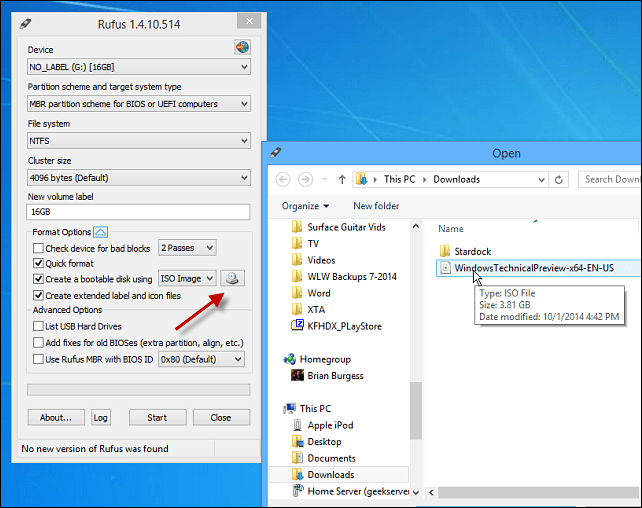
source- groovypost

There always is an easy way which comes with a turn on the main journey. You can easily create a bootable USB drive by following these steps-

  1. Download Rufus. You can get it easily after following this link- https://rufus.ie/.
  2. When you have downloaded Rufus, Click to open rufus.exe.
  3. Make sure you plug-in your USB after the user interface of the software launches.
  4. Once you are through with the last process, from all the options click on ‘Create a bootable USB drive’ and select an ISO image from the drop-down menu that appears.
  5. To install the Windows ISO that you want to click on the button next to the dropdown.
  6. The final step is to click on ‘Start’ and wait while the software creates the bootable USB drive.

This is it! Following these steps will let you create a bootable USB drive so that you can fix repair or install new windows anytime you want anywhere you need.

The hard long way to have a bootable USB drive

There is absolutely no problem if you don’t want the trouble of installing external software in your system. You still have a way to have a bootable USB drive. It’s a little more time and effort taking than the previous one but anyhoo! Here you go-

  1. The first step is to make certain that your USB drive is plugged in
  2. Next, search for the Command Prompt as an administrator and open it.
  3. After this, the next step is to launch the disk management utility using CMD (Command Prompt) – type in diskpart and hit enter to carry out the same procedure.
  4. Later this step, type in the list disk and hit enter, this will help you to display the connected disks that are available.
  5. The next step is to select your USB drive. Do it easily by typing select disk # after that hit enter . Do not forget to replace the # with your disk number.
  6. Clean the USB drive with one easy step- Type clean in the box and then press Enter.
  7. The next step is to create a bootable partition. To do this you have to type create partition primary and then press enter.
  8. Later you will be required to select the partition that you created in the previous step. Type in select partition 1 to do the same.
  9. Type active and then make sure to press Enter.
  10. Your next step is to format the USB drive – to do so all you have to do is just type in format fs=fat32 and then press enter.
  11. You’ll now need to assign your USB drive a letter, to do that, just type in assign
  12. Lastly, copy all the Windows 10 files and paste them inside the USB drive. (You can copy the files by extracting an ISO or copy it from a Windows 10 disk).




Tags: create a bootable USB drive
Tweet54SendShare15
Previous Post

How to download your Soundcloud playlist?

Next Post

Google down- twitter memers upgrading their game up!

Priyanka Chaubey

Recommended For You

The Screenless Biometric Battle Fitbit Air vs. Amazfit Helio & Helio Strap Pro

by Anochie Esther
June 23, 2026
0
The Screenless Biometric Battle Fitbit Air vs. Amazfit Helio & Helio Strap Pro

The consumer health technology market has reached a critical architectural turning point. For over a decade, the dominant wearable design paradigm relied on miniature wristbound touchscreens that constantly...

Read more

Largest Chip Manufacturers in the World

by Sneha Singh
June 23, 2026
0
Largest Chip Manufacturers in the World

Semiconductors have enabled the present-day world. The existence of all smartphones, laptops, servers, electric vehicles, and AI systems depends on semiconductors used to process information, keep data, and...

Read more

Screenless Fitness Sovereignty A Deep Dive Review of Whoop vs Fitbit Air

by Anochie Esther
June 23, 2026
0
Screenless Fitness Sovereignty A Deep Dive Review of Whoop vs Fitbit Air

The wearable technology landscape is witnessing a radical architectural purge. For the past decade, smartwatches and fitness trackers consistently relied on bright, power-hungry displays designed to buzz, flash,...

Read more
Next Post
INDIAN STARTUPS FORM AN ALLIANCE FOR ALTERNATIVE APP STORE TO END GOOGLE’S MONOPOLY IN THE MARKET

Google down- twitter memers upgrading their game up!

Please login to join discussion

Techstory

Tech and Business News from around the world. Follow along for latest in the world of Tech, AI, Crypto, EVs, Business Personalities and more.
reach us at info@techstory.in

Advertise With Us

Reach out at - info@techstory.in

Aviator Game India 2026

BROWSE BY TAG

#Crypto #howto 2024 acquisition AI amazon Apple Artificial Intelligence bitcoin Business China cryptocurrency e-commerce electric vehicles Elon Musk Ethereum facebook funding Gaming Google India Instagram Investment ios iPhone IPO Market Markets Meta Microsoft News OpenAI samsung Social Media SpaceX startup startups tech technology Tesla TikTok trend trending twitter US

© 2025 Techstory.in

No Result
View All Result
  • News
  • Crypto
  • Gadgets
  • Memes
  • Gaming
  • Cars
  • AI
  • Startups
  • Markets
  • How to

© 2025 Techstory.in

Welcome Back!

Login to your account below

Forgotten Password?

Retrieve your password

Please enter your username or email address to reset your password.

Log In
Are you sure want to unlock this post?
Unlock left : 0
Are you sure want to cancel subscription?