

• Send Us A Tip
  • Calling all Tech Writers
  • Advertise
Wednesday, July 8, 2026
  • Login
TechStory
  • News
  • Crypto
  • Gadgets
  • Memes
  • Gaming
  • Cars
  • AI
  • Startups
  • Markets
  • How to
No Result
View All Result
  • News
  • Crypto
  • Gadgets
  • Memes
  • Gaming
  • Cars
  • AI
  • Startups
  • Markets
  • How to
No Result
View All Result
TechStory
No Result
View All Result
Home How to

How to use a two-factor security key

by Arya Roy
June 10, 2021
in How to, Tech
Reading Time: 2 mins read
0
How to use a two-factor security key

Source: https://www.thecloudpeople.com/blog/make-your-workplace-more-secure-with-2-factor-authentication

TwitterWhatsappLinkedin

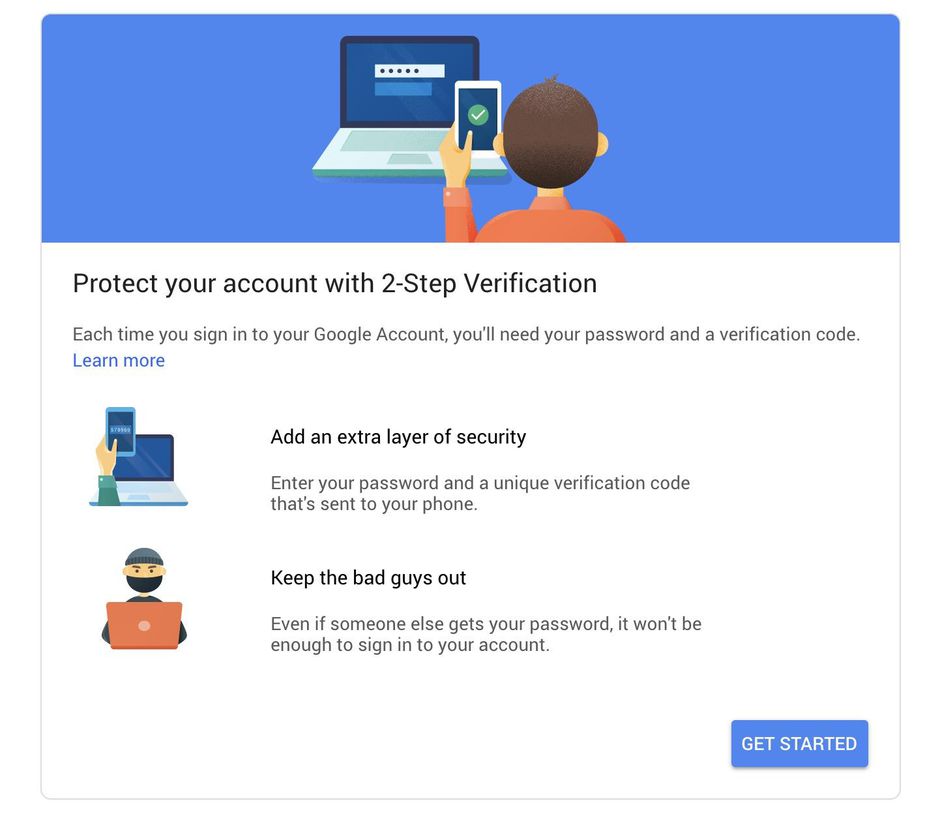
Two-factor authentication is a very useful method to add an extra layer of security to your online accounts. However, it requires the repeated use of your smartphone, which is not only inconvenient but can also be a major problem if your phone is lost or breached. Hardware security keys can provide you with an additional layer of security to password-protected online accounts and, as a result, your identity. Also, they are not hard to install. Here is a guide on how to set them up for your Google account.
You might also like

Scotland’s SNP Votes To Freeze All New Datacentres, Threatening The Heart Of Britain’s AI Infrastructure Plans

How to forward mail to a new address?

How to get Cosmog in Pokémon Go?

Source: https://www.cnet.com/how-to/set-up-google-two-step-verification/

Security keys can be connected to your system using either USB-A, USB-C, Lightning, or NFC, and they are small and portable enough to be carried on a keychain. An exception is Yubico’s 5C Nano key, which is so small that the safest option is to keep it in your computer’s USB port. They use a variety of authentication standards, such as U2F, FIDO2, OTP, smart card, and OpenPGP 3.

When you insert a security key into your computer or connect one without a wise, your browser issues a challenge to the key, which will include the domain name of the specific site that you are attempting to access. The key then cryptographically signs and allows the challenge, which will log you into the service.

How to pair a key with your Google account

  1. Log in to your Google account, and choose your profile icon in the upper-right corner of the screen. Select “Manage your Google Account.”
  2. In the left-hand menu, press “Security.” Scroll down until you see an option that reads “Signing in to Google.” Click on the “2-step Verification” link. At this point, you may have to sign in to your account again.
  3. Scroll down until you see the option that reads “Add more second steps to verify it’s you”. Search for the “Security Key” option and tap on “Add Security Key.”
  4. A pop-up box will appear and will list all your options. These will include devices that have built-in security keys and the option to use an external security key. Choose “USB or Bluetooth / External security key.”
  5. You will see a box instructing you to make sure the key is nearby but not plugged in. You will also see an option to use only the security key as part of Google’s Advanced Protection Program, which is reserved for users with “high visibility and sensitive information.” With the assumption you do not fall into that category, click on “Next.”
  6. Name your key. Now, you can always return to your Google account’s 2FA page to rename or remove your key.

Tags: GoogleTwo-Factor Authentication
Tweet54SendShare15
Previous Post

Bitcoin all set to go green with El Salvador’s new initiative.

Next Post

Instagram goes down kindling the fire for a flurry of Memes on Twitter.

Arya Roy

Hi, this is Arya! Writing has always been a passion of mine, regardless of the topic I choose. Besides that, I am a huge foodie and music lover, whose interests range from world politics to horror films to everything in between.

Recommended For You

Scotland’s SNP Votes To Freeze All New Datacentres, Threatening The Heart Of Britain’s AI Infrastructure Plans

by Rounak Majumdar
July 8, 2026
0
Scotland's SNP Votes To Freeze All New Datacentres, Threatening The Heart Of Britain's AI Infrastructure Plans

A vote inside Scotland's ruling party has placed the UK's artificial intelligence agenda in serious risk. The Scottish National Party's national council voted a motion last Sunday to...

Read more

How to forward mail to a new address?

by Afeefa Ansari
July 8, 2026
0
Mail

Forwarding an email is a simple process and is helpful all the same. Follow the guide to know how you can forward the mail to a new address!...

Read more

How to get Cosmog in Pokémon Go?

by Afeefa Ansari
July 8, 2026
0
Cosmog

Do you like Cosmog in Pokémon Go and looking for one? Here is what you must do in order to get this amazing Pokémon in your collection. So,...

Read more
Next Post
Instagram down

Instagram goes down kindling the fire for a flurry of Memes on Twitter.

Please login to join discussion

Techstory

Tech and Business News from around the world. Follow along for latest in the world of Tech, AI, Crypto, EVs, Business Personalities and more.
reach us at info@techstory.in

Advertise With Us

Reach out at - info@techstory.in

Aviator Game India 2026

BROWSE BY TAG

#Crypto #howto 2024 acquisition AI amazon Apple Artificial Intelligence bitcoin Business China cryptocurrency e-commerce electric vehicles Elon Musk Ethereum facebook funding Gaming Google India Instagram Investment ios iPhone IPO Market Markets Meta Microsoft News OpenAI samsung Social Media SpaceX startup startups tech technology Tesla TikTok trend trending twitter US

© 2025 Techstory.in

No Result
View All Result
  • News
  • Crypto
  • Gadgets
  • Memes
  • Gaming
  • Cars
  • AI
  • Startups
  • Markets
  • How to

© 2025 Techstory.in

Welcome Back!

Login to your account below

Forgotten Password?

Retrieve your password

Please enter your username or email address to reset your password.

Log In
Are you sure want to unlock this post?
Unlock left : 0
Are you sure want to cancel subscription?