• Send Us A Tip
  • Calling all Tech Writers
  • Advertise
Friday, July 3, 2026
  • Login
TechStory
  • News
  • Crypto
  • Gadgets
  • Memes
  • Gaming
  • Cars
  • AI
  • Startups
  • Markets
  • How to
No Result
View All Result
  • News
  • Crypto
  • Gadgets
  • Memes
  • Gaming
  • Cars
  • AI
  • Startups
  • Markets
  • How to
No Result
View All Result
TechStory
No Result
View All Result
Home How to

How to change your display’s refresh rate on Mac

by Arya Roy
July 2, 2021
in How to, Tech
Reading Time: 2 mins read
0
How to change your display’s refresh rate on Mac

Source: https://www.bournemouthitsolutions.co.uk/en-tr/mac-repair/

TwitterWhatsappLinkedin

Most people are not required to change the default refresh rate for their Mac’s built-in or separate display. That being said, users who usually work with movie files and edit videos and may want to set the display refresh rate in such a way that it matches the frame rate of the video.

You might also like

How does an On-device AI work? 

How does the satellite messaging work?

Honda and Nissan Edge Closer to Strategic Alliance as Shared Vehicle Brain Nears Approval

The refresh rate of a display refers to how many times per second it is able to form a completely new image. This is measured in the unit Hertz, which is abbreviated to Hz.
Source: https://support.apple.com/en-us/HT210742

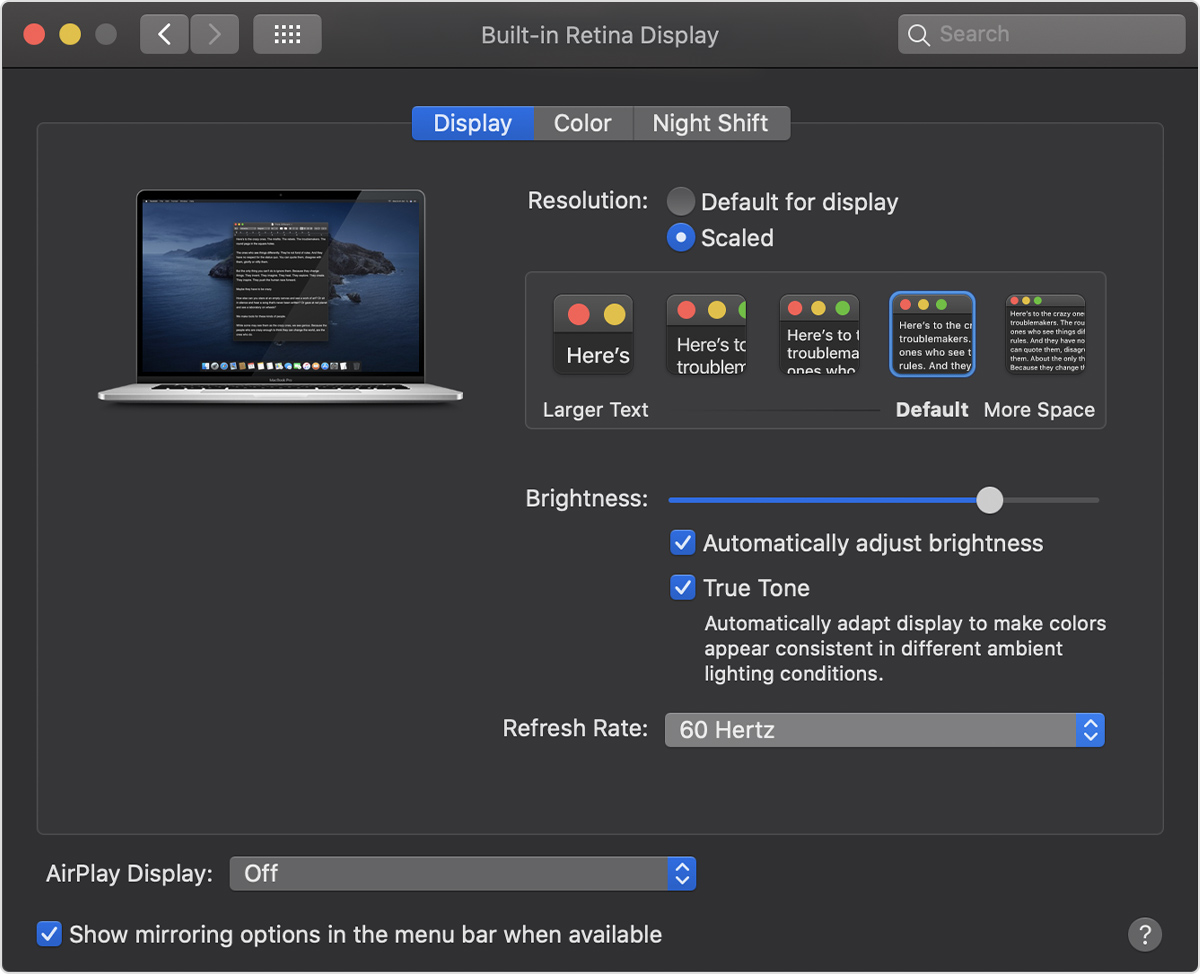
Unfortunately, changing the default refresh rate is not even something that is possible in the majority of Mac models. That being said, some external displays do offer users this option. These include the Apple Pro Display XDR, so it is important to know how to make a change in the refresh rate when it is necessary to do so. Here is a guide that will explain the process.

Keep in mind that all the available options for your refresh rate include 47.95 hertz, 48 hertz, 50 hertz, 59.94 hertz, and 60 hertz.

  1. In order to switch between the refresh rates on your supported MacBook or display, navigate to the Apple menu at the top-right corner of your device.
  2. Choose ‘System Preferences’ > ‘Displays’.
  3. Long press on the ‘Option’ key and choose the ‘Scaled’ button. The refresh rate menu will appear on your screen.
  4. Click on the ‘Refresh Rate’ pop-up menu and select a refresh rate as per your preference.
  5. When you are done with either viewing or editing the video content, Apple recommends that users change their refresh rate back to the default of 60 hertz to allow smooth performance in the macOS, such as when you minimise a tab or window.

It is important for you. to note that all unsupported models of Macs will not show you the refresh rate menu.


Tags: #macosApple
Tweet54SendShare15
Previous Post

Live Dealer Casinos: The Most Reliable & Thrilling Providers Available Today

Next Post

How to reset your Apple ID password

Arya Roy

Hi, this is Arya! Writing has always been a passion of mine, regardless of the topic I choose. Besides that, I am a huge foodie and music lover, whose interests range from world politics to horror films to everything in between.

Recommended For You

How does an On-device AI work? 

by Afeefa Ansari
July 3, 2026
0
How does an On-device AI work? 

On-device AI is becoming an assistant like never before. It is a fresh take on the world of AI and helps you handle things really well. We shall...

Read more

How does the satellite messaging work?

by Afeefa Ansari
July 3, 2026
0
Satellite messaging

Ever wondered how satellite messaging works? Follow the guide to know how you can understand this work and how complex it is. So, let's get started and see...

Read more

Honda and Nissan Edge Closer to Strategic Alliance as Shared Vehicle Brain Nears Approval

by Samir Gautam
July 2, 2026
0
Honda Nissan Partnership Moves Closer With Shared ECU

Honda and Nissan appear to be entering a decisive phase in their growing partnership, with both Japanese automakers making significant progress toward a technology-sharing agreement that could influence...

Read more
Next Post
How to reset your Apple ID password

How to reset your Apple ID password

Please login to join discussion

Techstory

Tech and Business News from around the world. Follow along for latest in the world of Tech, AI, Crypto, EVs, Business Personalities and more.
reach us at info@techstory.in

Advertise With Us

Reach out at - info@techstory.in

Aviator Game India 2026

BROWSE BY TAG

#Crypto #howto 2024 acquisition AI amazon Apple Artificial Intelligence bitcoin Business China cryptocurrency e-commerce electric vehicles Elon Musk Ethereum facebook funding Gaming Google India Instagram Investment ios iPhone IPO Market Markets Meta Microsoft News OpenAI samsung Social Media SpaceX startup startups tech technology Tesla TikTok trend trending twitter US

© 2025 Techstory.in

No Result
View All Result
  • News
  • Crypto
  • Gadgets
  • Memes
  • Gaming
  • Cars
  • AI
  • Startups
  • Markets
  • How to

© 2025 Techstory.in

Welcome Back!

Login to your account below

Forgotten Password?

Retrieve your password

Please enter your username or email address to reset your password.

Log In
Are you sure want to unlock this post?
Unlock left : 0
Are you sure want to cancel subscription?