• Send Us A Tip
  • Calling all Tech Writers
  • Advertise
Wednesday, September 2, 2026
  • Login
TechStory
  • News
  • Crypto
  • Gadgets
  • Memes
  • Gaming
  • Cars
  • AI
  • Startups
  • Markets
  • How to
No Result
View All Result
  • News
  • Crypto
  • Gadgets
  • Memes
  • Gaming
  • Cars
  • AI
  • Startups
  • Markets
  • How to
No Result
View All Result
TechStory
No Result
View All Result
Home How to

How to use Clubhouse

by Arya Roy
July 28, 2021
in How to, Popular, Tech
Reading Time: 2 mins read
0
How to use Clubhouse

Source: https://www.vox.com/the-goods/22276715/clubhouse-invite-only-audio-app-explained

TwitterWhatsappLinkedin

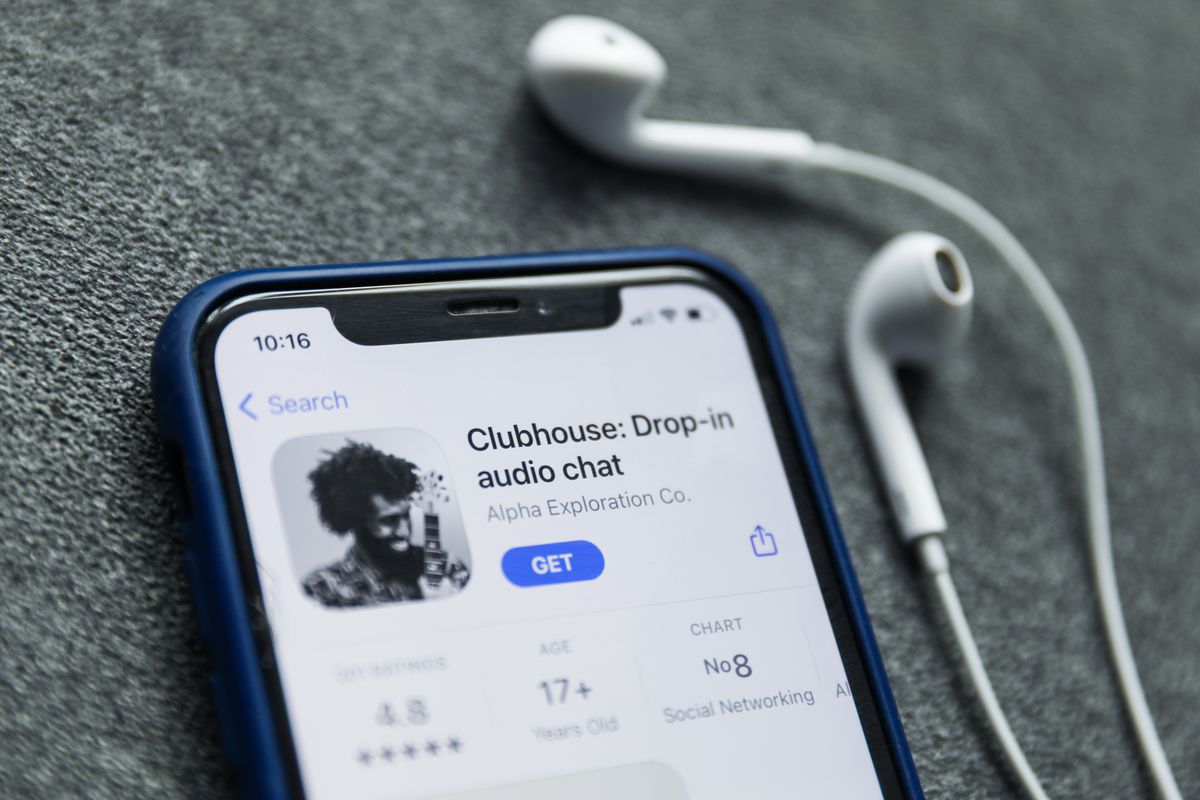
In this guide, you are going to be shown how to use the Clubhouse app. You will learn how to join a room and start your own room.
You might also like

How to Get the Hypercube Artifact in STALKER 2

How To Unlock Secret Ending in Big Walk

How to Get the Unique “Maximum” Rifle in Stalker 2: Cost of Hope DLC

Source: https://www.gsmarena.com/clubhouse_now_available_globally_on_android-news-49253.php

Signing up 

Clubhouse is available by invitation only, so you will need someone to invite you before you can start using it.

  1. Click on the link in your invite message and install the app.
  2. Follow the prompts on the screen to set up your account.
  3. Choose a username for your profile and follow some accounts that you are interested in to get started.

Join a room

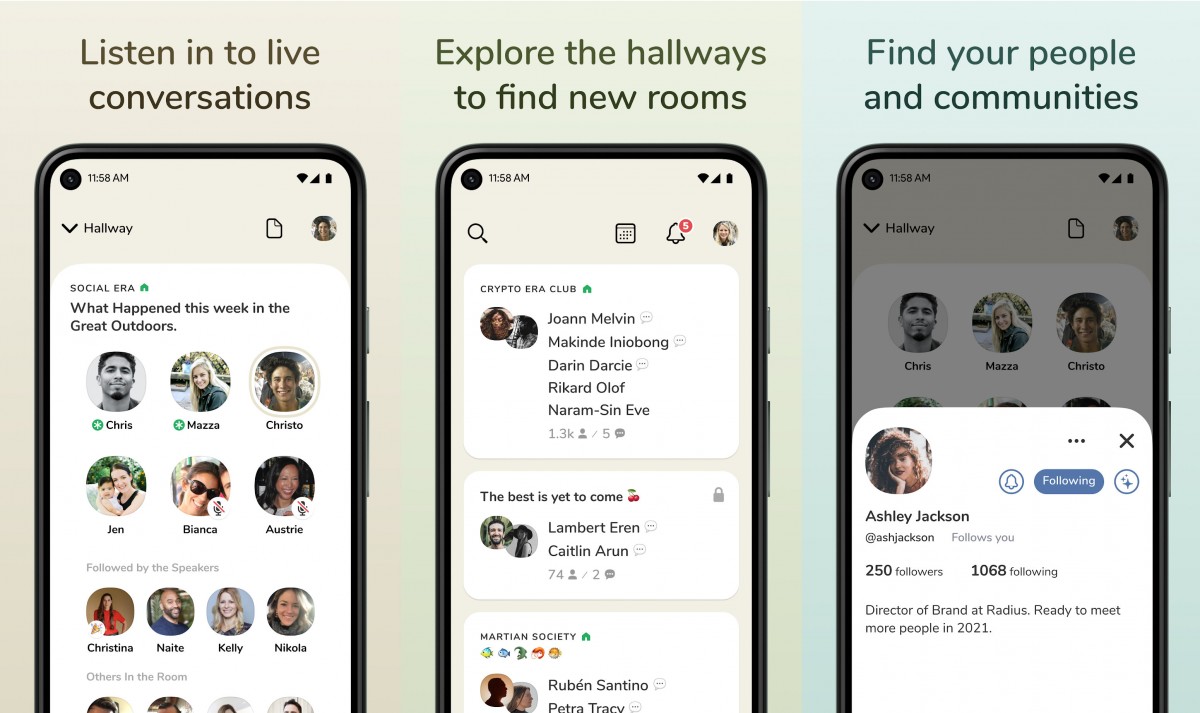
In the Clubhouse Hallway, you will see all the rooms available to join based on who you are following.

  1. To join a room, tap on the event, and you will immediately be able to start listening.
  2. At the top, you will see the speakers, and below, you will see the listeners.
  3. If you want to contribute to the conversation and start speaking, you will need to ask permission from the host by raising your hand. Do this by tapping on the hand icon.
  4. You can leave a room at any time by tapping on the box that reads Leave quietly.

Start a room 

You can either start a room instantly or plan an upcoming event.

  1. To start a room, tap on the green Start a room icon at the bottom.
  2. You will be given three options to choose from.
    1. Tap on Open for a public room.
    2. To start a room with only people that you follow, choose Social.
    3. Tap on Closed if you want to start a room with only specific people.
  3. Give your room a descriptive heading by tapping on Add a Topic.
  4. Choose Let’s Go to go live, or Choose People to invite who you want to your private room.
  5. If people want to contribute to your conversation, they will raise their hands. View all the listeners who have raised their hands by tapping on the hand and paper icon and then you could invite them to speak.
  6. To end the event, tap on the three dots in the top right corner and then click on End Room.
  7. You can instantly start a room with one person to have a private conversation. To do this, tap on the dotted square icon at the bottom right of your screen.
  8. Find the contact that you want and then tap on +Room to start.
  9. To schedule a room in advance, tap on the calendar icon at the top of your screen.
  10. Tap on the New Event option. A pop up will appear where you can fill in details about your event. Type in the name of your room, as well.
  11. To add a cohost or invite guests, tap on its option and find the people that you want to add. Add them by tapping on their name.
  12. Set the time and date of your room through the calendar.
  13. You can add more details about your discussion in the box below.
  14. Tap on Publish to complete.
Tags: clubhouse
Tweet54SendShare15
Previous Post

How to unzip a file

Next Post

How to record on Xbox One

Arya Roy

Hi, this is Arya! Writing has always been a passion of mine, regardless of the topic I choose. Besides that, I am a huge foodie and music lover, whose interests range from world politics to horror films to everything in between.

Recommended For You

How to Get the Hypercube Artifact in STALKER 2

by Khilav Jadav
September 1, 2026
0
How to Find Artifacts in STALKER 2

The Hypercube is one of the most powerful legendary artifacts in S.T.A.L.K.E.R. 2: Heart of Chornobyl. It is especially useful for players who regularly deal with fire anomalies...

Read more

How To Unlock Secret Ending in Big Walk

by Khilav Jadav
September 1, 2026
0
How to Gift a Game on Steam

Big Walk has more than one ending, and the first set of credits does not mean your journey is finished. The secret ending, also known as the true...

Read more

How to Get the Unique “Maximum” Rifle in Stalker 2: Cost of Hope DLC

by Khilav Jadav
September 1, 2026
0
How to Increase Carry Weight in Stalker 2

The Maximum is a useful unique weapon added in S.T.A.L.K.E.R. 2: Heart of Chornobyl with the Cost of Hope expansion. This marksman rifle is hidden inside the CNPP,...

Read more
Next Post
How to record on Xbox One

How to record on Xbox One

Please login to join discussion

Techstory

Tech and Business News from around the world. Follow along for latest in the world of Tech, AI, Crypto, EVs, Business Personalities and more.
reach us at info@techstory.in

Advertise With Us

Reach out at - info@techstory.in

Aviator Game India 2026

BROWSE BY TAG

#Crypto #howto 2024 acquisition AI amazon Apple Artificial Intelligence bitcoin Business China cryptocurrency e-commerce electric vehicles Elon Musk Ethereum facebook funding Gaming Google India Instagram Investment ios iPhone IPO Market Markets Meta Microsoft News OpenAI samsung Social Media SpaceX startup startups tech technology Tesla TikTok trend trending twitter US

© 2025 Techstory.in

No Result
View All Result
  • News
  • Crypto
  • Gadgets
  • Memes
  • Gaming
  • Cars
  • AI
  • Startups
  • Markets
  • How to

© 2025 Techstory.in

Welcome Back!

Login to your account below

Forgotten Password?

Retrieve your password

Please enter your username or email address to reset your password.

Log In
Are you sure want to unlock this post?
Unlock left : 0
Are you sure want to cancel subscription?