• Send Us A Tip
  • Calling all Tech Writers
  • Advertise
Saturday, September 5, 2026
  • Login
TechStory
  • News
  • Crypto
  • Gadgets
  • Memes
  • Gaming
  • Cars
  • AI
  • Startups
  • Markets
  • How to
No Result
View All Result
  • News
  • Crypto
  • Gadgets
  • Memes
  • Gaming
  • Cars
  • AI
  • Startups
  • Markets
  • How to
No Result
View All Result
TechStory
No Result
View All Result
Home Gadgets

How to take a screenshot on Windows 10

by Arya Roy
July 31, 2021 - Updated On June 14, 2022
in Gadgets, How to, Tech
Reading Time: 2 mins read
0
How to take a screenshot on Windows 10

Source: https://www.theverge.com/2020/1/14/21065140/how-to-upgrade-microsoft-windows-7-10-free-os

TwitterWhatsappLinkedin

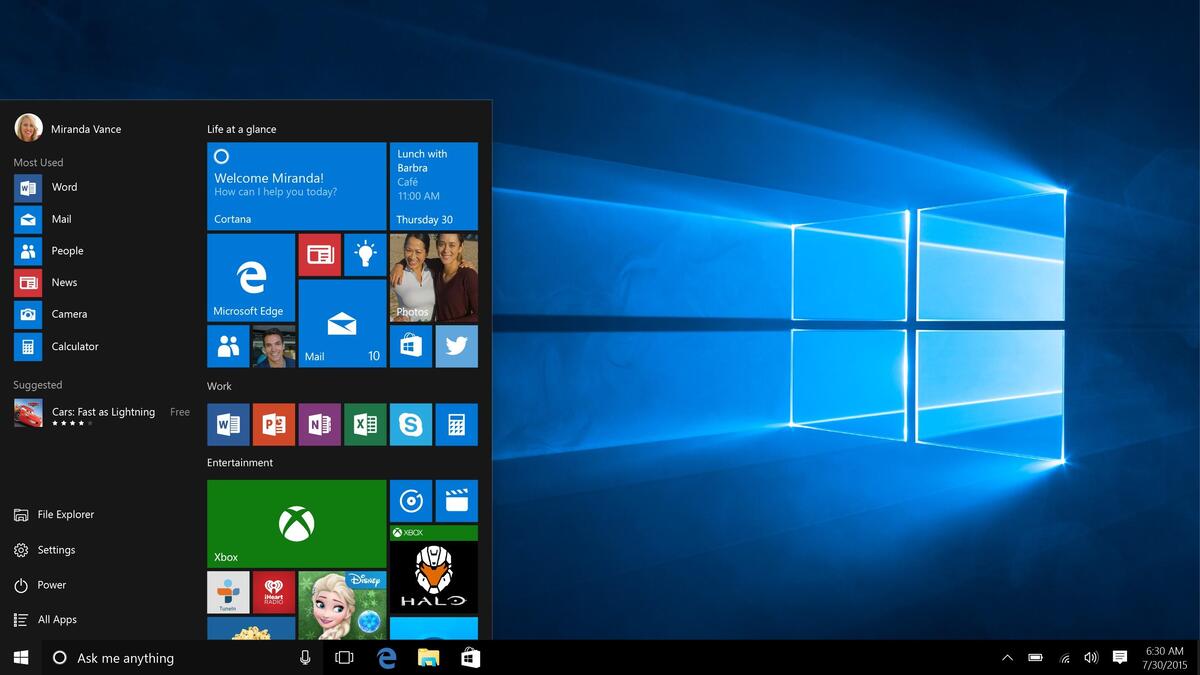
Whether you need to take a lot of screenshots for work purposes, or if you simply need to use it once in a while to share some funny memes or important information with friends and family, taking a screenshot is a vital Windows 10 skill. Here is a guide on how to do so.
You might also like

How to Get the X-Ray Sprite in Fortnite

How to Get Void Master Geno in Fortnite

How To Defeat Geno in Fortnite

Source: https://www.techrepublic.com/article/how-to-take-screenshots-in-windows-10/

Step 1: Identify your Print Screen key. This will usually be somewhere around the top right section of your keyboard, with the worst “Print Screen” on it. On some keyboards, it may be abbreviated, like “PrtSc” or it may be the secondary function of a key, in which case you might need to use the “Fn” key of your keyboard to utilise it. For example, you can print screen on Dell laptop directly.

Step 2:Press on the Print Screen key. This will immediately take a screenshot of your entire display (this also includes any extended desktops that you might have kept open). The screenshot is included in your clipboard and will allow you to paste it elsewhere. The screenshot is also automatically saved to your Screenshots folder.

Step 3:If you want to capture only your active window, press on Alt + Print Screen instead. This will take a screenshot of nothing more than the active window. This essentially means that if you have got several windows open, be sure to choose the particular window you want to capture to make it active. Just like with the full-screen screenshot, this is included in your clipboard and will be automatically saved to your Screenshots folder.

Step 4: Once you have taken a screenshot, that screenshot will be added to your clipboard, which will allow you to paste it very quickly into some applications. You can also paste it into an image editor, such as Paint 3D, to edit and save it. Alternatively, you can share it with either a friend or colleague by pasting the image into something like a chat or an email.

Tags: Windows 10
Tweet55SendShare15
Previous Post

Apple argues leaks cause companies to make iPhone cases at the wrong size

Next Post

Russia sues WhatsApp for violating privacy laws

Arya Roy

Hi, this is Arya! Writing has always been a passion of mine, regardless of the topic I choose. Besides that, I am a huge foodie and music lover, whose interests range from world politics to horror films to everything in between.

Recommended For You

How to Get the X-Ray Sprite in Fortnite

by Khilav Jadav
September 4, 2026
0
How To Link Fortnite Accounts

The X-Ray Sprite is one of the newest collectibles in Fortnite Chapter 7 Season 4: Override. Unlike a normal item that you simply pick up and use for...

Read more

How to Get Void Master Geno in Fortnite

by Khilav Jadav
September 4, 2026
0
How To Install Fornite v24.20 Update

Void Master Geno is a special style for the Geno outfit in Fortnite Chapter 7 Season 4. This version is hidden behind the Geno: The Ultimate Reality story...

Read more

How To Defeat Geno in Fortnite

by Khilav Jadav
September 4, 2026
0
How To Redeem Codes in Fortnite

If you are trying to defeat Geno in Fortnite, there is an important detail to know first. The current Geno encounter is part of the “Geno: The Ultimate...

Read more
Next Post
Russia WhatsApp

Russia sues WhatsApp for violating privacy laws

Please login to join discussion

Techstory

Tech and Business News from around the world. Follow along for latest in the world of Tech, AI, Crypto, EVs, Business Personalities and more.
reach us at info@techstory.in

Advertise With Us

Reach out at - info@techstory.in

Aviator Game India 2026

BROWSE BY TAG

#Crypto #howto 2024 acquisition AI amazon Apple Artificial Intelligence bitcoin Business China cryptocurrency e-commerce electric vehicles Elon Musk Ethereum facebook funding Gaming Google India Instagram Investment ios iPhone IPO Market Markets Meta Microsoft News OpenAI samsung Social Media SpaceX startup startups tech technology Tesla TikTok trend trending twitter US

© 2025 Techstory.in

No Result
View All Result
  • News
  • Crypto
  • Gadgets
  • Memes
  • Gaming
  • Cars
  • AI
  • Startups
  • Markets
  • How to

© 2025 Techstory.in

Welcome Back!

Login to your account below

Forgotten Password?

Retrieve your password

Please enter your username or email address to reset your password.

Log In
Are you sure want to unlock this post?
Unlock left : 0
Are you sure want to cancel subscription?