• Send Us A Tip
  • Calling all Tech Writers
  • Advertise
Friday, July 3, 2026
  • Login
TechStory
  • News
  • Crypto
  • Gadgets
  • Memes
  • Gaming
  • Cars
  • AI
  • Startups
  • Markets
  • How to
No Result
View All Result
  • News
  • Crypto
  • Gadgets
  • Memes
  • Gaming
  • Cars
  • AI
  • Startups
  • Markets
  • How to
No Result
View All Result
TechStory
No Result
View All Result
Home How to

How to lock Facebook profile

by Srestha Roy
August 28, 2021
in How to
Reading Time: 2 mins read
0
How to lock Facebook profile
TwitterWhatsappLinkedin

Users who have been on Facebook for a long time may not even be aware of the power they now have over their profiles, thanks to the addition of numerous new features, privacy settings, and rules. One of these features is the option to lock your Facebook profile so that other Facebook users cannot interact with it without your consent.
You might also like

How To Grow The Monkshood Flower In Kowakujo in Call of Duty: Black Ops 7 Zombies

How To Use Gliders In Kowakujo in Call of Duty: Black Ops 7 Zombies

How to turn off Google location history?

Facebook offers a variety of privacy choices to its users, including the ability to freeze your profile. When a user’s profile is locked, individuals who are not on the user’s Facebook friends list can only see a portion of the profile. Only friends with a closed profile will see images and posts on the timeline, as well as the profile picture and cover photo, articles, and new posts. In addition, their ‘Public’ posts will no longer be public and will only be available to friends.

If you want to lock your Facebook profile, you may do it from the mobile app or from your browser. It’s worth noting, though, that the desktop version of Facebook does not offer this feature, but there is a workaround. This functionality is also exclusive to the Android app. Continue reading to learn how to lock your Facebook page.

Using a smartphone app, you may lock your Facebook profile 

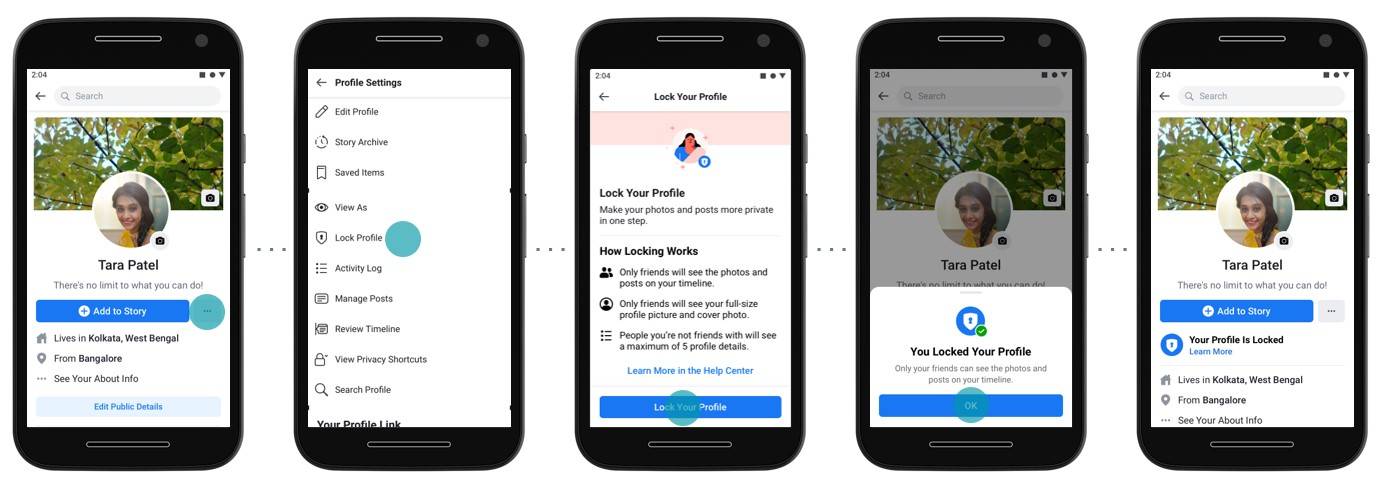
  • To use the Android app to lock your Facebook profile, follow these steps:
  • Open the Facebook app and tap on your name to get to your profile.
  • Next to ‘Add to Story,’ tap the three-dot menu symbol.
  • You should notice a Lock Profile option here; tap it.
  • The next page will offer you a quick overview of how it works, as well as an option to
  • Lock Your Profile at the bottom, which you should select.
  • If you see a pop-up that says “You Locked Your Profile,” press OK.

Facebook profile may be locked from a desktop computer as well.

  • While there is no direct way to lock your app from the browser, if you don’t have access
  • to the mobile app, there is a workaround:
  • Go to https://www.facebook.com/ and click on the symbol for your profile. Replace ‘www’ with’m’ in the URL so that it now reads’m.facebook.com/yourprofilename’.
  • On your desktop browser, this will send you to a mobile version of Facebook, where you should see a three-dot menu next to the Edit Profile option.
  • You should see the Lock Profile option in the three-dot menu; select it.
  • This page, similar to the Android version, will demonstrate how locking works, with the option to Lock Your Profile at the bottom. Select it by clicking on it.

On both the mobile app and the desktop, the procedures to unlock your Facebook profile are the same. You’ll now see an Unlock Profile option instead of the Lock Profile option; press it and then select Unlock on the following screen. At the bottom of the page, you’ll find a brief explanation of how unlocking your profile works, as well as an option to Unlock Your Profile; select it, and your profile will be unlocked.

Tags: DesktopfacebookiosLockmobileprivacysecuritysmartphone
Tweet54SendShare15
Previous Post

Toyota self-driving pods at Paralympics injured an impaired pedestrian

Next Post

Byju’s Classes brings new ‘Two-Teacher Advantage’ model to guide students

Srestha Roy

Recommended For You

How To Grow The Monkshood Flower In Kowakujo in Call of Duty: Black Ops 7 Zombies

by Khilav Jadav
July 2, 2026
0
How to Get Into the Black Ops 7 Beta

If you are exploring the Kowakujo map in Call of Duty: Black Ops 7 Zombies, you will eventually come across the Monkshood Flower objective. This step is part...

Read more

How To Use Gliders In Kowakujo in Call of Duty: Black Ops 7 Zombies

by Khilav Jadav
July 2, 2026
0
How to Get Into the Black Ops 7 Beta

Gliders are one of the most exciting movement mechanics in Call of Duty: Black Ops 7 Zombies on the Kowakujo map. Instead of simply running through narrow castle...

Read more

How to turn off Google location history?

by Afeefa Ansari
July 2, 2026
0
location-history

Feel like you're being tracked with your Google location history on? Here is how you can turn off your history and get this burden off your back. So,...

Read more
Next Post
Boy with headphones exploring Byju's classes on his tablet

Byju's Classes brings new 'Two-Teacher Advantage' model to guide students

Please login to join discussion

Techstory

Tech and Business News from around the world. Follow along for latest in the world of Tech, AI, Crypto, EVs, Business Personalities and more.
reach us at info@techstory.in

Advertise With Us

Reach out at - info@techstory.in

Aviator Game India 2026

BROWSE BY TAG

#Crypto #howto 2024 acquisition AI amazon Apple Artificial Intelligence bitcoin Business China cryptocurrency e-commerce electric vehicles Elon Musk Ethereum facebook funding Gaming Google India Instagram Investment ios iPhone IPO Market Markets Meta Microsoft News OpenAI samsung Social Media SpaceX startup startups tech technology Tesla TikTok trend trending twitter US

© 2025 Techstory.in

No Result
View All Result
  • News
  • Crypto
  • Gadgets
  • Memes
  • Gaming
  • Cars
  • AI
  • Startups
  • Markets
  • How to

© 2025 Techstory.in

Welcome Back!

Login to your account below

Forgotten Password?

Retrieve your password

Please enter your username or email address to reset your password.

Log In
Are you sure want to unlock this post?
Unlock left : 0
Are you sure want to cancel subscription?