• Send Us A Tip
  • Calling all Tech Writers
  • Advertise
Sunday, July 5, 2026
  • Login
TechStory
  • News
  • Crypto
  • Gadgets
  • Memes
  • Gaming
  • Cars
  • AI
  • Startups
  • Markets
  • How to
No Result
View All Result
  • News
  • Crypto
  • Gadgets
  • Memes
  • Gaming
  • Cars
  • AI
  • Startups
  • Markets
  • How to
No Result
View All Result
TechStory
No Result
View All Result
Home Gaming

How To Play Steam Games On An ​​Oculus Quest 2

by Priyansh Sidhwani
June 30, 2022
in Gaming, News
Reading Time: 2 mins read
0
How To Play Steam Games On An ​​Oculus Quest 2

Credit @ Oculus

TwitterWhatsappLinkedin

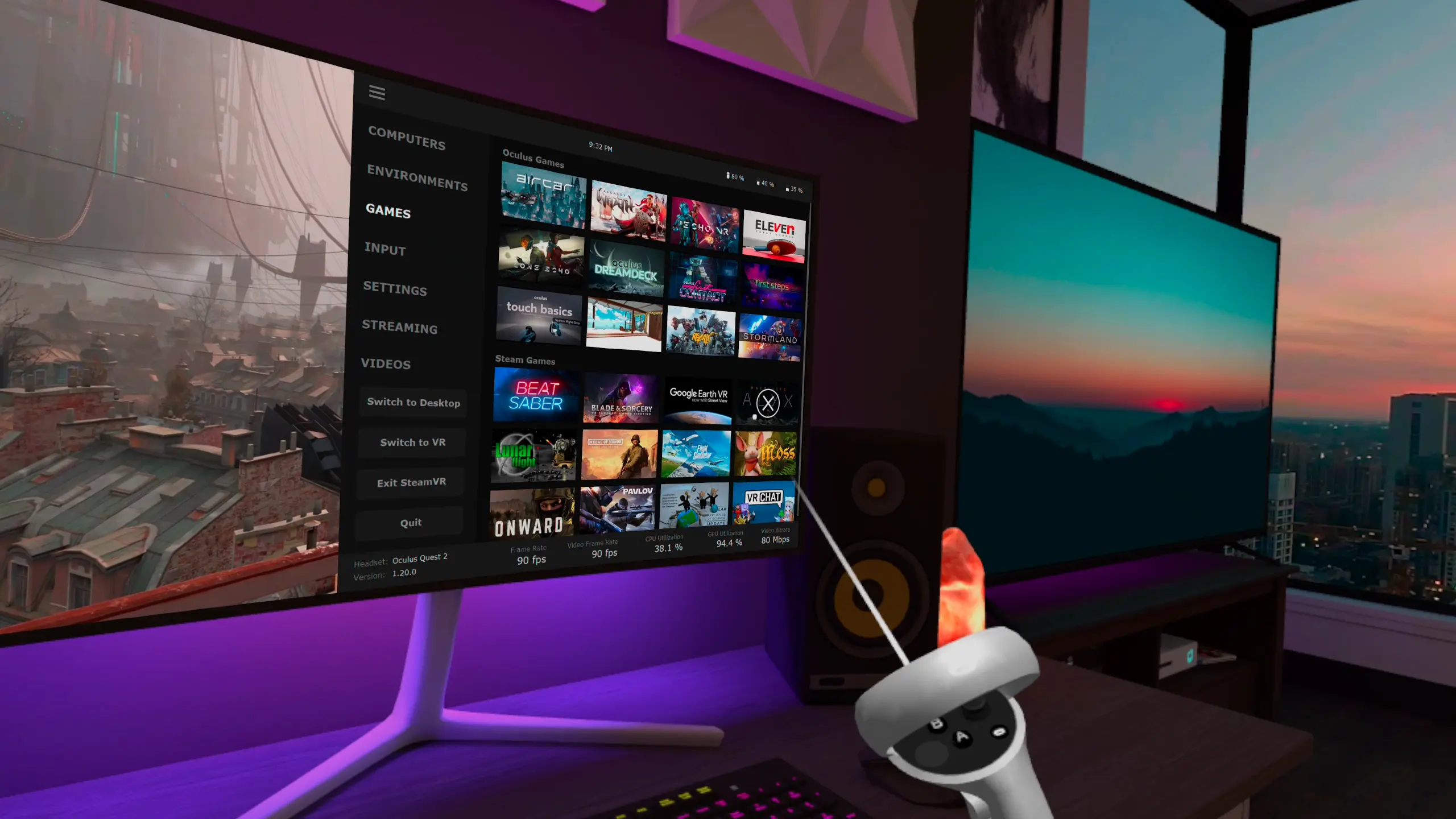
Ever wondered how to play Steam games on an ​​Oculus Quest 2, well we have a guide for you showing how. While Quest 2 is a standalone device, requiring no wired connection to your computer in order to play the Quest VR games vast library, Quest 2 does also provide an option for connecting with your computer to allow for the ability to play Steam VR games, for instance.
You might also like

The AI Industrial Drone Wisconsin Homeowners Sue Microsoft Over Data Center Noise

UK Culture Secretary Lisa Nandy Quits X, Calls Platform a Threat to Healthy Public Debate

How To Reach Outer Space In Genshin Impact

How To Play Steam Games On An ​​Oculus Quest 2
Credit @ Oculus

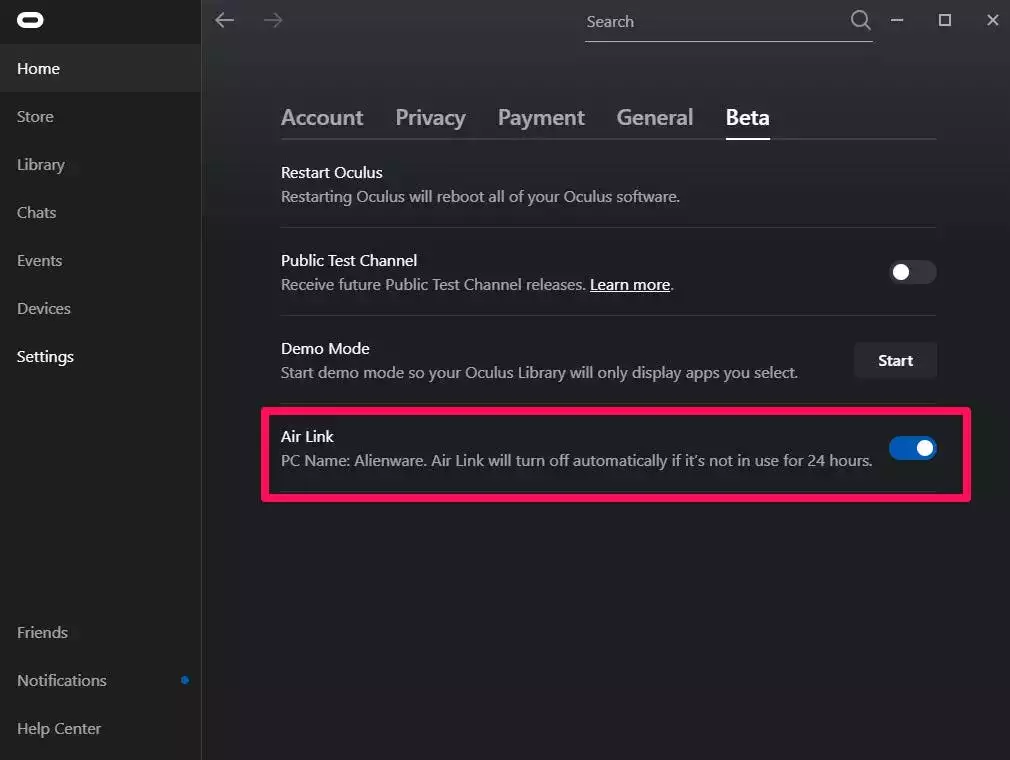
The downside is that you will need a strong WiFi signal, and performance may at times be spotty, but when the Air Link works smoothly, you will be able to play Steam VR games that are streaming from a computer with no wires. You do not need a USB cable to play Steam VR games on Quest 2; you can connect wirelessly using the Oculus Air Link. Oculus has a feature called Air Link which allows users to connect their headsets wirelessly with a PC.

The catch here, of course, is that you will have to buy the VR games straight through Steam. SteamVR will let you run any VR-ready titles sitting in your Steam Library. You can locate SteamVR itself in your games library and start from there. First, you will have to install Steam VR and the Quest computer app. First, players must have the Steam VR downloaded in their Steam app, allowing them to play VR first, no matter what headset is used.

Step-2 Connect your Oculus Quest 2 to a Computer Turning the Quest 2 on and connecting it to a computer over USB-C using a longer USB-C cable here will make your life easier since you will not need to take your Quest back and forth to just installing games onto it. To set it up using a cable, just power up your Oculus VR headset and plug it into the USB port of your computer.
How To Play Steam Games On An ​​Oculus Quest 2
Credit @ Oculu

Then, run the Meta Quest Virtual Desktop application and follow the instructions to set up your headset to connect it to your computer. In terms of connecting the Oculus Quest 2 headset to Steam, you actually have two main options; you can connect it manually using an Oculus Link cable or a non-branded USB Link cable, or you can connect it wirelessly by downloading Oculus Air Link software.

Enable the option called Experimental Features, then look for Air Link below that, and turn it on similar to how you would do on a PC. You will have to enable Oculus Link either on a PC or on your VR headset since this is still an experimental feature. By turning Air Link on, official Oculus apps will be able to use Air Link in place of the usual N.G.

This switch will change apps to using the wireless Air Link in place of the usual wired Link connection. Air Link should now show as an option on the headset quick start interface and provided that you have got Air Link turned on by the PC, and the PC is plugged into the Ethernet port, you should be able to open up SteamVR and play installed games just like with the wired connection.


Tags: How To Play Steam Games On An ​​Oculus Quest 2Oculus Quest 2Steam Games On An ​​Oculus Quest 2
Tweet54SendShare15
Previous Post

Blizzard Entertainment Acquires Spellbreak Developer Proletariat

Next Post

The Boys Showrunner Wants To Team Up With Hideo Kojima To Make A Game

Priyansh Sidhwani

Hi! I'm Priyansh, I write articles about gaming news here at Techstory. To get in touch E-mail: Priyansh@connasys.com.

Recommended For You

The AI Industrial Drone Wisconsin Homeowners Sue Microsoft Over Data Center Noise

by Anochie Esther
July 5, 2026
0
data center noise complaints

The massive, cross-country expansion of artificial intelligence infrastructure is fast colliding with local community standards and basic residential property rights. Across the United States, tech titans are racing...

Read more

UK Culture Secretary Lisa Nandy Quits X, Calls Platform a Threat to Healthy Public Debate

by Ishaan Negi
July 5, 2026
0
UK Culture Secretary Lisa Nandy Quits X, Calls Platform a Threat to Healthy Public Debate

The debate over social media's role in modern society has taken another dramatic turn. UK Culture Secretary Lisa Nandy has announced that she is leaving X (formerly Twitter),...

Read more

How To Reach Outer Space In Genshin Impact

by Khilav Jadav
July 5, 2026
0
How to Verify Age on Genshin Impact

Exploring the Moon is one of the biggest additions to Genshin Impact, and many players are surprised to learn that the adventure does not end after arriving there....

Read more
Next Post
The Boys Hideo Kojima

The Boys Showrunner Wants To Team Up With Hideo Kojima To Make A Game

Please login to join discussion

Techstory

Tech and Business News from around the world. Follow along for latest in the world of Tech, AI, Crypto, EVs, Business Personalities and more.
reach us at info@techstory.in

Advertise With Us

Reach out at - info@techstory.in

Aviator Game India 2026

BROWSE BY TAG

#Crypto #howto 2024 acquisition AI amazon Apple Artificial Intelligence bitcoin Business China cryptocurrency e-commerce electric vehicles Elon Musk Ethereum facebook funding Gaming Google India Instagram Investment ios iPhone IPO Market Markets Meta Microsoft News OpenAI samsung Social Media SpaceX startup startups tech technology Tesla TikTok trend trending twitter US

© 2025 Techstory.in

No Result
View All Result
  • News
  • Crypto
  • Gadgets
  • Memes
  • Gaming
  • Cars
  • AI
  • Startups
  • Markets
  • How to

© 2025 Techstory.in

Welcome Back!

Login to your account below

Forgotten Password?

Retrieve your password

Please enter your username or email address to reset your password.

Log In
Are you sure want to unlock this post?
Unlock left : 0
Are you sure want to cancel subscription?