• Send Us A Tip
  • Calling all Tech Writers
  • Advertise
Monday, June 29, 2026
  • Login
TechStory
  • News
  • Crypto
  • Gadgets
  • Memes
  • Gaming
  • Cars
  • AI
  • Startups
  • Markets
  • How to
No Result
View All Result
  • News
  • Crypto
  • Gadgets
  • Memes
  • Gaming
  • Cars
  • AI
  • Startups
  • Markets
  • How to
No Result
View All Result
TechStory
No Result
View All Result
Home How to

How to Wipe a Macbook

by Priyansh Sidhwani
August 8, 2022
in How to, News
Reading Time: 2 mins read
0
How to Wipe a Macbook

Credit @ Apple

TwitterWhatsappLinkedin

If you’re wondering how to wipe a Macbook, This article will show you how to reset your Mac’s File System to factory settings and why you should wipe your MacBook. You can also read up on steps to perform a factory reset, as well as tips for reinstalling macOS before resetting. Hopefully, these tips will help you wipe your Macbook safely and completely.
You might also like

How to choose the right AI model for Workflow?

How to detect phishing emails?

How to raise capital for a decapitalized fund?

How to Wipe a Macbook
Credit @ Apple

File system format for wiping a MacBook

To wipe a Macbook, you must first boot into recovery mode. To do so, press and hold the Power key until you see the Apple logo and spinning globe. In the “Erase” tab, click the “Erase” button. You will then be prompted to choose the file system format for the new hard drive. Choose “Mac OS Extended (Journaled)”. Finally, click “Erase” to erase the hard drive. Before the hard drive has been completely erased, you must back up any data by connecting it to another computer.

You can use the Time Machine or a cloning drive for backing up. If you forget to backup your data, you can also choose a different file system or format your Mac with the factory settings. After this, you can use the factory settings to restore your Mac to its default settings.

There are a few steps you should follow before performing a factory reset on your MacBook. Back up any important files, log out of iTunes, and unpair Bluetooth devices before resetting the device. Performing a factory reset will erase all your data and settings. Make sure you back up all your files before attempting this procedure.
How to Wipe a Macbook
Credit @ Apple

Restarting a MacBook

To restart a Macbook after wiping your data, you need to hold down Command-R while restarting. Upon restart, a macOS utility window will appear. From there, you can select Reinstall macOS. Follow the onscreen instructions to reinstall macOS. Once the computer has finished installing the new operating system, you can quit out of the Setup Assistant and your Mac will be ready to go.

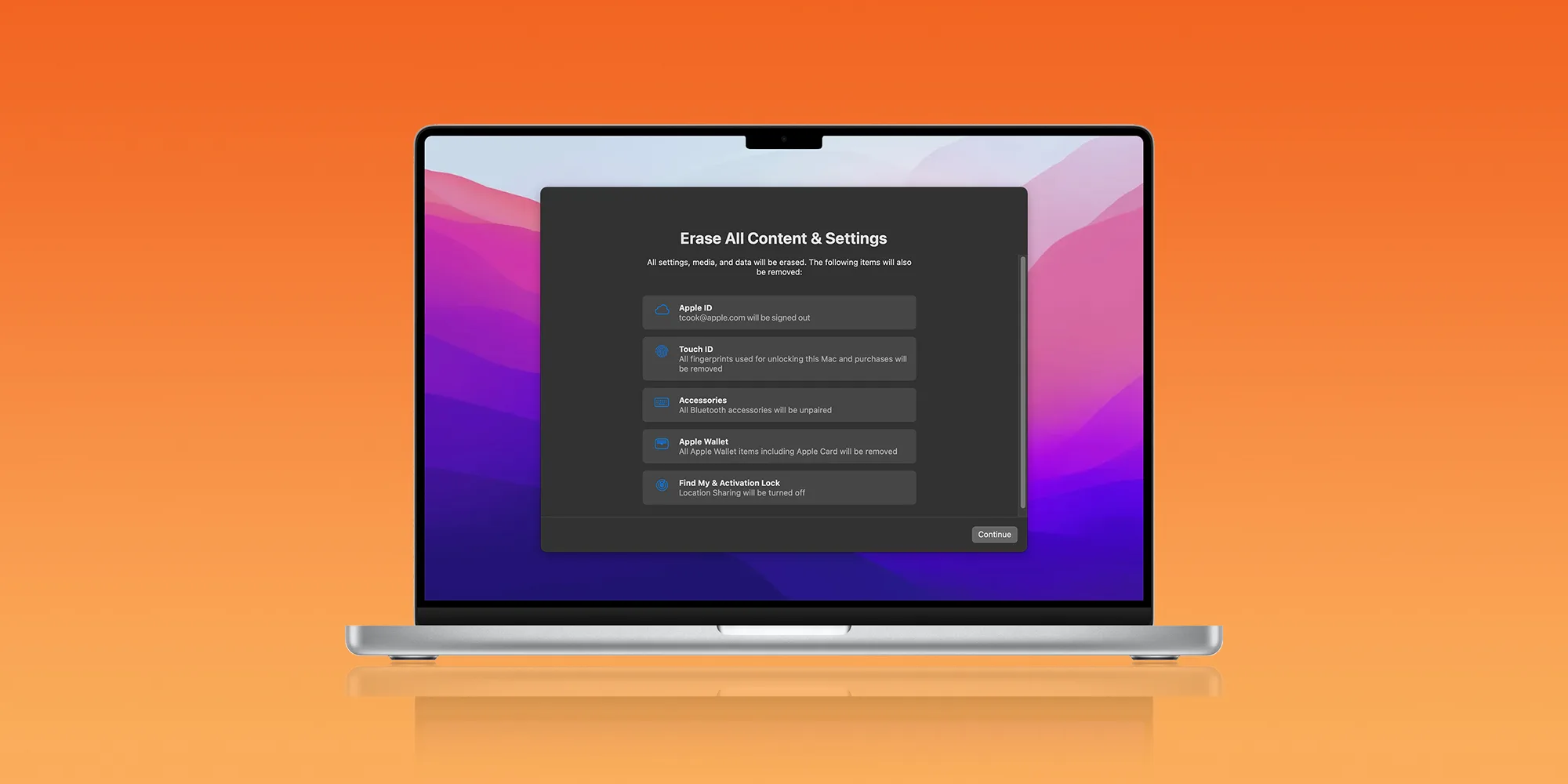
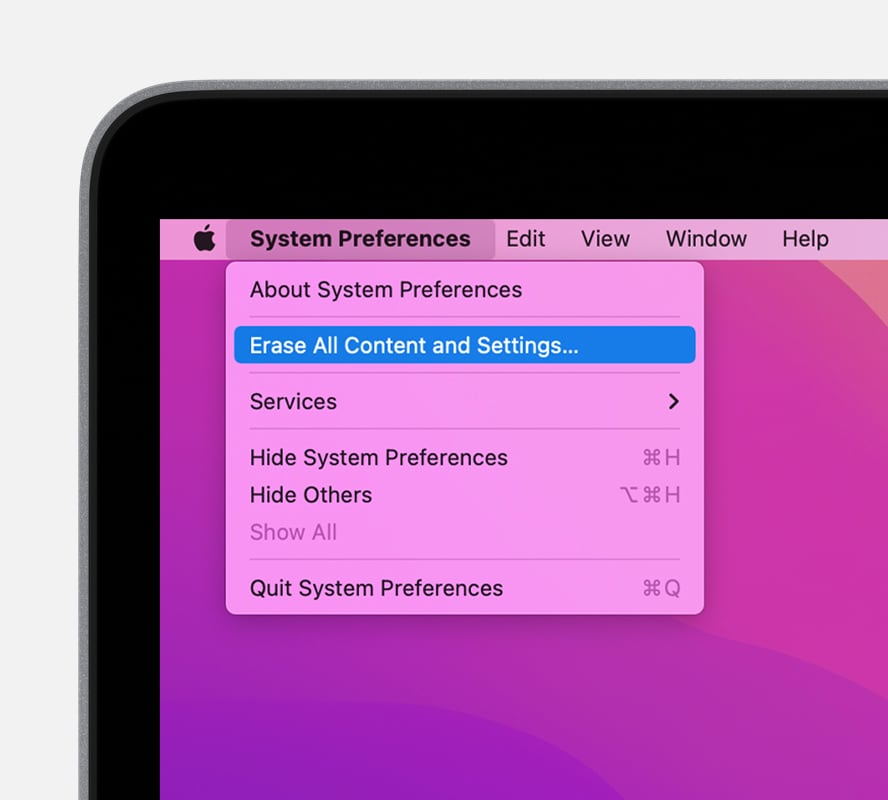
If your Mac has been wiped, you can restart it if you want to leave the computer setup for the next owner. First, you must sign out of your Apple ID and enter your password. After confirming this, click Erase All Content and Settings. Your Mac will then show a black screen with a progress bar and erase it on its own.

Reasons to perform a factory reset on a MacBook

Performing a factory reset on a Macbook Air is a necessary step when selling a model. This step wipes all your data and settings from the computer. It’s a good idea to perform this step to avoid security risks. Here are some reasons why you may want to perform a factory reset on a MacBook.

Performing a factory reset is the last resort when other troubleshooting methods don’t work. However, in some cases, the factory reset is a necessary step if you’ve noticed a serious OS problem and want to completely erase the hard drive. It can also solve any software or file problems that are causing your Mac to freeze.

Tags: How to Factory reset a MacbookHow to Wipe a Macbook
Tweet54SendShare15
Previous Post

Activision Blizzard Earned More On Mobile Games Last Quarter Than PC and Consoles Combined

Next Post

The China-Taiwan dispute might delay the upcoming Apple iPhone 14 Series

Priyansh Sidhwani

Hi! I'm Priyansh, I write articles about gaming news here at Techstory. To get in touch E-mail: Priyansh@connasys.com.

Recommended For You

How to choose the right AI model for Workflow?

by Afeefa Ansari
June 29, 2026
0
Workflow

Do you want to pick the perfect model for your workflow? Here is how you can do that! Follow the guide to understand how the workflow works and...

Read more

How to detect phishing emails?

by Afeefa Ansari
June 29, 2026
0
Phishing

Do you want to detect an incoming phishing email? With this becoming a more common phenomenon, it is important that we learn to understand how it works and...

Read more

How to raise capital for a decapitalized fund?

by Afeefa Ansari
June 29, 2026
0
Decapitalization

Do you want to raise capital for a decapitalized fund? Here is how you can do it without swearing and build a better future for yourself. So, let's...

Read more
Next Post
China-Taiwan dispute might delay Apple iPhone 14 Launch

The China-Taiwan dispute might delay the upcoming Apple iPhone 14 Series

Please login to join discussion

Techstory

Tech and Business News from around the world. Follow along for latest in the world of Tech, AI, Crypto, EVs, Business Personalities and more.
reach us at info@techstory.in

Advertise With Us

Reach out at - info@techstory.in

Aviator Game India 2026

BROWSE BY TAG

#Crypto #howto 2024 acquisition AI amazon Apple Artificial Intelligence bitcoin Business China cryptocurrency e-commerce electric vehicles Elon Musk Ethereum facebook funding Gaming Google India Instagram Investment ios iPhone IPO Market Markets Meta Microsoft News OpenAI samsung Social Media SpaceX startup startups tech technology Tesla TikTok trend trending twitter US

© 2025 Techstory.in

No Result
View All Result
  • News
  • Crypto
  • Gadgets
  • Memes
  • Gaming
  • Cars
  • AI
  • Startups
  • Markets
  • How to

© 2025 Techstory.in

Welcome Back!

Login to your account below

Forgotten Password?

Retrieve your password

Please enter your username or email address to reset your password.

Log In
Are you sure want to unlock this post?
Unlock left : 0
Are you sure want to cancel subscription?