How to Recover Windows Password with Reset Disk
Hello fellow reader, how are you all doing? Today, we are about to give solution to one of the top most asked questions in our blog about how to reset Windows password if forgotten? Truth to be told, more than thousand people are searching about this issue everyday with unsatisfied results. Unfortunately, forgetting your own Windows computer password can be fearful and terrifying moment especially if your computer contains exclusive data that you need regularly in your daily life. And without inputting the correct password, your computer will prevent the access from all the files and information inside your PC.
Luckily, there are two awesome solutions to resolve this issue forever that we are about to explain in this guide. But before proceeding, please note that we do not recommend formatting your computer and neither will we waste your time explaining that. In fact, we are going to determine that viable solutions that are perfectly working on 2017.
Solution 1: Recover Microsoft Email Password
With Windows 8 and Windows 10, you get an additional type of account to protect your computer i.e. Microsoft account. Please note that if you are using an email and a password for to login to your PC then only this method will work.
Step 1. Visit live.com from any web browser from a computer or smartphone. Go to the official forgotten password page and choose “I Forgot My Password”.
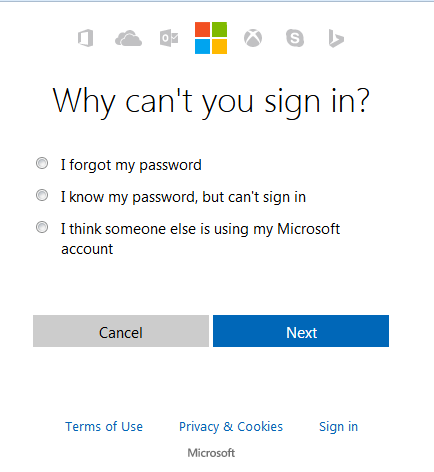
Step 2. On the following page, you will be asked to input the email and resolve the captca.
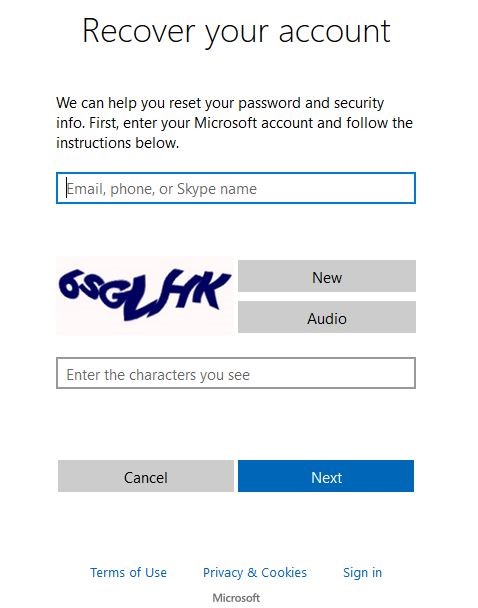
Step 3. Next, you will receive an OTP on your recovery email or phone number to verify your identification.
Step 4. On the final window, you will be able to setup a new password for your Microsoft account.
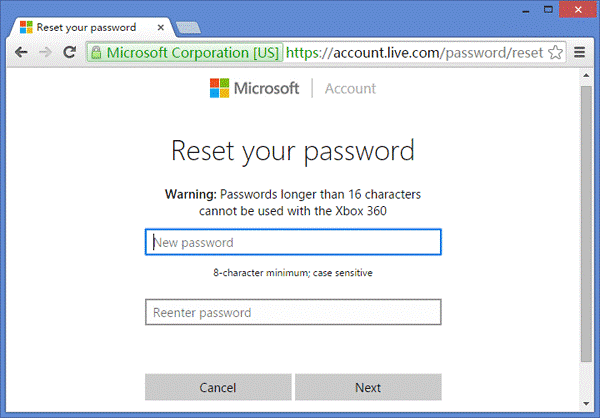
That’s all. You may now use this new password to enter into your PC again.
Cons
- Won’t work with Windows 7 or older versions.
- Doesn’t work with local, administrator, local or root accounts.
Solution 2: Restore Windows Password with Password Reset Disk
Certainly, if you have Windows 7 or any older OS installed on your computer then the above solution won’t work. On the other hand, most people use local or administrator accounts to password-protect their computer so again the above solution might not work. But don’t get too distressed because UUkeys – Windows Password Mate is always there to serve you whenever you need to reset your Windows computer password.
What is UUkeys Windows Password Mate?
It is one of the most powerful and effective Windows password reset program which is often used for removing the password from any Windows computer totally. It is very simple to use yet extremely effective. It is the only program on the internet that guarantees that password recovery or else you can have your money back.
Salient Specifications of UUkeys Windows Password Mate –
- Bypass and remove passwords from all Windows computers and laptops.
- Compatible with every Windows versions such as Windows 10/8/7/Vista/XP/2000/NT/98/95 and so on.
- Erase all types of passwords such as picture, PIN and text passwords.
- Works with every account types such as Microsoft, local, administrator, root and domain accounts.
- Eligible with most Hard Drive categories like IDE, SATA, SSD, HDD, FAT32, and NTFS and so on.
- Make your own password reset disk in 2 ways – flash drive or CD/DVD.
- Queries? 24X7 Support Available.
Manual to reset Windows Password with Password Reset Disk –
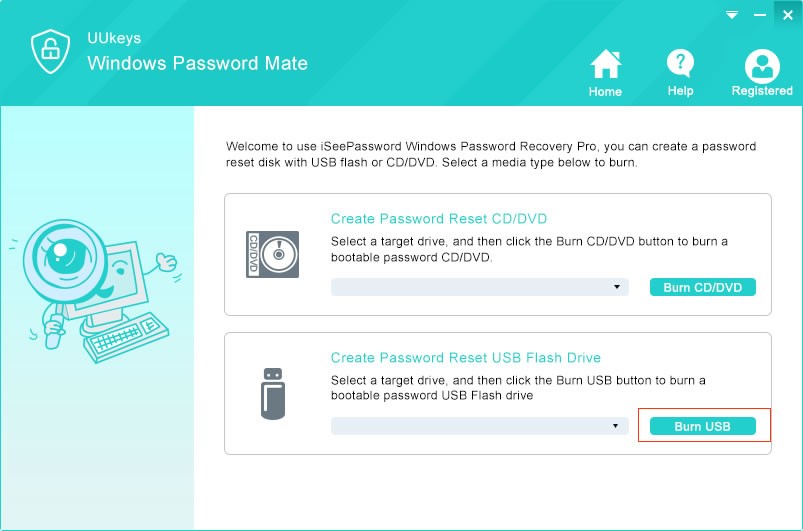
Step 1. Install UUkeys on any computer with administrator rights and launch the program. Next, create a password reset disk by clicking on “Burn USB”. But first, make sure to insert a USB flash drive and let it get recognized by the program.
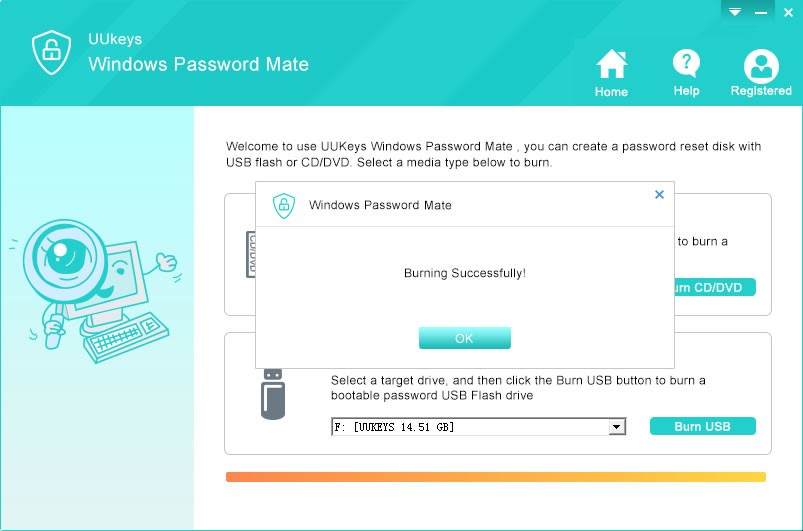
Step 2. After creating the password reset disk, you will see the following message indicating the ISO image file is successfully burned on to your USB stick.
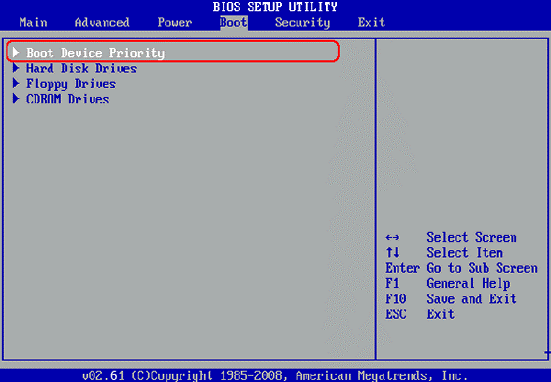
Step 3. Now, insert the flash drive on your safe computer and restart it. Change the BIOS settings so that your system can read the flash drive as primary disk and boot from it.
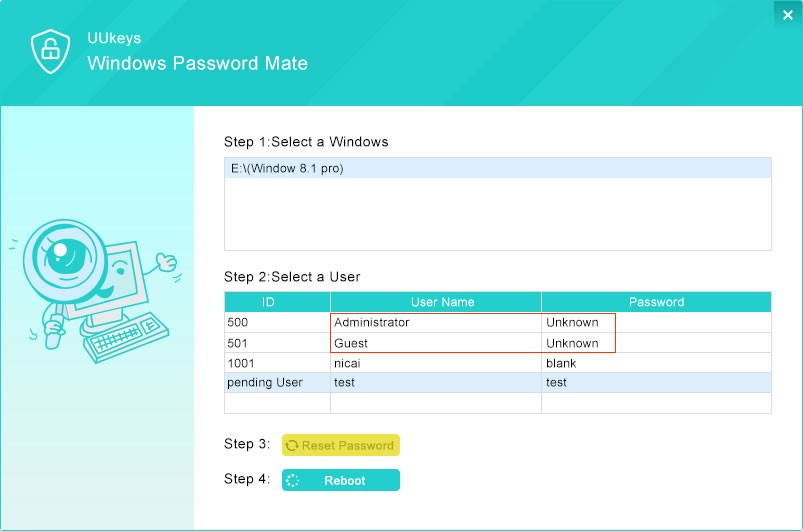
Step 4. Once the Windows password reset tool is loaded on the display screen, you will be required only to fill in the following details:
- Pick the OS version – Example: Windows 8.
- Select the protected username.
- Click “Reset Password”.
- Reboot
Done! Your computer is no longer password-protected. You can simply reboot and use your computer normally like before.
Conclusion
As per our final verdict, we can conclude that UUkeys – Windows Password Mate works flawlessly on every Windows computer and laptop. Moreover, it allows you to have your own password reset disk that could be used whenever you want. However, we will suggest you to use a strong and tough password to encrypt your computer as soon you regain access and never worry, even if you forget the password again, at least you have your own password reset disk to unlock your computer again.
Image Credits: okclipart.com