• Send Us A Tip
  • Calling all Tech Writers
  • Advertise
Wednesday, July 22, 2026
  • Login
TechStory
  • News
  • Crypto
  • Gadgets
  • Memes
  • Gaming
  • Cars
  • AI
  • Startups
  • Markets
  • How to
No Result
View All Result
  • News
  • Crypto
  • Gadgets
  • Memes
  • Gaming
  • Cars
  • AI
  • Startups
  • Markets
  • How to
No Result
View All Result
TechStory
No Result
View All Result
Home Tech

How to Get a Task Manager Inside PC Games on Windows 10

by Priyanka Chaubey
November 10, 2020 - Updated On March 10, 2021
in Tech
Reading Time: 3 mins read
0
WINDOWS 10X: EVERYTHING WE KNOW SO FAR.
TwitterWhatsappLinkedin

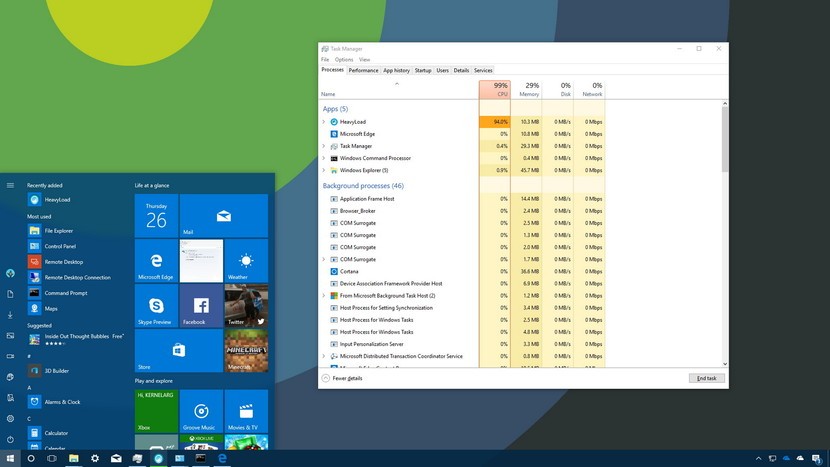
Good news for all the gamers out there! Windows 10 is now a blessing for gamers with its Task Manager which can be accessed from any PC game with a keyboard shortcut. Windows 10 came up with this boon at the end of October 2020 with which you can end tasks without Alt+Tabbing out of your game. You can now manage your tasks even when playing games.
You might also like

The Refund Rejection Nintendo Rebuffs Consumer Claims over Tariff Rebates

The Crowdsourced Fight Against Big Tech Erin Brockovich’s Campaign for AI Transparency

Volkswagen App Blocks GrapheneOS and Other Custom Android Users, Leaving EV Owners Frustrated

Task manager on Windows 10

Here’s how to get started


Launch the Resources Widget by opening the game bar

Open the Xbox Game bar to find this feature. Hold down the Windows key and press G to open it. If you want, you can easily access this shortcut even while playing games or doing some other task.
When you will open the Game Bar interface click on the menu option present on the right of the clock on the bar. To make visible the Resources widget on the screen, click on ‘Resources’.
If you are unable to view the full-screen Game Bar interface, you probably have messed up with the shortcut. But worry not! You can change the settings very easily. Just visit Settings > Gaming > Xbox Game Bar. Furthermore, you can also make your own shortcut by heading to Game Bar under the Keyboard Shortcuts header.
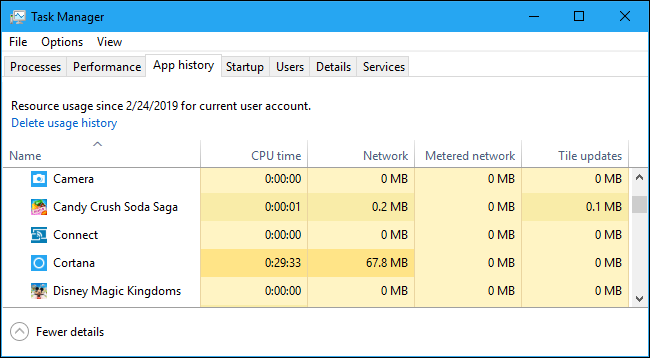
Know everything with Task Manager
Explore what’s draining the most of your Resources

Apart from everything that Resources let you do, it also gives you a glimpse of what is taking up most of the Resources. The best thing about this? It is an inbuilt feature that will simply show you a ranked list. It sorts the applications by their impact.

With the help of this facility, you can easily make out which application you should close to speed up your gaming process. To use the most of it, press Alt+Tab out of the game and close it normally. You can also do the same by clicking the “X” to the process’ present in the Resources widget. Saving you time, this procedure will close the process just exactly how you could end it from Window’s 10 Task Manager.

You might want to be careful with the fact that some processes are Windows running procedure and it is advisable not to end it.

If you want more information for the same you can click on the ‘Show More’ option which will give you the Task Manager-style interface. It will give you a list of processes running actively on your computer with their CPU, GPU, RAM, and disk usage. Amazing right? There is more to it!  To see the processes using the most CPU on top, you can click the ‘CPU’ header. If you want more information on more headers, feel free to explore.

When you see what is taking up the most Resource, you can end it by simply clicking on the ‘X’ present next to the headers.

Also check: Cyberlab

Always keep it on-Top by pinning the widget

Windows understands how much you love to pin your favorite tools. Probably this is why it lets you pin this widget. Click on it by your left hand, or right hand in case you’re a lefty.
The process to pin the widget is as simple as pinning papers with paperclips. Click the “Pin” icon at the top-right corner of the widget window and boom! You will have your widget even when you close the Game Bar.

Did we tell you? You can also gather information about your overall system performance with the Task Manager. All you have to do is to use the Performance widget in the Game Bar instead.


 

Tags: Task managerWindows10
Tweet54SendShare15
Previous Post

Apple’s first Arm-based MacBook line-up launch: Live Blog Updates

Next Post

How to build up your own Computer?

Priyanka Chaubey

Recommended For You

The Refund Rejection Nintendo Rebuffs Consumer Claims over Tariff Rebates

by Anochie Esther
July 22, 2026
0
Nintendo consumer tariff refund lawsuit

The intersection of international trade policy, corporate pricing, and consumer rights has reached a volatile legal boiling point in the video game industry. Following a landmark U.S. Supreme...

Read more

The Crowdsourced Fight Against Big Tech Erin Brockovich’s Campaign for AI Transparency

by Anochie Esther
July 22, 2026
0
Erin Brockovich data center crusade

The exponential growth of artificial intelligence has touched nearly every corner of modern industry, promising unprecedented advancements in computational power and digital capability. However, beneath the cloud lies...

Read more

Volkswagen App Blocks GrapheneOS and Other Custom Android Users, Leaving EV Owners Frustrated

by Samir Gautam
July 21, 2026
0
Volkswagen Custom Android Block

Volkswagen owners using privacy-focused Android operating systems are finding themselves locked out of key connected car features after recent changes to the company's mobile app. Drivers running custom...

Read more
Next Post
How to build up your own Computer?

How to build up your own Computer?

Please login to join discussion

Techstory

Tech and Business News from around the world. Follow along for latest in the world of Tech, AI, Crypto, EVs, Business Personalities and more.
reach us at info@techstory.in

Advertise With Us

Reach out at - info@techstory.in

Aviator Game India 2026

BROWSE BY TAG

#Crypto #howto 2024 acquisition AI amazon Apple Artificial Intelligence bitcoin Business China cryptocurrency e-commerce electric vehicles Elon Musk Ethereum facebook funding Gaming Google India Instagram Investment ios iPhone IPO Market Markets Meta Microsoft News OpenAI samsung Social Media SpaceX startup startups tech technology Tesla TikTok trend trending twitter US

© 2025 Techstory.in

No Result
View All Result
  • News
  • Crypto
  • Gadgets
  • Memes
  • Gaming
  • Cars
  • AI
  • Startups
  • Markets
  • How to

© 2025 Techstory.in

Welcome Back!

Login to your account below

Forgotten Password?

Retrieve your password

Please enter your username or email address to reset your password.

Log In
Are you sure want to unlock this post?
Unlock left : 0
Are you sure want to cancel subscription?