

• Send Us A Tip
  • Calling all Tech Writers
  • Advertise
Saturday, July 4, 2026
  • Login
TechStory
  • News
  • Crypto
  • Gadgets
  • Memes
  • Gaming
  • Cars
  • AI
  • Startups
  • Markets
  • How to
No Result
View All Result
  • News
  • Crypto
  • Gadgets
  • Memes
  • Gaming
  • Cars
  • AI
  • Startups
  • Markets
  • How to
No Result
View All Result
TechStory
No Result
View All Result
Home How to

How to change folder icon on Mac

by Srestha Roy
August 24, 2021
in How to
Reading Time: 2 mins read
0
How to change folder icon on Mac

Source - Lifewire

TwitterWhatsappLinkedin

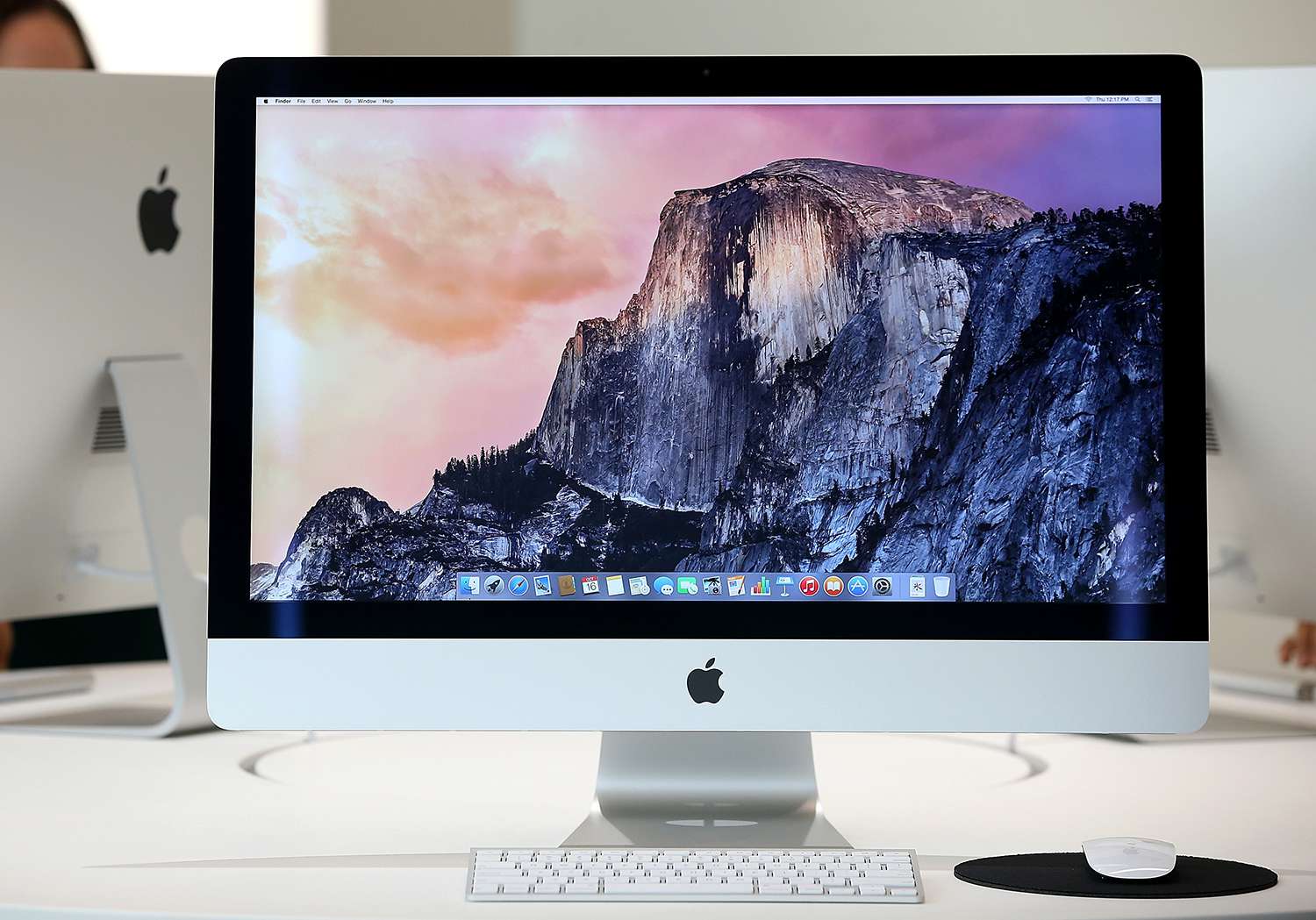
File storage, as well as the methods you employ to keep them organised, are critical. While the most essential step is properly identifying files so that you can quickly discover what you need, a more visual method to immediately recognise what you need may also help you be more productive. Changing the folder symbol to a graphic, for example, makes it easy to find what you’re looking for quickly.
You might also like

How to secure your home Wi-Fi network?

How To Fix Game Stuttering

How To Improve Cloud Gaming Performance

Source – Lifewire

Another option is to change the colour of these folders. Folder icons assist distinguish the contents of a folder, while a distinct colour can help categorise the folder by type: music, movies, photographs, and so on. 

And, if you ever feel like you’ve gone too far or want to alter up your categorization system, you can easily go back to the original symbol by pressing Command + X instead of Command + V, as seen below.

To change the folder icon –

Right-click the folder you want to modify the icon for.

  • Click Get Info from the option that appears.
  • Select the folder icon in the top-left corner of the Info dialogue box.
  • If the new icon you discovered has a.icn extension, drag it to the folder icon you want to use.
  • If the icon’s extension is.png or.jpg, double-click it to open it in Preview.
  • To pick the icon, click or press Command + A.
  • In the Preview menu bar, select Edit.
  • Select Copy from the Edit menu.
  • Press Command +V to paste the new icon into the folder Info box after selecting the folder icon in step 3 above.

To change the colour – 

  • Right-click the folder you want to modify the icon for and choose Properties.
  • Click Get Info from the option that appears.
  • Select the folder icon in the top-left corner of the Info dialogue box.
  • Select Edit from the Finder’s menu bar.
  • Select Copy from the drop-down option.
  • Spotlight may be used to search Preview.
  • To open it, click Preview.
  • Click File from the Preview menu bar.
  • To open the icon copied before, select New from Clipboard from the drop-down menu.
  • Open the Tools menu from the Preview menu bar.
  • Select Adjust Color from the Tools menu.
  • To acquire the hue you desire, adjust the Tint.
  • On the Preview menu bar, select Edit.
  • Select Copy from the Edit menu.
  • In the folder Info box, click the folder icon.
  • Select Edit from the Finder’s menu bar.
  • Select Paste from the drop-down menu.
Tags: #macosAppleFolderiosMac
Tweet54SendShare15
Previous Post

Blockchain in Real Estate Virtual Conference – 9th September 2021

Next Post

How to reconnect a Fire Stick remote

Srestha Roy

Recommended For You

How to secure your home Wi-Fi network?

by Afeefa Ansari
July 4, 2026
0
WiFi security

Do you wish to secure your Wi-Fi at home? Follow the guide to know the methods and the steps that will help you secure the network back home....

Read more

How To Fix Game Stuttering

by Khilav Jadav
July 4, 2026
0
How To Reduce Vram Usage In Games

Game stuttering is one of the most frustrating problems any PC or console gamer can face. Unlike low frame rates, stuttering happens when the game suddenly freezes or...

Read more

How To Improve Cloud Gaming Performance

by Khilav Jadav
July 4, 2026
0
How To Use DLSS In Games

Cloud gaming has changed the way people enjoy video games. Instead of downloading massive files or upgrading expensive hardware, players can stream games directly from powerful remote servers....

Read more
Next Post
How to reconnect a Fire Stick remote

How to reconnect a Fire Stick remote

Please login to join discussion

Techstory

Tech and Business News from around the world. Follow along for latest in the world of Tech, AI, Crypto, EVs, Business Personalities and more.
reach us at info@techstory.in

Advertise With Us

Reach out at - info@techstory.in

Aviator Game India 2026

BROWSE BY TAG

#Crypto #howto 2024 acquisition AI amazon Apple Artificial Intelligence bitcoin Business China cryptocurrency e-commerce electric vehicles Elon Musk Ethereum facebook funding Gaming Google India Instagram Investment ios iPhone IPO Market Markets Meta Microsoft News OpenAI samsung Social Media SpaceX startup startups tech technology Tesla TikTok trend trending twitter US

© 2025 Techstory.in

No Result
View All Result
  • News
  • Crypto
  • Gadgets
  • Memes
  • Gaming
  • Cars
  • AI
  • Startups
  • Markets
  • How to

© 2025 Techstory.in

Welcome Back!

Login to your account below

Forgotten Password?

Retrieve your password

Please enter your username or email address to reset your password.

Log In
Are you sure want to unlock this post?
Unlock left : 0
Are you sure want to cancel subscription?
