

• Send Us A Tip
  • Calling all Tech Writers
  • Advertise
Friday, June 19, 2026
  • Login
TechStory
  • News
  • Crypto
  • Gadgets
  • Memes
  • Gaming
  • Cars
  • AI
  • Startups
  • Markets
  • How to
No Result
View All Result
  • News
  • Crypto
  • Gadgets
  • Memes
  • Gaming
  • Cars
  • AI
  • Startups
  • Markets
  • How to
No Result
View All Result
TechStory
No Result
View All Result
Home How to

How to block a No Caller ID

by Srestha Roy
September 20, 2021
in How to
Reading Time: 2 mins read
0
How to block a No Caller ID

Source - iDownloadblog

TwitterWhatsappLinkedin

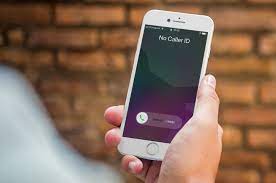
Calls with “No Caller ID” are generally from telemarketers, hackers, or spammers who are attempting to steal personal information from you. They have disabled their caller IDs on their end to hide their phone numbers, so you won’t be able to file a complaint against them. As a result, some users want to keep their caller ID concealed for privacy and security reasons.
You might also like

How To Use Discord On Xbox

How To Change Your Roblox Username

How To Get Out Of Claude Design

Source – iDownloadblog

If you find these unknown calls bothersome, you can simply block “No Caller ID” calls on your Android or iOS smartphone to get rid of them. You may do this by calling your telecom service provider and requesting that No Caller ID calls be blocked.

Block No Caller ID Calls On iPhone using the Do Not Disturb feature

  • We’ll manually block No Caller ID calls under Do Not Disturb mode. Calls with no caller ID will be immediately silenced if you do so.
  • Open the Settings app from the Home screen.
  • Toggle the Do Not Disturb switch to the on position.
  • Select Allow Calls From.
  • Then choose All Contacts from the drop-down menu.
  • As they are not kept in your contacts, all unregistered numbers and calls with no Caller ID will be muted.

Block Calls With Hidden Phone Numbers using Contacts

  • Using contacts, this approach will prevent No Caller ID calls. This means you’ll have to make a No Caller ID contact, store it in your address book, and then block it. This is how it’s done:
  • From the Home screen, open the Phone app.
  • To add a new contact, go to Contact and press the Plus symbol.
  • For the name, type No Caller ID, and for the phone number, type 000-000-0000.
  • Then press DONE.
  • Select Block this Caller from the drop-down menu.
  • Then, to confirm, press Block Contact.
  • So, if you receive a call without a contact number, it implies the caller has enabled her or his caller ID.

How to block unknown calls on your Android

  • On your Android, tap the phone symbol, which is generally at the bottom of the home screen.
  • At the top of the Phone app screen, tap the three dots.
  • In the dropdown box, select “Settings.”
  • Tap “Block numbers” and then turn the button beside “Block unknown callers” to green.

Try the app Should I Answer? for more personalised call blocking control, or if your Android is one of the few that does not allow for total blocking of unknown callers. , which searches a huge database of numbers that have been reported as spam by others and prevents them from reaching your phone.


Tags: androidBlocking numbersCaller IDiosiPhoneNo caller ID
Tweet56SendShare16
Previous Post

How to bookmark a tweet

Next Post

How to photoshop on iPhone

Srestha Roy

Recommended For You

How To Use Discord On Xbox

by Khilav Jadav
June 19, 2026
0
How to Fix Discord Awaiting Endpoint 

Discord is one of the most popular communication platforms for gamers. Thanks to official support from Microsoft, Xbox players can now use Discord voice chat while playing their...

Read more

How To Change Your Roblox Username

by Khilav Jadav
June 19, 2026
0
How to Enchant in Prospecting

Changing your username in Roblox is a great way to refresh your identity and give your account a new look. Whether you created your account years ago or...

Read more

How To Get Out Of Claude Design

by Khilav Jadav
June 19, 2026
0
How To Get Out Of Claude Design

Claude Design is a new workspace inside Claude that allows users to create prototypes, presentations, and other visual projects. While many people enjoy using it, some users accidentally...

Read more
Next Post
How to photoshop on iPhone

How to photoshop on iPhone

Please login to join discussion

Techstory

Tech and Business News from around the world. Follow along for latest in the world of Tech, AI, Crypto, EVs, Business Personalities and more.
reach us at info@techstory.in

Advertise With Us

Reach out at - info@techstory.in

Aviator Game India 2026

BROWSE BY TAG

#Crypto #howto 2024 acquisition AI amazon Apple Artificial Intelligence bitcoin Business China cryptocurrency e-commerce electric vehicles Elon Musk Ethereum facebook funding Gaming Google India Instagram Investment ios iPhone IPO Market Markets Meta Microsoft News OpenAI samsung Social Media SpaceX startup startups tech technology Tesla TikTok trend trending twitter US

© 2025 Techstory.in

No Result
View All Result
  • News
  • Crypto
  • Gadgets
  • Memes
  • Gaming
  • Cars
  • AI
  • Startups
  • Markets
  • How to

© 2025 Techstory.in

Welcome Back!

Login to your account below

Forgotten Password?

Retrieve your password

Please enter your username or email address to reset your password.

Log In
Are you sure want to unlock this post?
Unlock left : 0
Are you sure want to cancel subscription?
