Introduction
In a busy schedule, you may forget the new passcode you had set for your iPhone the previous night. When you enter a wrong passcode many times on your iPhone lock screen, you receive an alert notification. Your iPhone is disabled after that. Even after trying again, if you put a wrong passcode, you have no option other than checking how to unlock iPhone through different modes.
In this article, we will discuss different methods of how to unlock iPhone without passcode.
Fix 1: [Easiest Way] Unlock iPhone without Password/Passcode via Dr.Fone – Screen Unlock
Dr.Fone is a trusted software for Android and iOS systems. It is equipped with powerful toolkits for unlocking the screen, data recovery, transfer, system repair, data repair, and many more issues. The software keeps users’ privacy by protecting all resources from data encryption. Dr.Fone – Screen Unlock can remove all types of screen lock for all types of lock screens without losing all data. It can bypass 4 digit passcode, 6 digit passcode, Touch ID, screen time password, and face ID.
After restoring your device, you may not remember your iCloud passcode while activating it back. This software can even bypass your iCloud lock activation smoothly and help you access your phone.
Features:
- Can remove iPhone lock screen passcodes, Touch ID, and Face ID.
- Can bypass Apple ID and iCloud activation lock.
- No extra technical knowledge is necessary
- Has ‘Remove MDM’ feature that keeps all your data safe.
How to unlock iPhone without a passcode via Dr.Fone?
Steps to unlock your iPhone without a passcode:
Step 1: Connect your iPhone.
On your PC or laptop, launch Dr.Fone. Choose “Screen unlock” on the main screen.
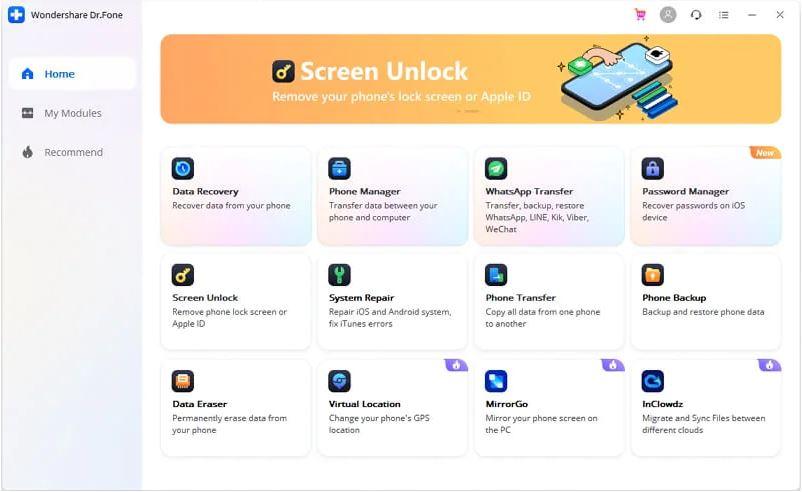
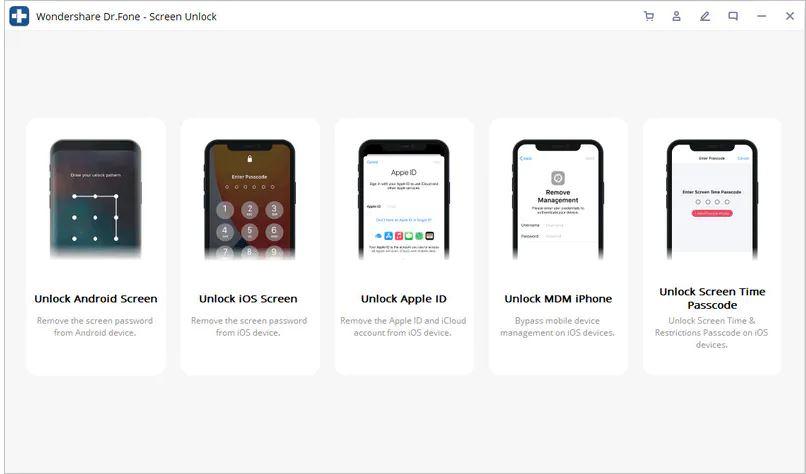
Use a data cable to connect your Apple device with your PC. Then go to the program and click on “Unlock iOS Screen”.
Step 2: Recovery or DFU mode
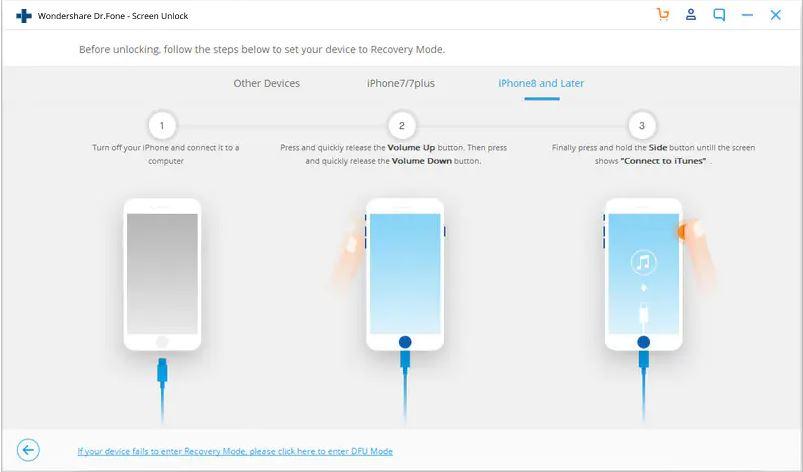
Before bypassing the iPhone lock screen, the phone has to be boot in DFU or recovery mode as per the on-screen protocols. To remove theiOS lock screen by default, we suggest the recovery mode.
Step 3: Confirm iOS device information
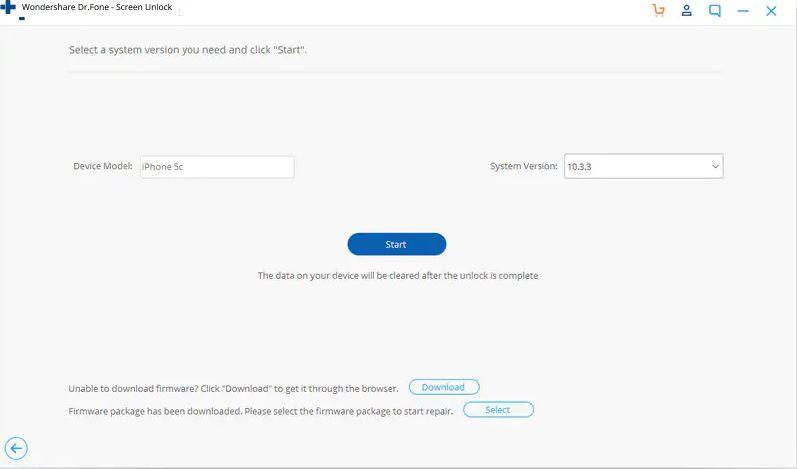
Dr.Fone – Screen Unlock (iOS) will display all your device information, for example, system version, device model, etc. If the information does not match, you can choose the correct one from the given dropdown lists. Then press on “Download”. The firmware for your device will start downloading.
Step 4: Unlock your iPhone lock screen
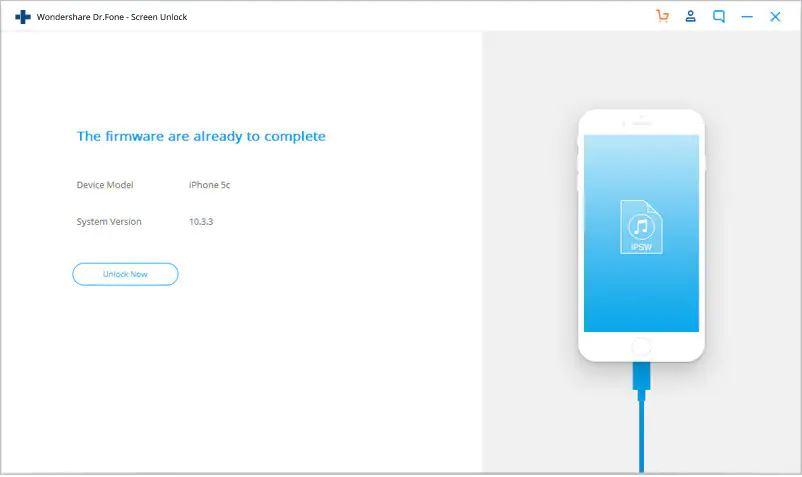
After the download gets finished properly, click on “Unlock Now”. This will start unlocking your Apple device.
Fix 2: Unlock iPhone Passcode/Password via Recovery mode
You can bypass your iPhone passcode or password with the help of recovery mode. The method is easy and is performed by connecting your device to a desktop.
How to get into a locked iPhone without the password via recovery mode?
Step 1: Connect your device
Your PC must be Windows 8 or above that. Install iTunes on your PC. Using a data cable, you need to connect your iPhone with your PC.
Step 2: Turn off your device
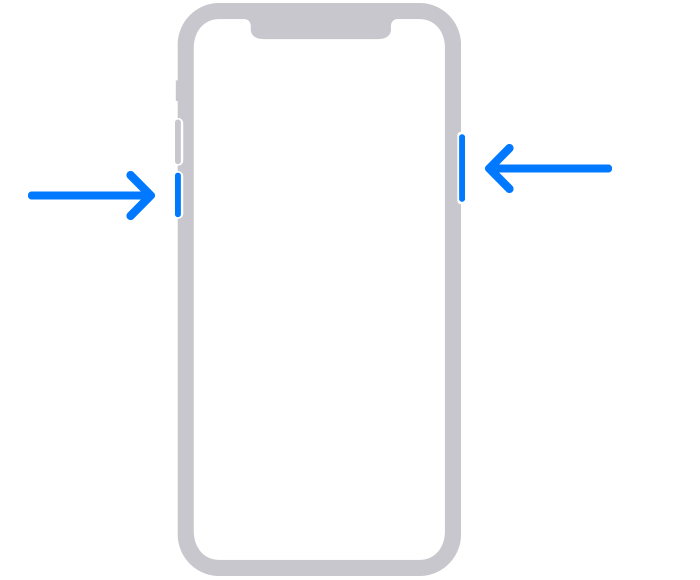
Before you connect it with your PC, turn it off. Make sure to do this using the specific model method. For iPhone X or later, iPhone SE (2nd generation), iPhone 8, and iPhone 8 Plus: Press and hold the Volume down button and both the Side button until the power off screen appears. Drag the power off slider to turn your phone off. Wait for a minute.
Step 3: Put your iPhone in recovery mode
For iPhone SE (2nd generation), iPhone 8, and iPhone 8 Plus iPhone X or later, use the Side button.
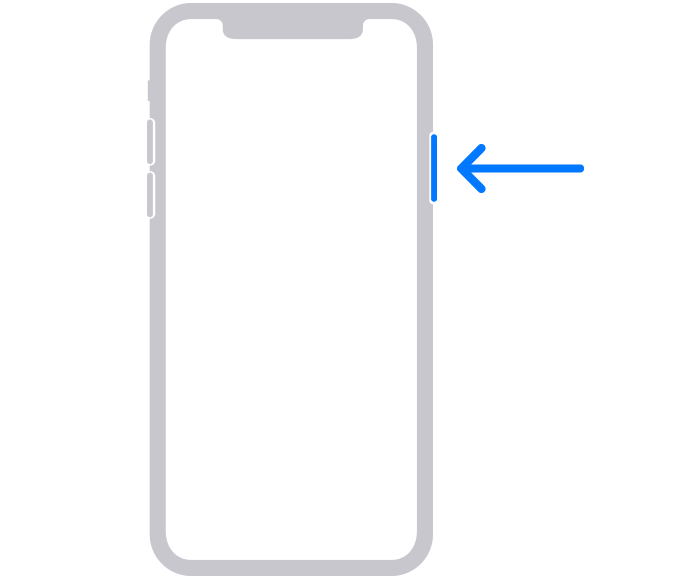
Press and hold the button for your iPhone and connect the iPhone to the computer as fast as possible. Don’t let go of the button.
Until the recovery mode screen on your iPhone appears, keep holding the button, then let go.
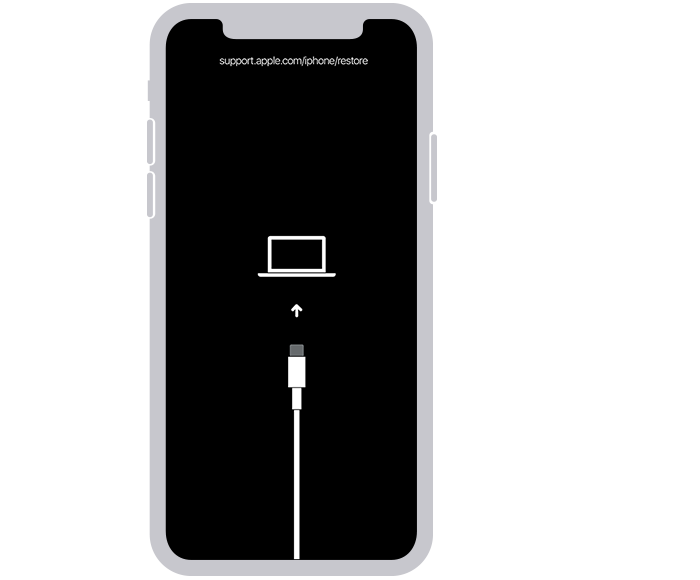
If you see the lock screen appearing, you need to shut your phone again.
Step 4: Restore your iPhone
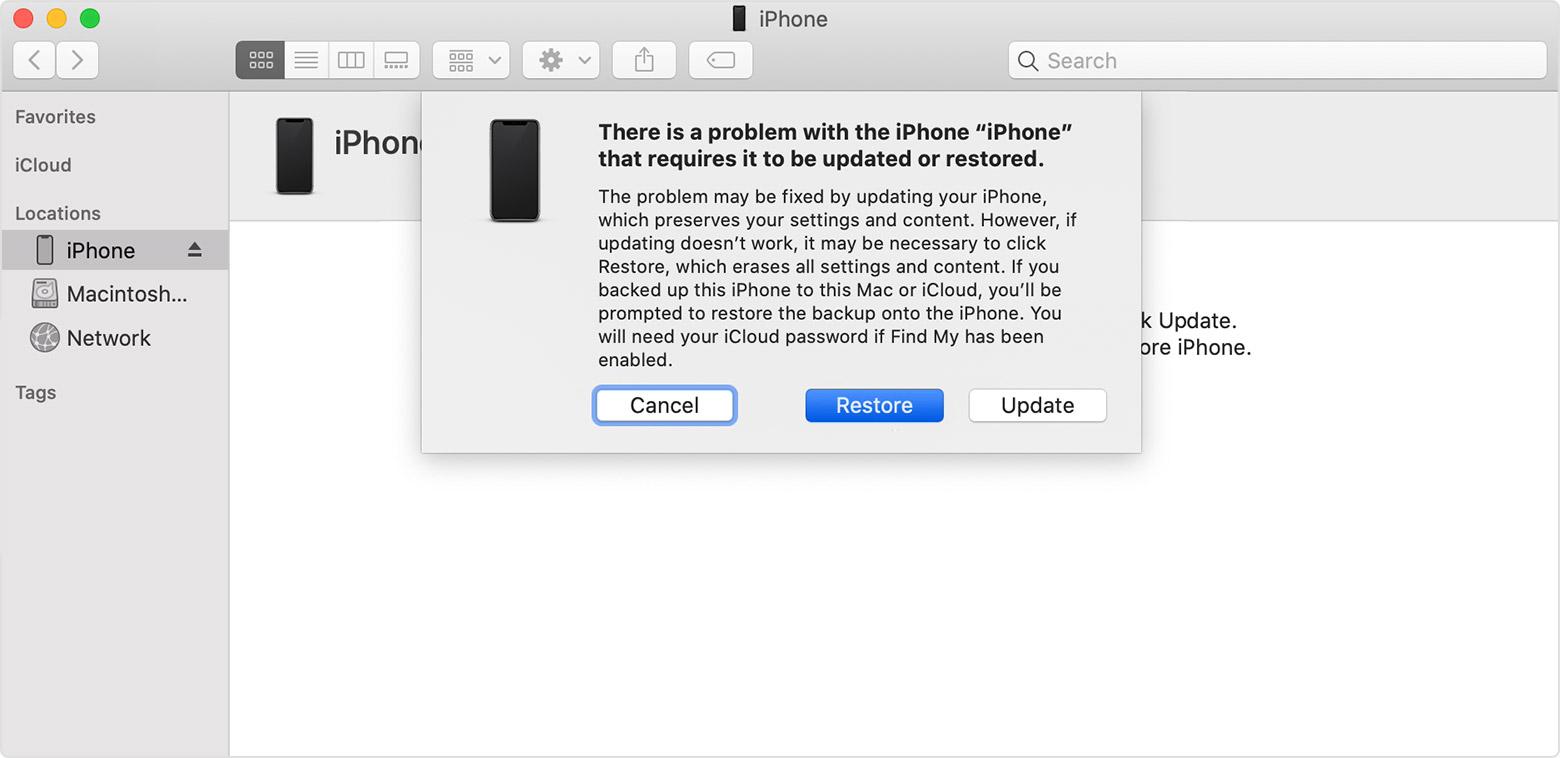
On your desktop, go to iTunes. In the Finder, locate your iPhone. When you see the options for restoring and updating, click on “Restore”. The software will be downloaded and the restore begins. If you notice that the taken time is been longer than fifteen minutes and your phone exits the recovery mode, shut down your phone and restart. Wait for the procedure to finish. Disconnect and set up.
Fix 3: Get into Locked iPhone without Passcode via Find My iPhone
The Find My iPhone feature in Apple helps to clean out everything even your passcode from the device remotely. This is a really easy method. All you need to have is the feature enabled beforehand and an internet connection.
Follow the steps unlock via Find My iPhone:
Step 1: On your desktop, go to iCloud.com
Step 2: Use your Apple ID and password of your locked device and log into the iCloud website.
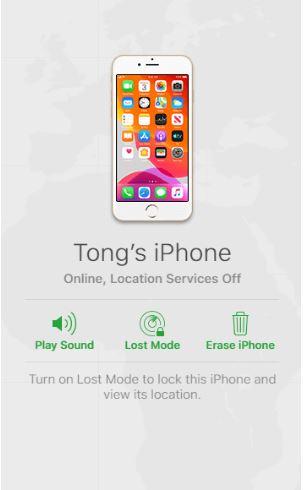
Step 3: Click on “Find My”, then click on the “All devices” option. This will view all linked devices with your Apple ID.
Step 4: Select your locked iPhone
Step 5: You will find multiple options. Click on “Erase iPhone”.
Step 6: Your iPhone will be erased including your passcode.
Closing Words
Forgetting your new iPhone passcode under stress, work pressure is common. In recent times, unlocking the locked iPhone even after losing the passcode is no more a big deal. There are several methods on how to unlock iPhone passcode. You can easily know more about how to unlock the iPhone without a passcode from this article and do it yourself. Dr.Fone is a very preferred software for bypassing the iPhone lock screen passcode. You can make use of it when hassle-free bypassing any type of iPhone lock screen is your concern.